It is 2026, and you are still running Windows Server 2016, Standard. Maybe you just reinstalled it after a hardware failure. Maybe you set up a test lab. Or maybe you inherited a server that was never properly activated in the first place. Whatever the reason, you need to get it activated, and you are wondering if it is still possible and how exactly to do it.
The short answer is yes, you can still activate Windows Server 2016 Standard in 2026. Microsoft’s activation servers remain online, and a genuine Windows Server 2016 Standard Key will work just as it always has. But there are some important things you need to know before you proceed, especially with extended support ending in January 2027.
Table of Contents
This guide walks you through every activation method step by step, explains common problems and how to fix them, and gives you practical advice on what to consider as the support deadline approaches.
Why Windows Server 2016 Standard Activation Still Matters in 2026
Some people assume that because Windows Server 2016 Standard is an older product, activation is no longer necessary or no longer works. Both assumptions are wrong.
Activation is still required. Without a valid Windows Server 2016 Standard activation, your server runs in a limited state. You will see activation watermarks, and certain functionality may be restricted. More importantly, an unactivated server cannot receive security updates and in 2026, those updates are critical because extended support is still active until January 12, 2027.
Running an unactivated server also creates compliance problems. If your organization is audited, an improperly licensed server can lead to fines and legal issues. Whether you are running this server in production, in a lab, or as a backup system, proper Windows Server 2016 Standard activation keeps you covered.
Before You Activate: What You Need
Before starting the activation process, make sure you have the following ready.
First, you need a genuine Windows Server 2016 Standard Key. This is the 25-character product key that came with your license purchase. If you bought through volume licensing, your key is available in the Microsoft Volume Licensing Service Center (VLSC). If you purchased a retail copy, the key was included in your packaging or sent via email.
Second, your server needs an internet connection for online activation. If your server is in an isolated network without internet access, you can still activate using the phone activation method, which we will cover below.
Third, make sure your server’s date and time settings are correct. Incorrect time settings can cause activation to fail because the server cannot properly communicate with Microsoft’s activation servers.
Method 1: Activate Using the GUI (Settings)
This is the simplest method and works well for most situations.
Step 1: Log in to your Windows Server 2016 Standard machine with an administrator account.
Step 2: Open Server Manager. It usually opens automatically when you log in. If not, click the Server Manager icon in the taskbar.
Step 3: In Server Manager, look at the bottom-right area of the dashboard. You will see your current activation status. If the server is not activated, it will say “Windows not activated” with a link.
Step 4: Alternatively, right-click the Start button, select System, and look for the Windows activation section. Click “Change product key” or “Activate Windows.”
Step 5: Enter your Windows Server 2016 Standard Key — the full 25-character code.
Step 6: Click Next. Your server will connect to Microsoft’s activation servers and attempt to activate online. If successful, you will see a confirmation message.
Step 7: Verify by going back to System properties. The status should now read “Windows is activated.”
Method 2: Activate Using Command Prompt (slmgr)
The command-line method is faster and is especially useful if you are managing the server remotely or prefer working in the terminal.
Step 1: Open Command Prompt as Administrator. Right-click the Start button and select “Command Prompt (Admin)” or “Windows PowerShell (Admin).”
Step 2: Install your product key by typing the following command and pressing Enter:
slmgr /ipk XXXXX-XXXXX-XXXXX-XXXXX-XXXXX
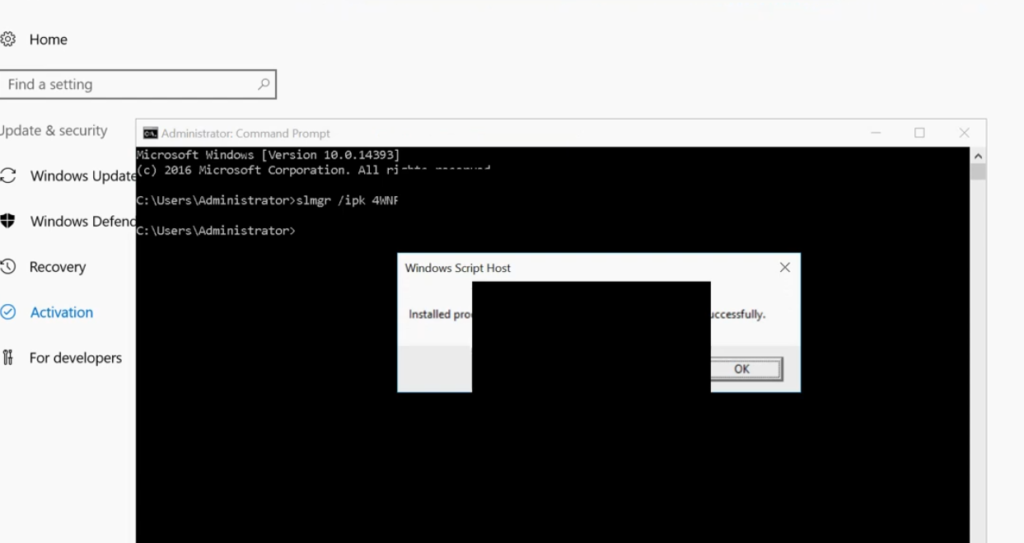
Replace the Xs with your actual Windows Server 2016 Standard Key. You will see a pop-up confirming the key was installed successfully.
Step 3: Activate online by typing:
slmgr /ato
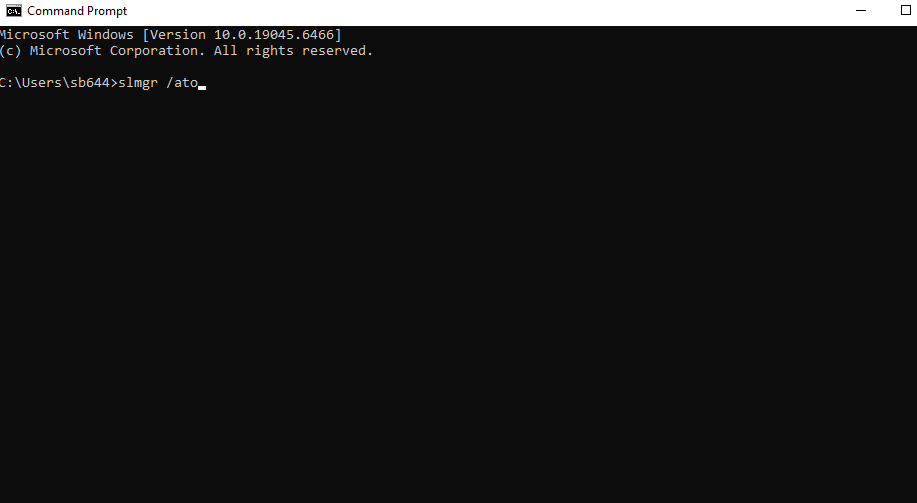
This tells the server to attempt online activation with Microsoft’s servers. If the activation succeeds, a confirmation message will appear.
Step 4: Verify the activation status by typing:
slmgr /xpr
This displays the current activation expiry status. A properly activated server will show “The machine is permanently activated.”
Step 5: For more detailed license information, you can also run:
slmgr /dli
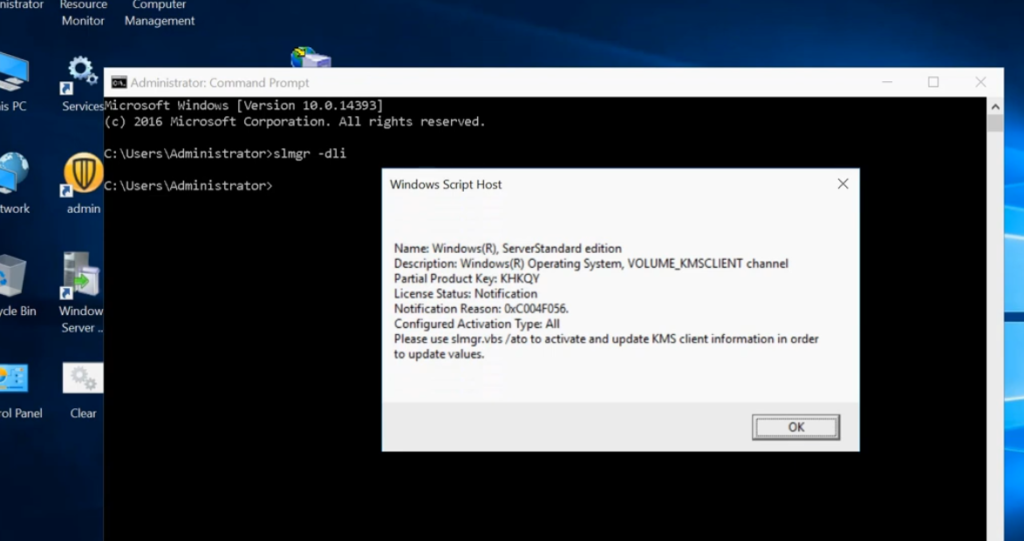
This shows the license name, description, and current status.
Method 3: Phone Activation (For Servers Without Internet)
If your Windows Server 2016 Standard is on an isolated network with no internet access, phone activation is your best option.
Step 1: Open Command Prompt as Administrator.
Step 2: Install your product key using:
slmgr /ipk XXXXX-XXXXX-XXXXX-XXXXX-XXXXX
Step 3: Launch the phone activation wizard by typing:
slui 4
Step 4: A window will appear asking you to select your country or region. Choose yours from the dropdown list.
Step 5: The wizard will display a toll-free phone number for Microsoft’s activation center and an Installation ID — a long set of numbers.
Step 6: Call the phone number, follow the automated prompts, and read out the Installation ID when asked.
Step 7: The automated system (or a support agent) will give you a Confirmation ID. Type this Confirmation ID into the wizard.
Step 8: Click Activate. Your server should now be activated without needing an internet connection.
Method 4: KMS Activation (For Organizations)
If your organization uses a Key Management Service (KMS) server, Windows Server 2016 Standard activation happens automatically on your network.
Step 1: Ensure your KMS host is set up and running with a valid KMS host key for Windows Server 2016.
Step 2: On the client server, open Command Prompt as Administrator and install the KMS client setup key:
slmgr /ipk WC2BQ-8NRM3-FDDYY-2BFGV-KHKQY
This is the publicly available KMS client setup key for Windows Server 2016 Standard published by Microsoft. It is not a product key — it simply tells the server to look for a KMS host on the network.
Step 3: If your KMS server is not discovered automatically, manually point to it:
slmgr /skms your-kms-server-name:1688
Step 4: Trigger activation:
slmgr /ato
Step 5: KMS activation is valid for 180 days and renews automatically as long as the server can contact the KMS host periodically.
Troubleshooting Common Activation Problems
Even with the right key and correct steps, activation can sometimes fail. Here are the most common issues and how to fix them.
Problem: “The product key you entered did not work.” Double-check that you are entering the correct key for Windows Server 2016 Standard — not a key for Datacenter, Essentials, or a different Windows Server version. Each edition has its own unique key.
Problem: “Unable to reach Microsoft activation servers.” Verify your internet connection. Check that your firewall is not blocking outbound connections to Microsoft’s licensing servers. Ensure your server’s date and time are accurate. If internet access is not possible, use the phone activation method described above.
Problem: “This key has already been used on the maximum number of devices.” Retail keys are typically valid for one server. If you have used the key on a previous installation, you may need to deactivate it on the old machine first or contact Microsoft support to reassign the activation.
Problem: “Error 0xC004F074 — No Key Management Service could be contacted.” This error appears when using KMS activation and the server cannot find a KMS host. Verify that your KMS host is running, that the correct port (1688) is open, and that the DNS SRV records for KMS are properly configured.
Important: Windows Server 2016 Standard Support Timeline
While Windows Server 2016 Standard activation still works perfectly in 2026, you should be aware of the approaching support deadline. Extended support for Windows Server 2016 Standard ends on January 12, 2027. After that date, Microsoft will stop releasing security updates, leaving your server vulnerable to new threats.
If you are activating Windows Server 2016 Standard in 2026, it should ideally be part of a short-term plan while you prepare to migrate to a newer version like Windows Server 2022 or Windows Server 2025. Microsoft has announced that Extended Security Updates will be available for purchase after the end-of-support date, but these come at a significant cost and are meant as a temporary bridge, not a long-term solution.
For production environments, start planning your migration now. For lab or testing environments, Windows Server 2016 Standard remains perfectly functional for learning and development purposes.
Practical Tips for a Smooth Activation
Keep these tips in mind. First, always store your Windows Server 2016 Standard Key in a secure location a password manager or a secure document. Losing your key means you cannot reactivate after a reinstall. Second, if you purchased through volume licensing, log into the VLSC portal to retrieve your keys before Microsoft makes any changes to older product availability. Third, take a screenshot or note of your activation status after successful activation for your records.
Fourth, if you are running multiple servers, KMS activation is the most efficient method because it handles activation automatically across your network. Fifth, plan your upgrade path now migrating to a supported operating system before January 2027 avoids security risks, compliance issues, and the escalating cost of Extended Security Updates.
FAQ
Can I still activate Windows Server 2016 Standard in 2026?
Yes. Microsoft’s activation servers are still active, and a genuine Windows Server 2016 Standard Key works for both online and phone activation. Activation will continue to function even after extended support ends in January 2027.
Where can I find my Windows Server 2016 Standard Key?
If you purchased through volume licensing, your key is available in the Microsoft Volume Licensing Service Center. For retail purchases, the key was included in your product packaging or emailed to you at the time of purchase. Check your purchase records or contact your IT department.
What happens if I do not activate Windows Server 2016 Standard?
Without activation, your server will run in a limited state with reduced functionality. You may see watermarks on the desktop, and the server may shut down periodically. You also will not be able to receive security updates, which is a serious risk for any production environment.
Is Windows Server 2016 Standard still safe to use in 2026?
Yes, it is still receiving security updates through extended support until January 12, 2027. However, you should begin planning your migration to a newer version like Windows Server 2022 or 2025 before that date to ensure continued security coverage.
Can I use a Windows Server 2016 Datacenter key to activate Standard?
No. Each edition requires its own specific product key. A Datacenter key will not activate a Standard installation, and vice versa. Make sure the key you are using matches the exact edition you have installed.
Final Recommendation
Activating Windows Server 2016 Standard in 2026 is straightforward. Whether you use the graphical interface, the command line, phone activation, or KMS, the process works the same as it always has. A genuine Windows Server 2016 Standard Key and a few minutes of your time are all it takes.
However, activation is only half the picture. With extended support ending on January 12, 2027, the clock is ticking. If your Windows Server 2016 Standard installation is running production workloads, now is the time to start planning your migration to a supported platform. Activate your server today to stay protected and compliant for the remaining support window, and use the coming months to evaluate your upgrade options.
A properly activated server is a properly protected server and in 2026, that protection matters more than ever.