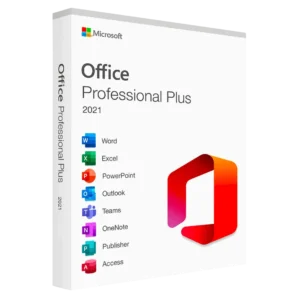
Microsoft Office 2021 Professional Plus is the most comprehensive version of Office 2021, including all applications and advanced features designed for businesses and power users. When you need to install or reinstall Office 2021 Pro Plus, obtaining the installation files directly from Microsoft ensures you receive genuine, unmodified software free from malware or unauthorized modifications.
Many users struggle to find legitimate download sources for Office 2021 Pro Plus installation files. Unlike consumer editions available through the Microsoft Store, Professional Plus is primarily distributed through Volume Licensing programs and enterprise channels. This often leads users to questionable third-party download sites that may bundle malware with installation files or provide modified versions that compromise security.
Understanding how to access official Microsoft download sources protects you from security risks while ensuring you receive the exact software you’ve purchased or licensed. Whether you’re an IT administrator deploying Office across multiple computers, a business owner installing licensed software, or an individual with a legitimate Office 2021 Professional Plus licence, knowing the proper download methods ensures safe, compliant installation.
Table of Contents
This comprehensive guide explains how to download Office 2021 Professional Plus installation files from official Microsoft sources, walks you through the Office Deployment Tool for customized installations, and provides step-by-step instructions for safe, legitimate Office installation that maintains security and licensing compliance.
Understanding Office 2021 Professional Plus
Before downloading, understanding what Office 2021 Professional Plus includes and how licensing works helps ensure you’re obtaining software you’re properly entitled to use.
What’s Included in Professional Plus
Office 2021 Professional Plus is the most feature-rich Office 2021 edition, including:
Core Applications:
- Microsoft Word
- Microsoft Excel
- Microsoft PowerPoint
- Microsoft Outlook
- Microsoft OneNote
- Microsoft Access
- Microsoft Publisher
Business Tools:
- Microsoft Teams (desktop app)
- Skype for Business
Advanced Features:
- Enhanced security and compliance capabilities
- Advanced data analysis tools in Excel
- Professional publishing features in Publisher
- Sophisticated database management with Access
Licensing and Eligibility
Office 2021 Professional Plus is available exclusively through:
Volume Licensing: Organizations purchasing multiple Office licences through Microsoft Volume Licensing programs (Open, Select, Enterprise Agreement, etc.)
Microsoft 365 Business/Enterprise Plans: Some subscription plans include rights to install Office 2021 Professional Plus as the desktop application component.
Education Licensing: Educational institutions with appropriate agreements can access Professional Plus for faculty, staff, and sometimes students.
This edition is not available for individual retail purchase. If you need Office 2021 for personal use, the retail editions (Home & Student, Home & Business, or Professional) are appropriate. If you believe you need Professional Plus, verify your licensing eligibility through your organization’s IT department or Microsoft account.
Official Microsoft Download Methods
Microsoft provides several legitimate channels for downloading Office 2021 Professional Plus installation files.
Method 1: Office Deployment Tool (Recommended)
The Office Deployment Tool (ODT) is Microsoft’s official utility for downloading and deploying Office in business environments. This is the primary method for obtaining Office 2021 Professional Plus.
What It Does: ODT downloads Office installation files directly from Microsoft’s servers based on your configuration specifications. You control which applications install, update channels, language packs, and other deployment settings.
Who Should Use It: IT administrators, businesses with volume licences, and anyone deploying Office on multiple computers benefit from ODT’s flexibility and control.
Advantages:
- Downloads directly from official Microsoft servers
- Customizable installation configurations
- Can download once and install on multiple computers
- Supports offline installation scenarios
- Always retrieves the latest version
Method 2: Volume Licensing Service Center (VLSC)
Organizations with Volume Licensing agreements can download Office installation files through the Volume Licensing Service Center.
Access Requirements: Valid Volume Licensing agreement and VLSC account credentials provided by your organization’s licensing administrator.
What’s Available: Pre-configured ISO files for Office 2021 Professional Plus in various languages and architectures (32-bit and 64-bit).
Advantages:
- Direct ISO downloads ready to burn to media
- No additional configuration required
- Convenient for organizations managing multiple installations
- Includes licence keys and documentation
Method 3: Microsoft 365 Admin Center
Organizations with Microsoft 365 subscriptions that include Office desktop applications can download installation files through the admin portal.
Access: Microsoft 365 administrators can access download options through the admin center at admin.microsoft.com.
Deployment Options: Provides links to Office Deployment Tool and configuration guidance specific to your subscription.
Method 4: Visual Studio Subscriptions
Developers with Visual Studio subscriptions (certain levels) receive access to Office Professional Plus as a benefit.
Access: Log in to visualstudio.microsoft.com/subscriptions, navigate to Downloads, and search for Office Professional Plus.
Licensing Note: Office included with Visual Studio subscriptions is typically for development and testing purposes, with specific usage terms outlined in subscription benefits.
Downloading Office 2021 Pro Plus Using Office Deployment Tool
The Office Deployment Tool provides the most flexible and widely accessible method for legitimate Office 2021 Professional Plus downloads.
Step 1: Download the Office Deployment Tool

Step 1: Visit the official Microsoft Download Center at microsoft.com/download.
Step 2: Search for “Office Deployment Tool” or navigate directly to the Office Deployment Tool download page.
Step 3: Click “Download” to get the self-extracting executable file (typically named officedeploymenttool_xxxxx.exe where xxxxx is the version number).
Step 4: Save the file to an easily accessible location like your Desktop or Downloads folder.
Step 5: The download is small (usually under 5 MB) and completes quickly.
Step 2: Extract the Office Deployment Tool

Step 1: Locate the downloaded officedeploymenttool executable file.
Step 2: Double-click the file to run it.
Step 3: Accept the license agreement when prompted.
Step 4: Choose an extraction location. Create a dedicated folder like “C:\ODT” or “C:\OfficeInstall” for organization.
Step 5: Click “OK” to extract the files.
Step 6: The extraction creates several files including:
- setup.exe (the installation engine)
- configuration-Office2021Enterprise.xml (sample configuration file)
- configuration-Office2019Enterprise.xml (for Office 2019)
- configuration-Office365-x64.xml (for Microsoft 365)
Step 3: Create or Modify Configuration File
The configuration XML file tells the Office Deployment Tool what to download and how to configure the installation.
Step 1: Open the extracted folder containing the ODT files.
Step 2: Right-click in the folder and select New > Text Document.
Step 3: Name it “configuration.xml” (ensure it has the .xml extension, not .txt).
Step 4: Right-click the configuration.xml file and open with Notepad or your preferred text editor.
Step 5: Copy and paste this basic configuration for Office 2021 Professional Plus:
xml
<Configuration>
  <Add SourcePath="C:\ODT\Office" OfficeClientEdition="64" Channel="PerpetualVL2021">
    <Product ID="ProPlus2021Volume" PIDKEY="FXYTK-NJJ8C-GB6DW-3DYQT-6F7TH">
      <Language ID="en-us" />
    </Product>
  </Add>
  <Display Level="Full" AcceptEULA="TRUE" />
</Configuration>
Important Notes About Configuration:
SourcePath: Specifies where to download Office files (change to your preferred location)
OfficeClientEdition: Choose “64” for 64-bit or “32” for 32-bit (64-bit recommended for modern systems)
Channel: “PerpetualVL2021” specifies Office 2021 volume licence channel
Product ID: “ProPlus2021Volume” indicates Professional Plus 2021
PIDKEY: The example shows Microsoft’s generic volume licence key (GVLK) used with Key Management Service (KMS) or Multiple Activation Key (MAK). Replace with your actual product key if you have one.
Language ID: Change “en-us” to your preferred language code (e.g., “de-de” for German, “fr-fr” for French)
Step 6: Save the configuration.xml file after customization.
Step 4: Download Office Files Using ODT
Step 1: Open Command Prompt as administrator. Press Windows + X and select “Command Prompt (Admin)” or “Windows PowerShell (Admin).”
Step 2: Navigate to your ODT folder using the cd command. For example:
cd C:\ODTStep 3: Run the download command:
setup.exe /download configuration.xmlStep 4: The Office Deployment Tool begins downloading Office 2021 Professional Plus files from Microsoft’s servers. This is a large download (typically 3-4 GB) and takes time depending on your internet connection.
Step 5: Monitor the Command Prompt window. A successful download shows minimal output—the window may appear inactive but is downloading in the background.
Step 6: When the download completes (Command Prompt returns to the prompt without errors), the Office files are ready in your specified SourcePath location.
Step 7: Navigate to the SourcePath folder (e.g., C:\ODT\Office) to verify the downloaded files. You should see multiple folders and files including Office installation data.
Troubleshooting Download Issues:
If the download fails or hangs:
- Verify your internet connection is stable
- Check that your firewall isn’t blocking the download
- Ensure the SourcePath folder exists and you have write permissions
- Verify your configuration.xml syntax is correct (XML is sensitive to formatting)
Step 5: Install Office 2021 Professional Plus
After downloading, use the Office Deployment Tool to install:
Step 1: Ensure you’re still in the ODT folder in Command Prompt (as administrator).
Step 2: Run the installation command:
setup.exe /configure configuration.xmlStep 3: The installation process begins. You may see a progress window showing installation status.
Step 4: Installation typically takes 10-30 minutes depending on your computer’s performance and which applications you’re installing.
Step 5: Once complete, Office 2021 Professional Plus applications appear in your Start menu.
Step 6: Open any Office application (like Word or Excel) to complete first-run setup.
Step 6: Activate Office
Step 1: Open any Office application.
Step 2: You may see an activation prompt. Click “Activate” or go to File > Account.
Step 3: If you have a product key, enter it when prompted.
Step 4: If your organization uses KMS or MAK activation, Office should activate automatically once connected to your organization’s network.
Step 5: Verify activation status under File > Account. You should see “Product Activated” or your subscription information.
Activation Methods:
KMS (Key Management Service): Organizations with KMS servers provide automatic activation when computers connect to the corporate network.
MAK (Multiple Activation Key): A key that activates a specific number of installations, tracked by Microsoft’s activation servers.
Subscription Activation: Microsoft 365 subscriptions activate Office through your signed-in Microsoft account.
Alternative: Downloading from Volume Licensing Service Center
If you have access to the Volume Licensing Service Center, direct ISO downloads offer simplicity.
Accessing VLSC Downloads
Step 1: Navigate to microsoft.com/licensing/servicecenter and sign in with your VLSC credentials.
Step 2: Click “Downloads and Keys” from the main menu.
Step 3: In the search box, type “Office Professional Plus 2021” and filter results.
Step 4: Select the appropriate version for your needs:
- Language (English, Spanish, French, etc.)
- Architecture (32-bit or 64-bit)
- File type (typically ISO)
Step 5: Click “Download” next to your selection.
Step 6: Choose a download method:
- Download Manager: Microsoft’s download utility for managing large downloads
- Direct Download: Browser-based download (may be less reliable for large files)
Step 7: Save the ISO file to your computer.
Step 8: Once downloaded, you can burn the ISO to a DVD, mount it as a virtual drive, or extract it to install Office.
Installing from VLSC ISO
Step 1: Right-click the downloaded ISO file and select “Mount” (Windows 8 and later) to create a virtual drive.
Step 2: Open File Explorer and navigate to the mounted drive.
Step 3: Double-click setup.exe to begin installation.
Step 4: Follow the installation wizard prompts.
Step 5: Accept the license agreement and choose installation options.
Step 6: Wait for installation to complete.
Step 7: Activate Office using your organization’s product key or activation method.
Important Licensing and Compliance Considerations
Downloading and installing Office 2021 Professional Plus requires proper licensing to remain legal and compliant.
Verify Your Licensing Rights
Before downloading, confirm you have legitimate access to Office 2021 Professional Plus through:
Volume Licensing Agreement: Your organization purchased Office through a Microsoft Volume Licensing program.
Microsoft 365 Subscription: Your subscription plan includes Office Professional Plus desktop applications.
Educational Licensing: Your institution provides access through academic licensing agreements.
Developer Subscription: Your Visual Studio subscription level includes Office as a benefit.
Licensing Compliance
One Licence Per Device: Each computer running Office requires its own licence unless your agreement specifically allows for multiple installations.
Authorized Users Only: Only individuals authorized by your organization’s licensing agreement should use Office installations.
Proper Activation: All Office installations must be properly activated using legitimate product keys or organizational activation methods.
No Redistribution: Volume Licensing agreements prohibit redistributing Office installation files or product keys to unauthorized parties.
Security Best Practices
Download Only from Official Sources: Always obtain Office installation files directly from Microsoft through authorized channels.
Verify File Integrity: If downloading ISOs from VLSC, verify file checksums if provided to ensure download integrity.
Avoid Third-Party Sites: Never download Office from file-sharing sites, torrent sites, or unofficial sources that may include malware.
Keep Installation Files Secure: Store Office installation files and product keys securely, accessible only to authorized IT staff.
Regular Updates: After installation, enable automatic updates to receive security patches and bug fixes.
Troubleshooting Common Download and Installation Issues
Even when following official methods, you might encounter problems. Here are solutions to common issues.
Office Deployment Tool Download Fails
If ODT fails to download Office files:
Solution 1: Check internet connectivity. Ensure you have a stable connection capable of downloading several gigabytes.
Solution 2: Verify firewall settings. Temporarily disable firewalls or add exceptions for setup.exe and Microsoft Office domains.
Solution 3: Check proxy settings. If your organization uses a proxy, ODT may need proxy configuration in your XML file.
Solution 4: Validate XML syntax. Even minor XML formatting errors prevent downloads. Use an XML validator to check your configuration file.
Solution 5: Run Command Prompt as administrator. Insufficient permissions can cause download failures.
“Product key is invalid” During Activation
If Office rejects your product key:
Solution 1: Verify you’re entering the correct key for Office 2021 Professional Plus (not Office 2019, Microsoft 365, or different editions).
Solution 2: Ensure your key hasn’t exceeded its activation limit if using a MAK key.
Solution 3: Check internet connectivity. Activation requires communication with Microsoft’s servers.
Solution 4: Contact your organization’s licensing administrator to verify the key is active and properly assigned.
Solution 5: If using KMS activation, ensure your computer can reach your organization’s KMS server.
Installation Hangs or Freezes
If Office installation stops responding:
Solution 1: Close all running applications before installing Office. Other software can conflict with installation.
Solution 2: Temporarily disable antivirus software during installation (re-enable immediately after).
Solution 3: Ensure sufficient disk space. Office 2021 requires at least 4 GB free space, but more is recommended.
Solution 4: Check Task Manager for hung processes. End any setup.exe or OfficeClickToRun.exe processes and retry.
Solution 5: Restart your computer and attempt installation again with a clean system state.
Office Applications Don’t Appear After Installation
If Office doesn’t show in your Start menu after installation:
Solution 1: Restart your computer to ensure all shortcuts and registry entries finalize.
Solution 2: Search for application names directly (Word, Excel, PowerPoint) using Windows search.
Solution 3: Navigate to C:\Program Files\Microsoft Office\root\Office16 (or Office15) and manually launch applications.
Solution 4: Run the installation again with the /configure command to repair the installation.
Solution 5: Completely uninstall Office using the Office uninstall tool and reinstall fresh.
Frequently Asked Questions (FAQs)
Can I download Office 2021 Professional Plus without a Volume Licensing agreement?
No, Office 2021 Professional Plus is exclusively available through Volume Licensing, Microsoft 365 enterprise subscriptions, or specific developer/education programs. It’s not sold as a retail product for individual purchase. If you need Office 2021 for personal or small business use, the appropriate retail editions are Home & Student, Home & Business, or Professional (which includes Access and Publisher like Pro Plus but uses different licensing).
Is it legal to download Office 2021 Pro Plus ISO from third-party websites?
Downloading Office installation files from unofficial third-party websites creates several risks and concerns. While possessing installation files isn’t inherently illegal if you have a legitimate licence, third-party sites often provide modified files containing malware, unauthorized activation tools, or other security risks. Microsoft’s licensing terms require obtaining software through authorized channels. Always download from official Microsoft sources to ensure security, compliance, and authenticity.
Do I need an internet connection to install Office after downloading?
After downloading Office installation files using the Office Deployment Tool, you can perform offline installation without internet connectivity. The ODT downloads all necessary files to your specified SourcePath location. You can then copy these files to other computers and install without internet access. However, Office activation typically requires internet connectivity to verify your product key or connect to your organization’s activation servers, though some activation methods like KMS can work on local networks.
Can I use the downloaded Office files to install on multiple computers?
Yes, if your Volume Licensing agreement covers multiple installations. The Office files downloaded via ODT can be used to install Office on as many computers as your licensing allows. However, each installation requires proper activation according to your licensing terms—you cannot exceed the number of licences you’ve purchased. For organizations managing many installations, this download-once-install-many approach is exactly what ODT is designed for.
What’s the difference between 32-bit and 64-bit Office, and which should I download?
64-bit Office handles larger files and data sets more effectively, utilizing more than 4 GB of RAM when needed. It’s recommended for modern computers with 64-bit Windows and 4 GB+ RAM. 32-bit Office is compatible with older 32-bit Windows installations and older add-ins that may not work with 64-bit Office. For most users with modern computers, 64-bit is the appropriate choice. Microsoft recommends 64-bit unless you have specific compatibility requirements for 32-bit add-ins or applications.
How do I update Office 2021 Professional Plus after installation?
Office 2021 receives security updates and bug fixes (but not feature updates) through Windows Update or Office’s built-in update mechanism. Open any Office application, go to File > Account > Update Options, and select “Update Now” to check for available updates. Administrators can configure update settings in the ODT configuration file to control update channels, timing, and sources. Regular updates are essential for security and stability.
Conclusion
Downloading Office 2021 Professional Plus directly from Microsoft ensures you receive genuine, secure software free from malware or unauthorized modifications. The Office Deployment Tool provides the most flexible and widely accessible method for legitimate downloads, offering customizable configuration options that suit various deployment scenarios from single installations to enterprise-wide deployments.
Understanding proper licensing and eligibility is crucial Office 2021 Professional Plus is available exclusively through Volume Licensing, Microsoft 365 enterprise subscriptions, or specific institutional programs. If you have legitimate access through one of these channels, the methods outlined in this guide enable safe, compliant downloads and installations that protect your organization’s security while respecting Microsoft’s licensing terms.
The Office Deployment Tool might seem complex initially, but its XML configuration approach provides granular control over installations while ensuring downloads come directly from Microsoft’s official servers. For organizations with Volume Licensing Service Center access, direct ISO downloads offer a simpler alternative with pre-configured installation packages.
Always prioritize security by downloading exclusively from official Microsoft sources, avoiding third-party websites that may bundle malware with installation files. Maintain licensing compliance by verifying your eligibility, using Office only within your licensing agreement terms, and properly activating all installations using legitimate product keys or organizational activation methods.
Whether you’re an IT administrator deploying Office across your organization or an individual installing licensed software, following these official download methods protects your systems, maintains compliance, and ensures you receive the full, authentic Office 2021 Professional Plus experience with access to updates, security patches, and Microsoft support.
If you need Office software and aren’t eligible for Professional Plus through Volume Licensing, consider the appropriate retail editions or Microsoft 365 subscriptions for your needs. For legitimate Office digital licences with secure delivery and activation support, choose trusted, authorized Microsoft partners with verified credentials and positive customer reviews.