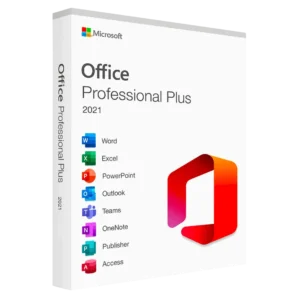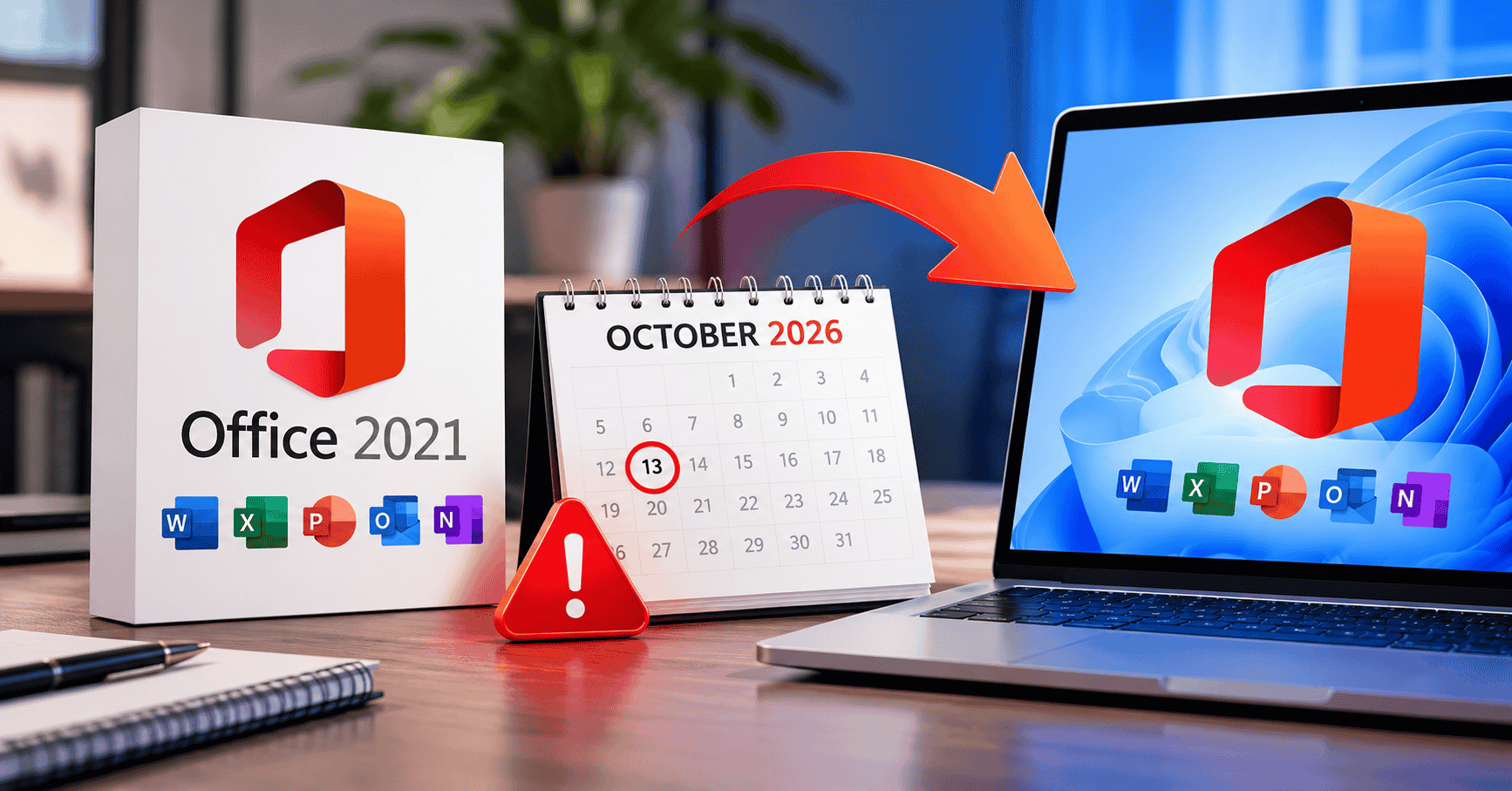
If you’re still using Microsoft Office 2021, there’s an important date you should know: Office 2021 support ends on October 13, 2026.
That doesn’t mean Office 2021 will suddenly stop working on October 14. Your Word documents will still open, Excel will still calculate formulas, and PowerPoint will still let you create presentations. However, Microsoft will stop providing regular security updates and technical support for the product.
For people who use Office every day, that distinction matters.
An unsupported version of Office can continue working for years, but continuing to use it means accepting additional security and compatibility risks over time. If you rely on Office for work, school, business, or important personal documents, it’s worth deciding what you want to do before support officially ends.
The good news is that you have several options. You can move to a newer perpetual version such as Office 2024, switch to Microsoft 365, or continue using Office 2021 if its limitations are acceptable for your situation.
This guide explains exactly what happens when Office 2021 reaches its end of support, what it means for your existing installation, and how to choose your next step.
Table of Contents
What Does “Office 2021 Support Ends” Actually Mean?
Microsoft Office products have a defined support lifecycle. During the supported period, Microsoft provides security updates, bug fixes, and technical assistance according to the product’s lifecycle policy.
For Office 2021, mainstream support and the full support period are ending in October 2026.
The important point is that end of support is not the same as end of functionality.
Your Office 2021 installation doesn’t automatically become unusable when the support date arrives.
For example, you may still be able to:
- Open and edit Word documents
- Create Excel spreadsheets
- Make PowerPoint presentations
- Use Outlook where supported
- Access existing Office files
- Print documents
- Use many existing Office features
However, Microsoft will no longer provide the same ongoing security maintenance after the end-of-support date.
That creates a different question:
If Office 2021 still works, should you keep using it?
The answer depends on how you use your computer and how important security, compatibility, and ongoing updates are to you.
When Does Office 2021 Support End?
Microsoft Office 2021 reaches its official end of support on October 13, 2026.
That date applies to the Office 2021 product lifecycle and is separate from Windows support dates.
It is also worth remembering that different Microsoft products can have completely different lifecycle dates. Having a supported version of Windows, for example, doesn’t automatically mean that an older Office installation will continue receiving security updates.
If you’re using Office 2021 today, October 2026 is therefore a good deadline to use for planning your next move.
Will Office 2021 Stop Working After October 2026?
No.
This is one of the most common misunderstandings surrounding product end-of-support dates.
Office 2021 is not expected to suddenly stop working simply because Microsoft ends support.
If Office 2021 is installed and activated on your computer, the applications can continue functioning after the support deadline.
You can still potentially use applications such as:
- Microsoft Word
- Microsoft Excel
- Microsoft PowerPoint
- Microsoft Outlook
- Microsoft OneNote
- Microsoft Access
- Microsoft Publisher, depending on your edition and installation
The problem is not that the software instantly disappears.
The bigger issue is what happens afterward.
As time passes, an unsupported Office version can become increasingly outdated. New security vulnerabilities may not receive fixes, and compatibility with newer operating systems, services, file formats, or online features can become more complicated.
What Happens When Microsoft Office 2021 Reaches End of Support?
There are several consequences to understand.
1. Security Updates Stop
This is probably the biggest concern.
Office applications handle files from many different sources, including email attachments, downloaded documents, spreadsheets, presentations, and files shared through collaboration platforms.
Security vulnerabilities can sometimes be discovered years after software is released.
Once Office 2021 reaches the end of its support lifecycle, Microsoft will no longer provide normal security updates for the product.
That means any newly discovered vulnerability could remain unpatched.
For a computer used for sensitive business information, financial documents, customer information, or other important data, this deserves serious consideration.
2. Technical Support Ends
Microsoft’s official technical support for Office 2021 also ends.
If you encounter a problem that requires Microsoft assistance, you shouldn’t expect the same level of official support available for a currently supported product.
This doesn’t mean you’ll have no troubleshooting options. Online documentation, community forums, and independent technical resources can still help.
But official product support becomes limited once the lifecycle ends.
3. Compatibility Can Become a Bigger Issue
Office 2021 may continue working perfectly well for years.
However, technology around it keeps changing.
Operating systems receive updates. Cloud services change. Microsoft accounts evolve. File formats can gain new features. Other applications may also receive major updates.
Over time, an older Office version may not provide the same level of compatibility as a newer release.
This doesn’t necessarily happen immediately after October 2026. Compatibility problems generally develop gradually rather than appearing overnight.
4. New Features Won’t Be Added
Office 2021 is a perpetual-license product rather than a continuously updated Microsoft 365 subscription.
It was designed to provide a fixed set of Office features.
If Microsoft introduces new functionality after Office 2021’s lifecycle ends, you shouldn’t expect those features to be added to Office 2021.
If having the latest productivity features is important to you, Microsoft 365 or a newer Office release may make more sense.
Should You Upgrade From Office 2021?
There isn’t one answer that applies to everyone.
Your decision should depend on how you use Office.
For example, someone who uses Word occasionally to write letters has different requirements from a company that handles hundreds of Excel spreadsheets every week.
Here are some situations where upgrading deserves consideration.
You Should Consider Upgrading If You Use Office for Business
Businesses generally have more reasons to keep software supported.
A company may have:
- Customer information
- Financial records
- Internal documents
- Contracts
- Employee information
- Business spreadsheets
- Email accounts
- Shared files
Using unsupported productivity software can introduce unnecessary security and compatibility concerns.
If Office is an important part of your business workflow, planning the transition before October 2026 gives you time to test the new installation and make sure everything works properly.
You Should Consider Upgrading If You Receive Lots of Email Attachments
Email is one of the common ways malicious documents can reach a computer.
If you regularly receive Word, Excel, or PowerPoint files from customers, suppliers, colleagues, or unknown contacts, keeping your software supported is particularly important.
A supported Office version can receive security fixes for vulnerabilities discovered during its supported lifecycle.
Of course, keeping Office updated isn’t enough by itself. You should still use antivirus protection, avoid suspicious attachments, and follow good security practices.
You May Be Able to Keep Office 2021 If You Only Need Basic Features
Not everyone needs the latest Office features.
If you mainly use Word for simple documents or Excel for basic spreadsheets, Office 2021 may continue to meet your requirements from a functionality perspective.
The important consideration is whether you’re comfortable continuing to use an unsupported product.
If you decide to keep it, make sure your operating system and other security software remain properly updated and consider the security implications carefully.
Office 2021 vs Office 2024
One obvious upgrade path is moving from Office 2021 to Office 2024.
Office 2024 is another perpetual-license version of Microsoft Office. Unlike Microsoft 365, it isn’t primarily based around a recurring subscription.
That makes it attractive to people who prefer buying Office once rather than paying a monthly or annual subscription.
What Is Office 2024?
Office 2024 is Microsoft’s newer perpetual Office release.
Depending on the edition, it can include applications such as:
- Word
- Excel
- PowerPoint
- Outlook
- OneNote
- Access
- Publisher
The exact applications depend on the edition and licensing arrangement.
Office 2024 is designed for people who want a traditional Office installation while moving to a newer supported release.
If you’re specifically looking for a newer perpetual version, you can explore available Office products on NoxKeys.
Office 2021 vs Office 2024: What’s Different?
The biggest difference isn’t simply the application names.
The important differences include:
Office 2021
- Older perpetual release
- Support ends October 13, 2026
- Fixed feature set
- No ongoing feature additions like Microsoft 365
- Can continue working after end of support
Office 2024
- Newer perpetual release
- Longer support lifecycle than Office 2021
- Newer versions of Office applications
- Suitable for users who prefer a one-time purchase
- Does not provide the same continuous feature model as Microsoft 365
If your main reason for upgrading is simply to move away from an approaching end-of-support product, Office 2024 is one option worth considering.
Office 2021 vs Microsoft 365
Another option is Microsoft 365.
Unlike Office 2021 and Office 2024, Microsoft 365 follows a subscription model.
Instead of buying a perpetual version and keeping that specific release, you pay for the subscription and receive access to Microsoft’s continuously updated Office applications and services.
Why Choose Microsoft 365?
Microsoft 365 can be useful if you want:
- Continuous Office updates
- New features as they’re released
- Cloud storage through OneDrive
- Collaboration features
- Access across supported devices
- Integration with Microsoft’s cloud ecosystem
For users who frequently work across multiple devices, Microsoft 365 can be particularly convenient.
However, subscriptions aren’t ideal for everyone.
If you dislike recurring payments and only need a traditional desktop Office installation, a perpetual version such as Office 2024 may better fit your purchasing preference.
Do You Need to Buy Office Again?
If you already own a legitimate Office 2021 license, reaching end of support doesn’t automatically mean your license becomes invalid.
The key distinction is between license validity and product support.
Your existing Office 2021 license may continue to activate and allow you to use the software even after support ends.
However, you don’t receive a free upgrade to Office 2024 simply because Office 2021 has reached end of support.
A newer version generally requires its own license or subscription.
Before purchasing anything, check which Office edition you currently have and how it is licensed.
How to Check Which Office Version You Have
Not sure whether you’re using Office 2021?
You can check directly from an Office application.
Step 1: Open Word or Excel
Launch Microsoft Word, Excel, or another Office application.
Step 2: Open Account
Select File and then choose Account.
Step 3: Check Product Information
Look under Product Information.
You’ll typically see the Office product name and information about activation.
For example, it may say:
- Office Home & Business 2021
- Office Professional Plus 2021
- Microsoft 365 Apps
- Office LTSC 2021
The exact wording depends on the edition and installation method.
If it says Office 2021, the October 2026 support deadline is relevant to you.
How to Prepare for the Office 2021 End-of-Support Date
You don’t need to wait until October 2026 to make a decision.
In fact, preparing early can make the transition easier.
1. Identify Your Current Office Edition
First, determine exactly what you have installed.
Don’t assume that every Office 2021 installation is identical.
Check:
- Product name
- Edition
- Activation status
- 32-bit or 64-bit installation
- Connected Microsoft account
- Important Office add-ins
This information can be useful when deciding what to install next.
2. Check Your Important Files
Look through the documents and spreadsheets you use regularly.
Pay particular attention to:
- Excel macros
- VBA projects
- Complex formulas
- Custom templates
- Word add-ins
- Outlook configurations
- Third-party Office extensions
If your work depends on specialized Office features, test them before moving to another version.
3. Back Up Your Important Documents
Before changing your Office installation, make sure important files are backed up.
You can use:
- OneDrive
- An external drive
- Another trusted cloud-storage provider
- A local backup
Don’t rely on the Office installation itself as your only copy of important documents.
4. Decide Between Perpetual Office and Microsoft 365
This is one of the biggest decisions.
Ask yourself:
Do I want a one-time purchase or an ongoing subscription?
If you prefer a traditional license, Office 2024 may be worth researching.
If you want continuously updated applications and cloud services, Microsoft 365 may be more suitable.
There is no universal answer because the two products follow different licensing and feature models.
5. Test Before You Fully Switch
If you use Office for work, don’t wait until the last day.
Install the newer version on a test computer if possible.
Open your most important files.
Check:
- Formatting
- Excel formulas
- Macros
- Add-ins
- Printing
- PDF export
- Outlook functionality
- File sharing
A little testing can prevent a major disruption later.
Can You Still Use Office 2021 After October 2026?
Yes, the software itself can continue to work.
However, continuing to use an unsupported product comes with an important trade-off: you’re choosing to keep using software that no longer receives Microsoft’s normal security maintenance.
For a personal computer used occasionally, the practical impact may initially be less noticeable.
For a business computer containing sensitive information, the risk considerations are different.
That’s why the decision shouldn’t simply be:
“Does Office 2021 still open?”
Instead, ask:
“Am I comfortable relying on software that is no longer receiving security support?”
That’s a much more useful question.
What About Office 2021 Activation?
End of support doesn’t mean that existing activation suddenly disappears.
If your Office 2021 installation is properly licensed and activated, you should not expect the October 2026 lifecycle date itself to deactivate it.
However, activation problems can happen for other reasons.
For example:
- Hardware changes
- Reinstallation
- Incorrect product editions
- Microsoft account issues
- License-related problems
- Network connectivity
- Changes to activation infrastructure
If you need to reinstall Office, keep your legitimate license information and Microsoft account details available.
What Should Businesses Do Before October 2026?
Businesses should ideally avoid treating the end-of-support date as a last-minute upgrade project.
A simple transition plan can help.
Audit your installations
Create a list of computers currently running Office 2021.
Identify critical users
Some employees may depend heavily on Excel macros, Outlook, specialized add-ins, or custom templates.
Test the replacement
Choose the target Office version and test it with your existing workflow.
Review licensing
Make sure every installation has an appropriate license.
Back up important data
Protect business documents before making significant software changes.
Schedule the migration
Perform the transition in stages where possible instead of changing every computer at once.
This approach can reduce downtime and give your IT team time to resolve compatibility issues.
Is Office 2024 a Good Alternative to Office 2021?
Office 2024 provides a newer perpetual Office option for users who don’t want to move to Microsoft 365.
It can be particularly relevant if you prefer:
- A traditional desktop Office experience
- A one-time purchase model
- No recurring Microsoft 365 subscription
- A newer Office release
- A longer support period than Office 2021
However, Office 2024 isn’t identical to Microsoft 365.
Microsoft 365 generally receives continuous feature updates, while perpetual Office releases provide a defined set of features.
Before purchasing, compare the applications, features, licensing terms, and number of devices supported by the specific edition you’re considering.
You can also browse the latest Office options available from NoxKeys.
Frequently Asked Questions
Does Office 2021 stop working in October 2026?
No. Office 2021 doesn’t automatically stop working when support ends. Existing installations can continue to function, but Microsoft will no longer provide normal support and security updates after the end-of-support date.
What is the exact Office 2021 end-of-support date?
Microsoft Office 2021 reaches end of support on October 13, 2026.
Can I use Office 2021 after support ends?
Yes. You can continue using an existing installation, but you’ll be using an unsupported product without ongoing security updates from Microsoft.
Should I upgrade to Office 2024?
Office 2024 is one possible upgrade path for people who prefer a newer perpetual Office version. Whether it’s appropriate depends on your requirements, licensing preferences, applications, and budget.
Is Microsoft 365 better than Office 2021?
They use different models. Office 2021 is a perpetual version, while Microsoft 365 is subscription-based and provides continuously updated applications and additional cloud services. The right choice depends on what features and licensing model you want.
Do I have to buy Office again after Office 2021 ends?
Not simply because support ends. Your existing Office 2021 license can continue to be used, subject to its licensing terms. If you want Office 2024 or Microsoft 365, however, you’ll generally need the appropriate new license or subscription.
Will my Word and Excel files disappear?
No. The end of Office 2021 support doesn’t delete your documents. Your existing Word, Excel, and PowerPoint files remain your files.
Should I uninstall Office 2021 immediately?
There is no general requirement to uninstall Office 2021 immediately. If you plan to move to another Office version, however, follow the installation and licensing instructions for the product you’re moving to.
Final Thoughts: What Should You Do Before October 2026?
The end of Office 2021 support doesn’t mean you need to panic.
Your Office installation won’t suddenly disappear, and your existing documents won’t suddenly stop working.
But October 13, 2026 is an important lifecycle milestone.
If you use Office regularly, especially for business or sensitive information, it’s worth deciding what comes next before support ends.
You essentially have three broad paths:
Continue using Office 2021:
You can keep using it, but you’ll need to accept that it is becoming an unsupported product.
Move to Office 2024:
This is the more traditional route for users who want a newer perpetual Office version without moving to a subscription model.
Move to Microsoft 365:
This makes sense for users who want continuously updated Office applications, cloud services, and a subscription-based ecosystem.
The best choice depends on your workflow, budget, licensing preferences, and how important ongoing security and feature updates are to you.
If you’re researching a newer perpetual Office license, you can visit NoxKeys to explore available Microsoft Office products and compare your options.
Most importantly, don’t wait until the support deadline to discover that an important Excel macro, add-in, or business workflow doesn’t work with your replacement. Give yourself enough time to check your current setup, back up your files, verify your licensing, and test whichever option you choose.
That way, the end of Office 2021 support becomes a planned software upgrade rather than an unexpected problem.