
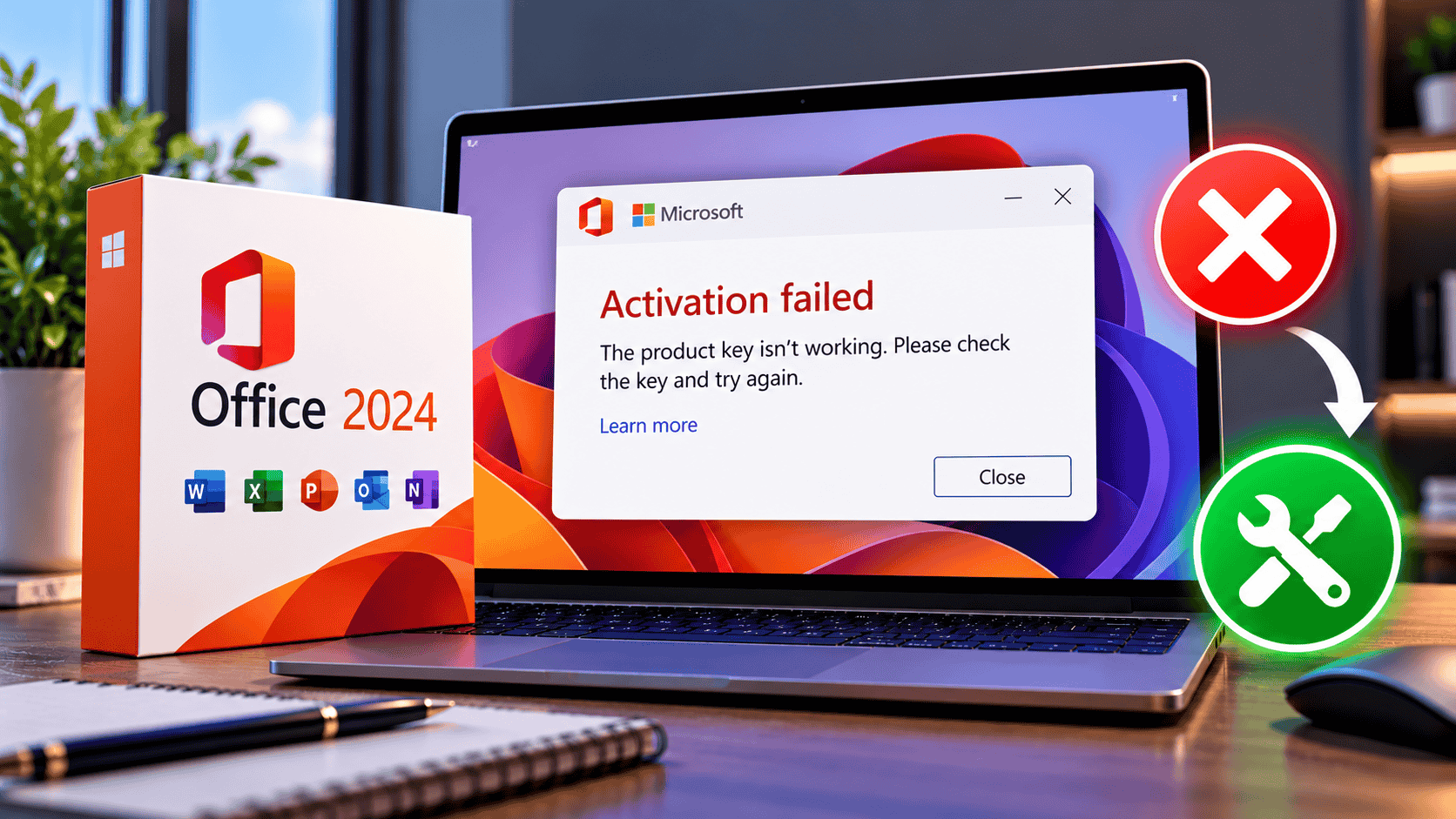
An Office 2024 key usually “doesn’t work” because it’s being entered into the wrong installation or the wrong place, not because the key is bad. Office 2024 comes in three types: Home or Home & Business (redeemed at Office.com/setup), Professional Plus retail, and LTSC Professional Plus volume (both entered inside Office or by command line). Remove any Microsoft 365 or older Office first, install the edition that matches your key, then activate it with File › Account › Change Product Key or ospp.vbs. If online activation still fails, activate by phone.
You’ve installed Office 2024, typed in the 25-character key, and got “This product key isn’t valid”, an Unlicensed Product banner, or an error code. Before you assume the key is faulty, know this: most Office 2024 activation failures come down to a mismatch between the key and what’s installed on the PC.
This guide explains how Office 2024 activation works for each edition, how to read the error you’re seeing, and seven fixes in the order that solves the most problems fastest. It includes the exact commands and installer settings most guides leave out.
- Where the key goes
- Redeem once at Office.com/setup, which links it to your Microsoft account.
- How it activates
- Sign in to Office with that Microsoft account. No key needed after redeeming.
- Where the key goes
- Inside Office: File › Account › Change Product Key, or with
ospp.vbs. - How it activates
- Online with the key; by phone if online activation is refused.
- Where the key goes
- Inside Office or with
ospp.vbs, on a volume-channel installation. - How it activates
- MAK key online or by phone; KMS keys need your organisation’s KMS server.
Match Your Error to the Right Fix
Find the message you’re seeing, then jump straight to the fix that solves it.
| Message or code | Where | Usual cause | Go to |
|---|---|---|---|
| “This product key isn’t valid” | Office.com/setup or inside Office | Key typed wrongly, or a Professional Plus / volume key entered on Office.com/setup | Fix 1, Fix 3 |
| “This product key can’t be used to install Office” / key doesn’t match | Inside Office | Key is for a different edition or channel than the one installed | Fix 3 |
| Unlicensed Product banner | Word, Excel, Outlook title bar | Office installed but no matching licence activated, often with several Office versions present | Fix 2, Fix 4 |
| “This product key has already been used” | Office.com/setup | Key already redeemed to a Microsoft account | Fix 5 |
0xC004C008 | Activation wizard, ospp.vbs | Online activation count used up for this key | Fix 7 |
0xC004F074 | ospp.vbs | A KMS key can’t reach a KMS server | Fix 3, Fix 4 |
| “Something went wrong” / can’t connect | Activation wizard | Date and time, firewall, proxy, VPN or antivirus blocking activation | Fix 6 |
Why Office 2024 Keys Fail
Office 2024 activation checks two things: whether the key is genuine and unused beyond its limit, and whether it matches the edition and channel of Office installed on the PC. Most failures are the second kind.
- Wrong edition installed. Many new PCs ship with a Microsoft 365 trial. A Professional Plus key won’t activate a Microsoft 365 or Home & Business installation.
- Wrong channel. Retail and volume builds of Office 2024 are different installations. A volume (LTSC) key can’t activate a retail build, and a retail key can’t activate a volume build.
- Wrong place. Office.com/setup only redeems consumer keys such as Home and Home & Business. Professional Plus keys are entered inside Office.
- Leftover installations. Older Office versions or trials leave licences behind that conflict with the new one.
- Connection blocks. Activation needs to reach Microsoft’s servers; firewalls, proxies and wrong system time stop it.
- Activation limit. Reinstalling several times or moving PCs can use up a key’s online activations.
Fix 1: Check the Key and Where You’re Entering It
Start with the basics. They take two minutes and rule out the simplest causes.
- Copy and paste the key from your order email rather than typing it. If you must type it, watch for look-alike characters: B and 8, G and 6, O and 0, and VV versus W.
- Check it’s an Office 2024 key. A Microsoft 365, Office 2021 or Windows key won’t activate Office 2024.
- Use the right place for your edition (see Figure 1). Home and Home & Business keys go to Office.com/setup. Professional Plus keys go into Office itself: open Word, go to File › Account › Change Product Key.
- Check your Windows version. Office 2024 needs Windows 10 or Windows 11. It won’t install on Windows 8.1 or 7.
Fix 2: Remove Other Office Versions and Microsoft 365 Trials
This is the fix that works most often. When more than one version of Office is installed, the licences conflict and Office shows Unlicensed Product or refuses your key. Microsoft’s own troubleshooting guide lists it as one of the first things to check.
- Open Settings › Apps › Installed apps (or Control Panel › Programs and Features) and search for office and microsoft 365.
- Uninstall everything except the Office 2024 you want to keep, including Microsoft 365 trials, Office 2021, 2019 or 2016, and language packs for other versions.
- Restart the PC.
- Open Word and try the key again.
If uninstalling fails or Office keeps showing old licences, remove all Office versions completely, restart, and reinstall Office 2024 from scratch. Microsoft’s Get Help app includes an Office uninstall troubleshooter for this.
Finally, run a repair on the remaining copy: Settings › Apps › Microsoft Office › Modify › Online Repair. It reinstalls Office files without touching your documents.
Fix 3: Install the Office 2024 Edition That Matches Your Key
If you have a Professional Plus key but installed Office from Office.com, a Microsoft 365 installer or whatever came with the PC, the key will never activate that installation. You need to install the matching edition and channel.
Check what’s installed right now
Open Command Prompt as administrator and run:
cd "C:\Program Files\Microsoft Office\Office16"
cscript ospp.vbs /dstatus
Look at the LICENSE NAME and LICENSE DESCRIPTION lines:
| License name contains | What’s installed | Activates with |
|---|---|---|
ProPlus2024Retail or RETAIL channel | Office 2024 Professional Plus, retail | Retail Professional Plus key |
ProPlus2024VL_MAK | Office LTSC 2024, volume (MAK) | Volume MAK key |
ProPlus2024VL_KMS_Client | Office LTSC 2024, volume (KMS) | Your organisation’s KMS server |
O365HomePrem, O365Business or similar | Microsoft 365 subscription build | A Microsoft 365 subscription, not a 2024 key |
HomeBusiness2024 / Home2024 | Office Home & Business / Home 2024 | Sign-in with the Microsoft account that redeemed it |
ospp.vbs isn’t in that folder, try C:\Program Files (x86)\Microsoft Office\Office16 for 32-bit Office.Reinstall with the Office Deployment Tool
If the installed edition doesn’t match your key, uninstall it (Fix 2), then install the right one with Microsoft’s free Office Deployment Tool (ODT):
- Download the Office Deployment Tool from Microsoft and extract it to a folder such as
C:\ODT. - In that folder, create a text file named
config.xmlwith the configuration for your key type (below). - Open Command Prompt as administrator in that folder and run
setup.exe /configure config.xml. - When the install finishes, open Word and enter your key under File › Account.
For an Office 2024 Professional Plus retail key:
<Configuration>
  <Add OfficeClientEdition="64" Channel="Current">
    <Product ID="ProPlus2024Retail">
      <Language ID="en-us" />
    </Product>
  </Add>
  <Display Level="Full" AcceptEULA="TRUE" />
</Configuration>
For an Office LTSC 2024 Professional Plus volume key:
<Configuration>
  <Add OfficeClientEdition="64" Channel="PerpetualVL2024">
    <Product ID="ProPlus2024Volume" PIDKEY="XXXXX-XXXXX-XXXXX-XXXXX-XXXXX">
      <Language ID="en-us" />
    </Product>
  </Add>
  <Display Level="Full" AcceptEULA="TRUE" />
</Configuration>
Change en-us to your language (for example en-gb or de-de) and use 32 instead of 64 only if you need 32-bit Office. Microsoft lists every valid product ID, including Standard2024Volume, VisioPro2024Retail and ProjectPro2024Retail, on its Office Deployment Tool product ID page, and notes that using the wrong ID means Office can’t be activated.
Fix 4: Enter and Activate the Key From the Command Line
If the right edition is installed but the key won’t take through File › Account, install and activate it directly with Office’s built-in licensing script. Open Command Prompt as administrator:
cd "C:\Program Files\Microsoft Office\Office16"
cscript ospp.vbs /inpkey:XXXXX-XXXXX-XXXXX-XXXXX-XXXXX
cscript ospp.vbs /act
Replace the X’s with your key. A successful result ends with Product activation successful. Then reopen Word and check File › Account.
If /dstatus shows old or unused keys alongside yours, remove them first. Note the Last 5 characters of installed product key for each one you don’t need, then run:
cscript ospp.vbs /unpkey:ABCDELeftover keys from trials or previous versions are a common reason the Unlicensed Product banner won’t go away.
Fix 5: Sign In With the Right Microsoft Account (Home & Home and Business)
Office Home 2024 and Office Home & Business 2024 don’t activate by key once installed. They activate by signing in with the Microsoft account the key was redeemed to.
- Go to account.microsoft.com/services and sign in.
- Check that Office Home 2024 or Home & Business 2024 is listed under Services & subscriptions. If not, try every email address you might have used, including work, school and old Outlook or Hotmail addresses.
- Install Office from that page.
- Open Word, select Sign in and use the same account. Office activates automatically.
If the key has never been redeemed, go to office.com/setup, sign in, enter the key and follow the prompts. Microsoft notes that consumer Office keys must be redeemed in the country or region where they were bought.
Fix 6: Clear Anything Blocking Activation
If Office can’t reach Microsoft’s activation servers, even a perfect key will fail. Microsoft’s troubleshooting guide recommends checking each of these:
Office 2024 also needs an internet connection to activate and to periodically confirm its licence, according to Microsoft’s Office 2024 FAQ. A PC that’s permanently offline can only be activated by phone.
Fix 7: Activate Office 2024 by Phone
When online activation reaches Microsoft but refuses a key you’re entitled to use, for example after reinstalling several times or moving to a new PC, phone activation is the reliable fallback. It’s automated, free and usually takes under ten minutes.
cscript ospp.vbs /dinstid to show the Installation ID.cscript ospp.vbs /actcid:CONFIRMATIONID.Still Not Working? What to Do Next
If you’ve worked through all seven fixes, the right edition is installed, nothing else is blocking activation, and both online and phone activation reject the key, the key itself is the likely problem. Contact the seller with:
- your order number and the exact product name,
- a screenshot of the error and the output of
cscript ospp.vbs /dstatus, - which fixes you’ve already tried.
If you bought from Noxkeys, contact our support team with those details. Every order includes lifetime technical support, and if a key genuinely can’t be activated we’ll replace it or refund you under our refund policy. Our FAQ also answers common delivery and activation questions.
How to Avoid Office 2024 Activation Problems
- Uninstall Microsoft 365 trials and old Office versions before installing Office 2024.
- Use the installer that matches your key, ideally the one provided with your purchase.
- Keep your order email, key and the Microsoft account you used together in a password manager.
- Don’t reinstall unnecessarily. Each fresh install can use an online activation. Use Online Repair instead.
- Activate straight after installing, while you’re connected to a normal home or office network.

Still on an old PC? Office 2024 needs Windows 10 or 11, and Windows 10 reached end of support in October 2025, so a Windows 11 Pro upgrade is worth considering. Browse all Microsoft Office licences or read more guides on the Noxkeys blog.
Frequently Asked Questions
Why is my Office 2024 product key not working?
Usually because the key doesn’t match the installed edition or channel, or it’s being entered in the wrong place. Remove other Office versions, install the edition that matches your key, and activate it in File › Account or with ospp.vbs.
Can I enter an Office 2024 Professional Plus key on Office.com/setup?
No. Office.com/setup redeems consumer keys such as Office Home 2024 and Home & Business 2024. Professional Plus keys are entered inside Office under File › Account › Change Product Key, or with ospp.vbs.
Why does Office 2024 say Unlicensed Product?
Office is installed but has no activated licence that matches it. This is common when a Microsoft 365 trial or an older Office version is also installed. Uninstall the extra versions, restart, and activate again.
Will an Office 2024 key activate Microsoft 365?
No. Microsoft 365 is a subscription linked to a Microsoft account. An Office 2024 key only activates the matching Office 2024 edition.
How do I check which Office 2024 edition is installed?
Run cscript ospp.vbs /dstatus from the Office16 folder in an administrator Command Prompt. The license name shows whether it’s retail, volume MAK, volume KMS or Microsoft 365.
Does Office 2024 work on Windows 10?
Office 2024 requires Windows 10 or Windows 11. Windows 10 itself reached end of support in October 2025, so Windows 11 is recommended.
Can I activate Office 2024 without internet?
Yes, by phone activation. Choose to activate by telephone, read out the Installation ID and enter the Confirmation ID you receive.
What should I do if none of the fixes work?
Contact the seller with your order number, a screenshot of the error and the ospp.vbs /dstatus output. A genuine key that can’t be activated should be replaced or refunded.