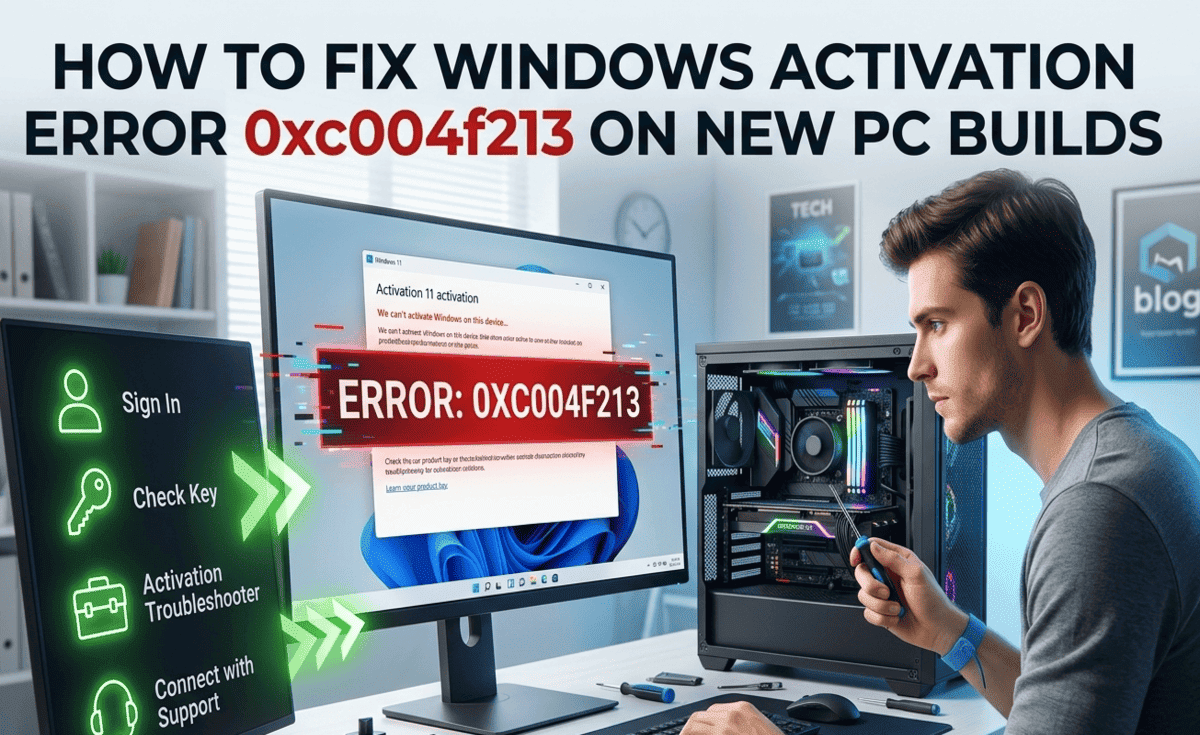
So you just built your new PC, fired it up, and got hit with a frustrating message: Windows Activation Error 0xc004f213. You were excited to finally use your new build and now this. Don’t worry. You’re not alone, and it’s not as scary.
Table of Contents
This error is actually one of the most common activation problems people face after building a new computer. The good news? It can be fixed without spending extra money (in most cases), and you don’t need to be a tech expert to do it. This guide will walk you through everything what the error means, why it shows up, and exactly how to fix it step by step.
What Is Windows Activation Error 0xc004f213?
Before we jump into the fixes, let’s understand what this error actually means.
When you activate Windows, Microsoft checks your hardware against a digital license that’s tied to your machine. If the hardware doesn’t match what’s on record or if no valid license is found Windows throws up this error message.
Error 0xc004f213 specifically means: “The Software Licensing Service reported that the hardware ID binding is beyond the tolerance limit.”
In plain English? Windows is saying: “This looks like a different computer from what I remember, and I can’t confirm your license is valid here.
Why Does This Error Happen on New PC Builds?
There are several reasons why this error pops up on new builds:
1. You transferred a retail or OEM license from an old PC. Some Windows licenses are only allowed on one machine. If you used the same product key from your old PC, Windows may reject it on your new hardware.
2. You made major hardware changes. Swapped your motherboard? Changed your CPU? Windows sees these as completely new hardware and may no longer recognize the license.
3. You’re using a digital license linked to a Microsoft account. If your license is tied to an account but you haven’t signed in, it may not activate automatically.
4. You installed Windows without entering a key first. Sometimes Windows gets installed without a proper product key, and activation fails later.
5. Your license is OEM-specific. OEM licenses (those that come pre-installed on branded PCs like Dell or HP) are locked to the original motherboard. If you use that key on a new build, it won’t work.
How to Fix Windows Activation Error 0xc004f213 — Step by Step
Fix 1: Run the Activation Troubleshooter
Windows has a built-in tool that can often fix activation errors automatically. This is always the best starting point.
Steps:
- Click the Start button and open Settings (the gear icon).
- Go to System → Activation.
- If you see a message about activation, look for a link that says “Troubleshoot” and click it.
- Follow the on-screen instructions. Windows will try to detect and fix the issue automatically.
- Restart your PC and check if the error is gone.
This simple step resolves the problem for many users especially if it’s a temporary server-side glitch.
Fix 2: Sign In With Your Microsoft Account
If your Windows license is a digital license, it may be linked to your Microsoft account. Signing in can reactivate Windows automatically.
Steps:
- Open Settings → Accounts → Your Info.
- Click “Sign in with a Microsoft account instead” (if you’re using a local account).
- Enter your Microsoft email and password.
- Go back to Settings → System → Activation.
- Click “Add an account” and sign in if prompted.
Once linked, Windows will verify the license against your account and activate.
Fix 3: Use the Activation by Phone Option
This is the old-school method, but it still works especially if online activation keeps failing.
Steps:
- Press Windows key + R, type
slui 4, and press Enter. - Select your country and click Next.
- You’ll see a toll-free phone number. Call it.
- Follow the automated instructions. You’ll read out numbers from your screen.
- The system will give you a Confirmation ID.
- Enter that Confirmation ID back on your screen and click Activate Windows.
This method bypasses the internet entirely and works well when servers are down or your hardware change is significant.
Fix 4: Re-enter Your Product Key
Sometimes the issue is as simple as the product key not being properly registered. Try entering it again manually.
Steps:
- Open Settings → System → Activation.
- Click “Change product key”.
- Type your 25-character Windows product key carefully.
- Click Next and then Activate.
If you don’t know where your key is:
- Check the email receipt if you bought Windows online.
- Look for a sticker on your PC case or on the original packaging.
- If it came pre-installed, the key might be embedded in your BIOS/UEFI tools like Belarc Advisor can help retrieve it.
Fix 5: Use the Command Prompt to Reactivate
If the Settings approach isn’t working, you can try activating through the Command Prompt a bit more direct, but still beginner-friendly.
Steps:
- Click the Start button, type cmd, right-click Command Prompt, and select Run as administrator.
- Type the following command and press Enter:
slmgr /ipk YOUR-PRODUCT-KEY-HEREReplace YOUR-PRODUCT-KEY-HERE with your actual 25-character key. 3. Then type:
slmgr /atoThis command tells Windows to activate online. 4. Wait for the confirmation message.
If you see a success message, restart your PC. You should be activated.
Fix 6: Contact Microsoft Support
If nothing else has worked, it’s time to contact Microsoft directly. This is especially important if:
- You bought a legitimate retail copy of Windows.
- You recently upgraded hardware significantly.
- You have proof of purchase but can’t get activation to work.
Go to support.microsoft.com and use the chat or call option. Have your product key and proof of purchase ready. Microsoft support can manually verify your license and push through the activation they do this regularly for hardware upgrade situations.
Practical Tips to Avoid This Error in the Future
- Link Windows to your Microsoft account before a hardware upgrade. This makes reactivation much easier later.
- Keep a record of your product key in a safe place a password manager, email draft, or printed note.
- Buy retail licenses, not OEM, if you plan to upgrade your PC in the future. Retail licenses can be transferred between machines.
- Don’t reinstall Windows unnecessarily. Each reinstall may count as a new activation attempt.
- Make one big change at a time. If you’re upgrading multiple components, do it gradually so Windows doesn’t see it as a completely new machine.
FAQ — Windows Activation Error 0xc004f213
Q1: Can I use Windows without activating it?
Yes, but with limitations. You won’t be able to personalize your desktop, and a watermark will appear in the bottom right corner of your screen. Some settings will also be locked.
Q2: Is error 0xc004f213 a sign that my Windows copy is pirated?
Not necessarily. This error also appears with legitimate copies, especially after hardware changes. Having the error doesn’t mean your copy is fake it just means the license couldn’t be verified against your current hardware.
Q3: Will I lose my files if Windows can’t be activated?
No. Your files are completely safe. Activation only affects access to certain features it doesn’t delete or lock your personal data.
Q4: Can I transfer my Windows license to a new PC build?
It depends on the license type. Retail licenses can be moved to a new PC. OEM licenses are tied to the original hardware and generally cannot be transferred. Digital licenses linked to a Microsoft account can sometimes be reused on a new build after contacting Microsoft.
Q5: How many times can I activate Windows with one key?
Microsoft doesn’t publicly state a hard limit, but each key is designed for one PC at a time. If you’ve used it on multiple devices, activation may be denied. Contacting Microsoft support usually resolves these situations if you have legitimate reasons.
Conclusion
Running into Windows Activation Error 0xc004f213 on a new PC build is frustrating, but it’s a solvable problem. In most cases, the issue comes down to a license mismatch after hardware changes something Microsoft actually has systems in place to help with.
Start with the simplest fixes first: run the troubleshooter, sign in to your Microsoft account, and try re-entering your product key. If those don’t work, phone activation and the Command Prompt method are reliable alternatives. And if all else fails, Microsoft support is there to help especially if you have a legitimate copy.
Your new PC build deserves to run properly. With the right steps, you’ll have Windows activated and running smoothly in no time.