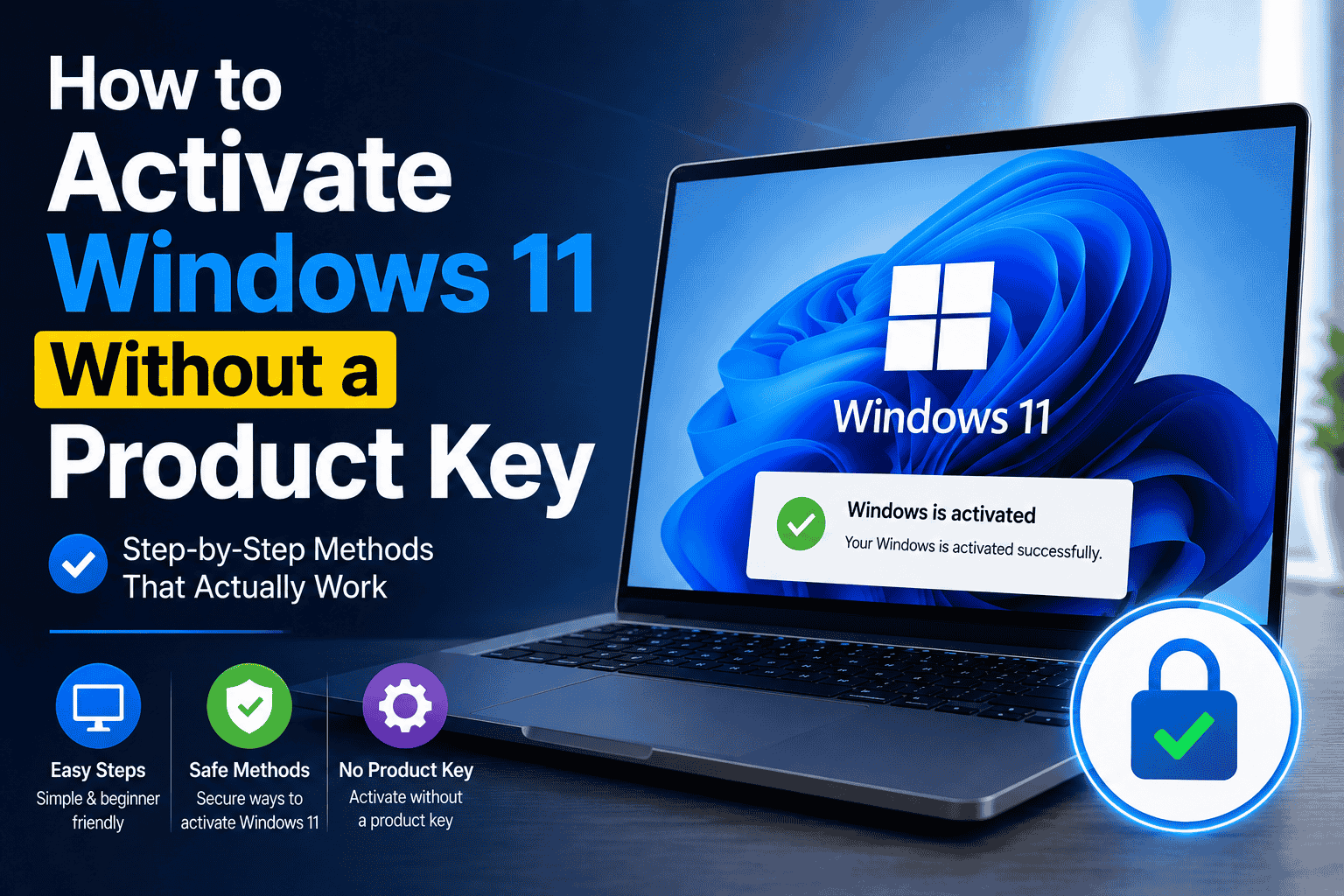
If Windows 11 is installed on your PC but you do not have a product key, you may be wondering if there is a way to activate it without buying one.
The short answer is sometimes.
You can install Windows 11 without entering a product key. You can also activate Windows 11 without manually entering a key if your PC already has a valid digital license. But if your computer does not have a digital license or a valid product key, there is no legitimate method that permanently activates Windows 11 for free.
Microsoft confirms that Windows 11 activation requires either a digital license or a 25-character product key.
This is where many online guides become confusing. They mix up installing Windows, using Windows without activation, and actually activating Windows.
They are not the same thing.
In this guide, we explain how to install and use Windows 11 without entering a product key, when Windows can activate automatically, what generic keys do, and why you should avoid unofficial activation tools.
Table of Contents
Can You Activate Windows 11 Without a Product Key?
Yes, but only when Windows has another valid activation method.
The most common example is a digital license.
A digital license allows Windows 11 to activate without you manually entering a 25-character product key. Microsoft describes a digital license as an activation method that does not require a product key.
This can happen when:
- Your PC originally came with Windows
- You previously activated Windows on the same hardware
- You upgraded from an eligible activated Windows installation
- You purchased a Windows digital license
- Your license is linked to your Microsoft account
If your PC already has a valid digital license for the installed edition, you may be able to reinstall Windows 11 and skip the product-key screen. Windows can then activate after installation when it connects to Microsoft’s activation service.
But there is an important limit.
If your PC has never had a valid Windows license and you do not have a product key or digital license, you cannot legitimately activate Windows 11 for free.
Microsoft’s own documentation states that without a digital license or product key, Windows cannot be activated.
Install Windows 11 Without a Product Key
There is a difference between installing Windows 11 and activating Windows 11.
During a clean Windows installation, the setup process may ask for a product key.
If you do not have one, you can choose the option to continue without entering a key.
The exact wording can vary by Windows installation media and version, but the important point is that you can continue the installation without immediately activating Windows.
If the computer already has a valid digital license, Windows may activate automatically after installation.
Microsoft specifically documents this situation for Windows 11 installations where the device already has a digital license.
Important
Skipping the product-key screen does not create a free Windows license.
It only skips the key-entry step.
If no valid license exists on the computer, Windows will remain unactivated.
Method 1: Use an Existing Digital License
This is the best way to activate Windows 11 without manually entering a product key.
If your PC has already been activated with a digital license, reinstalling the same edition of Windows can allow automatic activation.
Step 1: Open Settings
Press:
Windows + I
Step 2: Open Activation
Go to:
System → Activation
Step 3: Check Activation Status
Look for a message such as:
Windows is activated with a digital license
or:
Windows is activated with a digital license linked to your Microsoft account
If you see one of these messages, your PC already has a digital activation.
You can read our detailed Windows Digital License Explained guide to understand how digital licenses work and how they differ from traditional product keys.
Why a Digital License Can Activate Windows Without a Key
A digital license removes the need to enter the 25-character code every time you reinstall Windows.
The activation entitlement is associated with the device.
When you reinstall the same Windows edition and connect to the internet, Microsoft’s activation service can recognize the device and activate Windows.
This is useful when:
- You reinstall Windows
- You replace a hard drive or SSD
- You perform a clean installation
- You reset your PC
- You no longer have the original product-key card
However, major hardware changes can affect activation.
For example, replacing a motherboard can cause Windows to see the PC as a different device.
Microsoft provides an Activation Troubleshooter for reactivation after significant hardware changes.
Method 2: Link Your Digital License to Your Microsoft Account
If your Windows installation is already activated, linking your digital license to your Microsoft account can make future reactivation easier.
Go to:
Settings → System → Activation
Check the activation message.
If Windows tells you that the digital license is linked to your Microsoft account, you have already completed this step.
If it is not linked, sign in to Windows with your Microsoft account and follow the activation settings.
Microsoft recommends linking a digital license to your Microsoft account because it can help when you need to reactivate Windows after a hardware change.
Method 3: Reinstall Windows and Skip the Product Key
If your PC already has a digital license, you may not need to enter the key during a clean installation.
During setup, Windows may ask:
Enter a product key
If you have a digital license for the same edition, choose the option to continue without entering a product key.
After Windows finishes installing:
- Connect to the internet.
- Open Settings.
- Go to System → Activation.
- Check the activation status.
- Sign in with the Microsoft account associated with your digital license if needed.
Microsoft documents that Windows 11 can automatically activate after installation when the device already has the appropriate digital license.
Make Sure Your Windows Edition Matches
This is one of the most common reasons automatic activation fails.
Your digital license must match the Windows edition you install.
For example:
Windows 11 Home digital license → Windows 11 Home
Windows 11 Pro digital license → Windows 11 Pro
If your PC has a Home license but you install Windows 11 Pro, Windows may not activate automatically.
Microsoft’s Activation Troubleshooter can identify situations where a valid digital license exists for a different edition and provide guidance on installing the correct edition.
Before reinstalling Windows, check your current edition:
Settings → System → About → Windows specifications
Look for Edition.
This simple check can save you from unnecessary activation problems.
Can You Use Windows 11 Without Activating It?
You can install Windows without entering a product key, but this should not be confused with activation.
An unactivated Windows installation is not the same as a properly licensed copy.
Some Windows features and personalization options may be restricted, and you may see activation reminders.
More importantly, if you are using Windows for long-term personal or business use, you should have a valid license.
Microsoft’s official position is clear: activation requires a digital license or product key.
So if you are only installing Windows temporarily to test hardware or prepare a computer, skipping the key can be useful.
For normal long-term use, you should activate Windows properly.
What About Free Windows 11 Generic Product Keys?
This is where many users get confused.
You may find websites listing so-called free Windows 11 product keys.
Some generic Microsoft keys can be used for installation or specific deployment scenarios, but they are not a free replacement for a valid Windows license.
They do not give you a permanent retail license simply because Windows accepts the key.
NoxKeys also explains the difference between generic installation keys and activated Windows in its Windows 10 & 11 Generic Product Keys guide.
The key distinction is:
Installation key ≠ license
A generic key may help Windows identify an edition during setup, but that does not mean you have purchased or obtained the rights to permanently activate Windows.
What About KMS Activation?
You may also find websites telling users to activate Windows through KMS commands or third-party KMS tools.
Be careful.
KMS stands for Key Management Service and is associated with volume licensing environments.
It is designed for organizations that manage Windows installations through their own activation infrastructure.
A KMS method is not a substitute for buying a legitimate consumer Windows license.
You should not install unknown scripts, KMS emulators, or activation programs from random websites.
Apart from the licensing issue, these tools can create security risks because you are giving unknown software administrative access to your PC.
If you see a KMS activation on a personal computer and do not know why it is there, check your Windows license information.
Why You Should Avoid Windows Activators
Search for “Windows 11 activator” and you will find many tools promising one-click activation.
This may sound convenient, but it is not a good solution.
Third-party activators can:
- Modify Windows system files
- Change licensing services
- Require administrator privileges
- Disable security software
- Install unwanted programs
- Create future activation problems
- Come bundled with malware
There is also no reason to give an unknown program administrator access to your Windows installation just to avoid buying a license.
A proper Windows activation does not require a random “activator” application.
Can You Activate Windows 11 With CMD Without a Product Key?
Command Prompt can be used to manage Windows activation, but it cannot create a legitimate license from nothing.
For example, commands such as:
slmgr /ato
can attempt online activation.
But the command still needs a valid activation method.
If your computer does not have a digital license and you do not provide a valid product key, slmgr /ato cannot magically create a legitimate Windows license.
This is an important point because many websites make CMD activation sound like a free licensing method.
It is not.
How to Check If Your PC Already Has a Digital License
Before buying a new key, check whether Windows is already activated.
Open:
Settings → System → Activation
Look at the activation status.
You can also use Command Prompt.
Open Command Prompt as administrator and enter:
slmgr /xpr
Windows will display information about the current activation state.
For more detailed licensing information, you can use:
slmgr /dlv
If you want to understand what Windows stores locally and why the displayed key may not be the key you originally purchased, see our How to Find Your Windows Product Key Using Command Prompt guide.
What If Windows Says “No Product Key Was Found”?
If Windows displays an error such as:
0xC004F213 — No product key was found
do not immediately assume Windows is broken.
It can mean that Windows cannot find a valid product key or digital license for the current installation.
Start by checking:
- Your Windows edition
- Your Microsoft account
- Previous activation status
- Whether the PC originally came with Windows
- Whether you recently changed hardware
If you recently changed your motherboard, Windows may need to be reactivated.
Microsoft provides an official Activation Troubleshooter for these situations.
You can also read our guide on How to Fix Windows 11 Activation Error 0xc004f050 if your activation attempt produces that specific error.
What If You Do Not Have a Digital License or Product Key?
This is the situation where there is no legitimate free activation method.
Microsoft states that if you do not have a digital license or product key, Windows 11 cannot be activated.
You have two practical choices:
Option 1: Purchase a Windows 11 License
You can purchase a Windows 11 digital license through Microsoft.
Microsoft’s official instructions say that users without a digital license or product key can go to:
Settings → System → Activation → Go to Store
This opens the Microsoft Store, where a Windows 11 digital license can be purchased.
Option 2: Purchase a License From a Legitimate Seller
You can also compare Windows licenses from established software retailers.
Before purchasing, check:
- Exact Windows edition
- Windows 11 compatibility
- License type
- Device limitations
- Activation method
- Seller information
- Customer support
- Refund or replacement terms
Do not choose a Windows key only because it is the cheapest one you can find.
How to Avoid Paying for the Wrong Windows License
Before purchasing a Windows 11 key, first check your installed edition.
If you have:
Windows 11 Home
you need a compatible Home license or an eligible upgrade path.
If you have:
Windows 11 Pro
you need a compatible Pro license.
Buying the wrong edition can lead to activation errors.
You can also check whether you already have a digital license before purchasing anything.
This is especially important on laptops and prebuilt PCs because many machines already include Windows activation.
Is It Worth Buying a Windows 11 Product Key?
If you use Windows every day and your PC does not have a valid digital license, purchasing a legitimate Windows license is the simplest long-term solution.
You avoid relying on:
- Activation scripts
- KMS tools
- Unknown activators
- Generic keys
- Temporary workarounds
You also have a clear purchase record.
If you already have a digital license, however, you do not need to buy another key just because you reinstall Windows.
Check your activation status first.
Frequently Asked Questions
Can I activate Windows 11 without a product key?
Yes, if your PC already has a valid digital license. A digital license can activate Windows without requiring you to enter a 25-character product key.
Can I permanently activate Windows 11 for free?
Not if the PC has no valid digital license and you do not own a valid product key. Microsoft states that Windows requires one of these activation methods.
Can I install Windows 11 without a product key?
Yes. You can continue Windows installation without entering a key in situations where setup allows you to skip the key. However, skipping the key does not create a license.
Will Windows 11 activate automatically after reinstalling?
It can if the device already has a valid digital license for the same Windows edition. Microsoft documents automatic activation after reinstalling Windows on a device with an existing digital license.
What is a digital license?
A digital license is a Windows activation method that does not require you to enter a 25-character product key.
Do generic Windows keys permanently activate Windows?
No. Generic installation or KMS client keys should not be treated as a free replacement for a valid Windows license.
Can CMD activate Windows for free?
No. CMD can run Windows licensing commands, but it cannot create a legitimate license when no valid digital license or product key exists.
Are Windows activators safe?
You should avoid unknown third-party activation tools. They often require administrator access and can modify system components or introduce security risks.
What should I do if Windows is not activated?
Check Settings → System → Activation, verify your Windows edition, check for an existing digital license, and run the Activation Troubleshooter. If no valid license exists, purchase one through Microsoft or another legitimate seller.
Final Verdict: Do You Really Need a Product Key?
You do not always need to manually enter a product key to activate Windows 11.
If your PC already has a valid digital license, Windows can activate without a product key. This is one of the main benefits of Microsoft’s digital licensing system.
But there is an important line between activating without entering a key and activating without owning a license.
The first is legitimate.
The second is not.
If you already have a digital license, reinstall Windows, choose the correct edition, connect to the internet, and allow Windows to activate.
If you do not have a digital license or product key, there is no legitimate command, script, or activator that turns an unlicensed copy into a permanently licensed copy for free. Microsoft confirms that Windows 11 requires either a digital license or a product key for activation.
Before buying anything, check your activation page first. You may already have the license you need.
For more information, see our Windows Digital License Explained guide, our Windows Product Key guide, and our guide to fixing Windows 11 activation error 0xc004f050.
That is the safer approach: check what license you already have before spending money, and avoid unofficial activation tools that promise something Windows does not legally provide for free.