Table of Contents
Introduction
You purchased a genuine Windows licence, activated your computer, and everything worked perfectly until the day you need that product key again. Perhaps you’re setting up a new PC, troubleshooting an activation issue, recovering from a hardware failure, or simply want to document your licence for safekeeping. Suddenly, the key you never wrote down becomes critically important.
The good news is that Windows stores your product key information within the operating system itself, and in many cases you can retrieve it directly from your own computer using built-in tools most notably Command Prompt (CMD). This is a completely legitimate process for recovering a key from a licence you already own and have activated.
However, there are important nuances to understand before diving in. Not every product key retrieved via CMD reflects the actual retail key you purchased. Modern Windows licensing uses digital entitlements, OEM keys, and volume licence keys that interact differently with retrieval commands. Understanding what you’re retrieving and what it means is just as important as knowing the commands themselves.
This guide walks you through every reliable method for finding your Windows product key using Command Prompt, explains what each result means, covers alternative tools for more detailed retrieval, addresses common scenarios where CMD methods fall short, and explains how to store and protect your license information properly from now on properly.
Understanding What CMD Actually Retrieves
Before running any commands, it’s essential to understand what Windows stores and what CMD can and cannot access.
Digital Licences vs. Product Keys
Modern Windows licensing has two primary activation methods:
Digital Licence (Digital Entitlement):
- Introduced with Windows 10 and carried into Windows 11
- Activation tied to your hardware (motherboard) rather than a key string
- Microsoft’s servers recognise your hardware configuration automatically
- No product key entry required after hardware-linked activation
- Common on PCs upgraded from Windows 7/8 during Microsoft’s free upgrade offers
- Common on computers pre-activated by manufacturers (OEM)
Product Key:
- Traditional 25-character alphanumeric key (XXXXX-XXXXX-XXXXX-XXXXX-XXXXX)
- Entered manually during installation or activation
- Tied to your Microsoft account if linked during activation
- Retail keys can be transferred to new hardware (one device at a time)
Why This Matters for CMD Retrieval:
If your Windows is activated via a digital licence, CMD commands may return a generic OEM key embedded in your system firmware (BIOS/UEFI) rather than any retail key you personally purchased. This OEM key is not the same as your personal retail key it’s placed there by the manufacturer for factory activation purposes.
Understanding which type of activation you have helps set expectations before running retrieval commands.
How to Check Your Activation Type First
Step 1: Press Windows key + I to open Settings Step 2: Navigate to System > Activation Step 3: Look at the activation status message:
| Message Shown | What It Means |
|---|---|
| “Windows is activated with a digital licence” | Hardware-linked digital entitlement; no retail key stored locally |
| “Windows is activated with a digital licence linked to your Microsoft account” | Digital licence tied to your account; recoverable via Microsoft account |
| “Windows is activated” (without “digital licence”) | Activated with a traditional product key |
If you see “digital licence,” CMD may return a generic OEM key rather than your personal retail key. In that case, refer to the Microsoft Account recovery method covered later in this guide.
Method 1: Using Command Prompt (CMD) — Standard Method
This is the most widely known and straightforward method for retrieving the product key stored in your Windows registry.
Step 1: Open Command Prompt as Administrator
Running CMD as administrator is required for this command to work correctly.
Option A — Via Start Menu:
- Press the Windows key
- Type cmd
- Right-click Command Prompt in the results
- Select Run as administrator
- Click Yes on the User Account Control (UAC) prompt
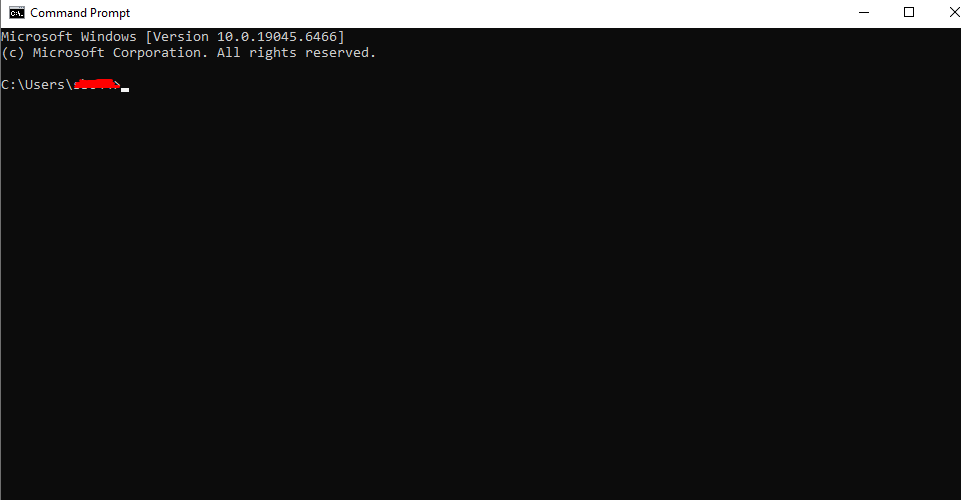
Option B — Via Power User Menu:
- Press Windows key + X
- Select Windows Terminal (Admin) or Command Prompt (Admin)
- Click Yes on the UAC prompt
Option C — Via Run Dialog:
- Press Windows key + R
- Type cmd
- Press Ctrl + Shift + Enter (opens as administrator)
- Click Yes on UAC prompt
Step 2: Enter the Product Key Retrieval Command
In the administrator Command Prompt window, type the following command exactly as shown and press Enter:
wmic path SoftwareLicensingService get OA3xOriginalProductKeyWhat This Command Does:
- Queries the Software Licensing Service (SLS) component of Windows
- Retrieves the OA3 (OEM Activation 3.0) product key stored in your system’s BIOS/UEFI firmware
- Returns the key embedded by the manufacturer at time of production
Expected Output:
If a key is found:
OA3xOriginalProductKey
XXXXX-XXXXX-XXXXX-XXXXX-XXXXX
If no embedded key is found:
OA3xOriginalProductKey(Blank line beneath the heading indicates no OEM key is stored in firmware)
Step 3: Note and Verify the Result
If a key is returned, note it carefully. Copy it exactly, including all hyphens.
Interpreting Your Result:
- Key returned: Your system has an OEM key embedded in firmware. This may be sufficient for reinstallation on the same hardware.
- Blank result: Either your system uses a different activation method, or the key isn’t stored in firmware. Use alternative methods below.
Method 2: Using PowerShell (More Reliable on Modern Windows)
PowerShell often provides more reliable results on Windows 10 and Windows 11 than the traditional WMIC command, which Microsoft has been deprecating.
Step 1: Open PowerShell as Administrator
- Press Windows key
- Type PowerShell
- Right-click Windows PowerShell
- Select Run as administrator
- Click Yes on UAC prompt

Step 2: Enter the PowerShell Command
Type or paste the following command and press Enter:
powershell
(Get-WmiObject -query 'select * from SoftwareLicensingService').OA3xOriginalProductKeyAlternative PowerShell Command:
powershell
powershell "(Get-WmiObject -query 'select * from SoftwareLicensingService').OA3xOriginalProductKey"This second version can also be run directly in Command Prompt (CMD) by typing it as shown — useful if you prefer staying in CMD rather than switching to PowerShell.
Expected Output:
A successful retrieval returns the 25-character key:
XXXXX-XXXXX-XXXXX-XXXXX-XXXXXA blank result or no output means no OEM key is stored, and alternative methods should be used.
Method 3: Using VBScript via CMD (Registry Method)
This method queries the Windows registry directly using a VBScript command, sometimes retrieving keys not found through the WMIC or WMI methods above.
Step 1: Open Command Prompt as Administrator
Follow the same steps as Method 1 to open an elevated Command Prompt.
Step 2: Enter the VBScript Command
Type the following command exactly and press Enter:
wscript.exe /e:vbscript "%~f0" & exit /b
for /f "tokens=2*" %a in ('reg query "HKLM\SOFTWARE\Microsoft\Windows NT\CurrentVersion" /v DigitalProductId') do set var=%b
Simpler Alternative — Run as a Script:
For a cleaner approach, use the one-line PowerShell equivalent that decodes the DigitalProductId registry entry:
powershell
$map = "BCDFGHJKMPQRTVWXY2346789"; $value = (Get-ItemProperty "HKLM:\SOFTWARE\Microsoft\Windows NT\CurrentVersion").DigitalProductId[0x34..0x42]; $ProductKey = ""; for ($i = 24; $i -ge 0; $i--) { $r = 0; for ($j = 14; $j -ge 0; $j--) { $r = ($r * 256) -bxor $value[$j]; $value[$j] = [math]::Floor($r / 24); $r = $r % 24 }; $ProductKey = $map[$r] + $ProductKey; if (($i % 5 -eq 0) -and ($i -ne 0)) { $ProductKey = "-" + $ProductKey } }; $ProductKeyNote: Copy this command carefully in its entirety. Run it in an elevated PowerShell window.
What This Retrieves: Decodes the binary DigitalProductId registry value into a readable product key format.
Method 4: Using Windows Management Instrumentation (WMIC) — Licence Status
This method doesn’t retrieve your full key but confirms your licence status and activation details, which is useful for troubleshooting.
Check Licence and Activation Status
In an elevated Command Prompt, run:
wmic path SoftwareLicensingService get Name, Description, LicenseStatusOutput Includes:
- Licence name (e.g., “Windows 11 Pro”)
- Description of activation status
- LicenceStatus code (1 = Licensed, 0 = Unlicensed)
LicenceStatus Codes:
| Code | Meaning |
|---|---|
| 0 | Unlicensed |
| 1 | Licensed (activated) |
| 2 | OOBEGrace (initial setup period) |
| 3 | OOBETimer (trial period) |
| 4 | NonGenuineGrace |
| 5 | Notification mode |
| 6 | ExtendedGrace |
For a properly activated Windows, you should see status code 1.
Method 5: Checking via Activation Settings (No CMD Required)
For users whose activation is linked to a Microsoft account, the easiest recovery path doesn’t involve CMD at all.
Retrieve Key Via Microsoft Account
- Visit account.microsoft.com in any browser
- Sign in with the Microsoft account linked to your Windows licence
- Navigate to Services & subscriptions or Devices
- Locate your Windows licence entry
- View or manage your associated licence information
When This Works Best:
- Retail licence purchased directly from Microsoft Store
- Activation linked to Microsoft account during setup
- Digital licence tied to account rather than just hardware
Why This Is Often the Most Reliable Method:
For retail key purchases made through Microsoft or authorised digital licence providers where you linked activation to your Microsoft account, your account serves as a permanent record of your licence. Even complete hardware failure, drive replacement, or total system loss doesn’t prevent account-based recovery.
Method 6: Checking Your Original Purchase Records
CMD retrieval is useful but not always the most reliable approach. Your original purchase documentation is often the most authoritative source for your product key.
Where to Find Your Original Key
For Microsoft Store Purchases:
- Sign in at account.microsoft.com
- Check order history under Services & subscriptions
- Original purchase email in your inbox
For Retail Box Purchases:
- Physical product packaging (card inside box)
- Sticker on original DVD case or packaging
- Certificate of Authenticity (COA) sticker on packaging
For OEM (PC Manufacturer Pre-installed):
- Sticker on PC chassis (often on base of laptop or rear of desktop)
- Certificate of Authenticity sticker
- Documentation included with computer purchase
For Digital Licence Providers:
- Order confirmation email from provider
- Account portal on provider’s website
- Dedicated “my licences” or “my orders” section
Best Practice — Document Your Key Immediately After Purchase:
The most reliable approach is recording your product key at the time of purchase and storing it securely before you ever need to recover it:
- Save purchase confirmation email to a dedicated folder
- Store key in a password manager (Bitwarden, 1Password, etc.)
- Print key and store in a physical secure location
- Record key in a secure business IT asset register
Step-by-Step: Saving Your Retrieved Product Key
Once you’ve found your product key, protect it properly.
Step 1: Copy the Key Accurately
- Select the key in CMD or PowerShell output
- Right-click and select Mark, then highlight the key
- Press Enter to copy to clipboard
- Alternatively, type it carefully — double-check every character
Common Transcription Errors:
- 0 (zero) vs. O (letter O)
- 1 (one) vs. I (capital i) vs. l (lowercase L)
- 5 vs. S
- 8 vs. B
Step 2: Verify the Key Format
A valid Windows product key follows this format:
XXXXX-XXXXX-XXXXX-XXXXX-XXXXX- 25 characters total
- 5 groups of 5 characters
- Separated by hyphens
- Alphanumeric characters only
Step 3: Store the Key Securely
Recommended Storage Methods:
Password Manager (Best for individuals):
- Create entry titled “Windows 11 Product Key”
- Record: Key, Edition (Home/Pro), Purchase date, Purchase source
- Encrypted, accessible from any device
Encrypted Document (Good for businesses):
- Dedicated IT asset register or spreadsheet
- Encrypted with strong password
- Include: Device name, serial number, Windows edition, product key, licence source
Physical Record (Good backup):
- Print and store in locked filing cabinet
- Useful backup if digital access fails
- Include purchase receipts with key documentation
Email Archive:
- Save original purchase confirmation email
- Create dedicated “Software Licences” folder
- Never delete licence-related emails
Common Problems and Solutions
Problem 1: CMD Returns a Blank Result
Issue: Running the WMIC or PowerShell command returns nothing or a blank line.
Why This Happens:
- System uses digital licence (hardware-linked) without embedded OEM key
- Windows activated via volume licence (KMS activation, no local key)
- Key stored in Microsoft account rather than locally
Solutions:
- Check Microsoft account at account.microsoft.com for licence
- Check original purchase documentation from vendor
- Try the PowerShell DigitalProductId decode method (Method 3)
- Contact your digital licence provider with proof of purchase
- Check for COA sticker on your PC chassis
Problem 2: Returned Key Doesn’t Match Purchase Records
Issue: CMD returns a key that doesn’t match the key from your purchase email or documentation.
Why This Happens:
- OEM firmware key returned instead of retail key you purchased
- Key changed during Windows upgrade (e.g., Windows 10 to 11 upgrade)
- Previous owner’s key retrieved from older installation
Solutions:
- Use your purchase documentation key — that is your authoritative key
- The firmware OEM key may still activate Windows on original hardware
- For transfers to new hardware, use your documented retail key
- Contact seller if documented key fails to activate
Problem 3: “Access Denied” Error in CMD
Issue: Running commands returns “Access is denied” error.
Solution:
- Ensure CMD or PowerShell is running as administrator
- Right-click CMD > Run as administrator
- Approve UAC prompt when it appears
- Re-run the command — administrator elevation is required
Problem 4: WMIC Command Not Found (Windows 11 22H2+)
Issue: wmic command returns “not recognised” error on newer Windows 11 builds.
Why This Happens: Microsoft has deprecated WMIC in Windows 11 versions 22H2 and later, meaning it may not be installed by default.
Solutions:
- Use the PowerShell methods instead (Method 2 or Method 3)
- Install WMIC if needed: Settings > Optional Features > WMIC
- PowerShell commands provide equivalent functionality and are Microsoft’s preferred replacement
Problem 5: Retrieved Key Fails to Activate on New PC
Issue: Key found via CMD works fine on original PC but won’t activate on different hardware.
Why This Happens:
- OEM keys are tied to original hardware and cannot transfer
- Key is hardware-specific firmware key, not transferable retail licence
- Volume licence key not valid for individual use
Solutions:
- OEM keys legitimately cannot transfer this is by design
- Use only retail licence keys for transfers between hardware
- Digital licence tied to Microsoft account transfers with account sign-in
- Purchase a new retail licence for new hardware if OEM key is your only option
Problem 6: System Shows “Windows is Not Activated” Despite Valid Key
Issue: Windows shows activation error even though you have a valid product key.
Troubleshooting Steps:
- Verify internet connection is stable
- Run Activation Troubleshooter: Settings > System > Activation > Troubleshoot
- Re-enter key manually: Settings > System > Activation > Change product key
- Use CMD activation: Run
slmgr /ipk YOUR-KEY-HEREas administrator - Force activation attempt: Run
slmgr /atoas administrator - Check for significant hardware changes (motherboard replacement invalidates digital licences)
- Contact Microsoft support with proof of purchase if issue persists
Frequently Asked Questions (FAQs)
1. Is it legal to use CMD to find my Windows product key?
Yes, completely. Retrieving a product key from your own licensed and activated Windows installation using Command Prompt is entirely legal. You’re simply reading information that Windows stores about your own licence no different from checking your activation status in Settings. This process is intended for legitimate licence recovery by the licence holder. CMD key retrieval only accesses your own system’s stored data and does not interact with Microsoft’s servers or bypass any activation mechanisms. It’s a standard, Microsoft-documented capability for licence management purposes.
2. Why does the CMD method return a different key than what I purchased?
This is common and occurs for a straightforward reason. The WMIC and PowerShell commands typically retrieve the OEM Activation 3.0 (OA3) key embedded in your system’s BIOS or UEFI firmware by the manufacturer not any retail key you personally purchased separately. If you bought a retail licence from Microsoft or a digital licence provider and used it to activate Windows, that key may not be stored in the same firmware location. In this case, your purchase documentation (order confirmation email or provider account portal) holds your actual retail key. The firmware OEM key is primarily useful for reinstallation on the exact same hardware it came with.
3. Can I use the key found via CMD to install Windows on a different computer?
It depends entirely on the key type returned. OEM keys retrieved from firmware are tied to the original hardware and cannot legally or technically be transferred to a different computer Microsoft’s activation servers will reject the key on different hardware. Retail keys (Full Package Product licences) can be transferred between computers, but you must uninstall and deactivate the licence from the old computer first before activating on new hardware. Volume licence keys retrieved on domain-joined business computers are not for individual transfer at all. Check your original purchase documentation to confirm whether your key is OEM or retail before attempting any transfer.
4. What should I do if my product key isn’t found anywhere?
Work through these options in order. First, check your Microsoft account at account.microsoft.com if activation was linked to your account, your licence information appears there. Second, search your email inbox for the original purchase confirmation check spam/junk folders too. Third, check your digital licence provider’s account portal if you purchased from a third party. Fourth, look for a Certificate of Authenticity sticker on your PC, especially on the base of laptops or the rear of desktop towers. Fifth, try the DigitalProductId PowerShell decode method (Method 3 in this guide). Finally, contact your provider’s support team with your order reference legitimate providers maintain records and can reissue key documentation.
5. Will finding my product key via CMD expose it to security risks?
Not in any meaningful way. Retrieving your product key via CMD on your own computer doesn’t send it anywhere or expose it to external parties. The risk comes after retrieval where and how you store the key matters. Avoid storing product keys in plain text documents on your desktop, in unprotected spreadsheets, or in emails you forward to insecure addresses. Use a reputable password manager with strong encryption, such as Bitwarden or 1Password, to store keys securely. For businesses, maintain an encrypted IT asset register. The act of retrieval via CMD itself is safe proper storage practices thereafter are what protect your licence investment.
6. My PC came with Windows pre-installed. Can I find that OEM key via CMD?
Yes, this is actually the scenario where CMD retrieval works most reliably. PCs with Windows pre-installed by manufacturers (Dell, HP, Lenovo, ASUS, Microsoft Surface, etc.) typically have the OEM product key embedded in BIOS/UEFI firmware using the OA3 activation method. Running the WMIC or PowerShell commands in this guide will usually return the embedded OEM key successfully. This key is useful for reinstalling Windows on the same physical hardware if you need to perform a clean installation. Remember, however, that this OEM key is tied to your specific hardware; it cannot be transferred to a different computer, even one you own.
Conclusion
Knowing how to locate your Windows product key using Command Prompt is a valuable skill that every PC owner should have. Whether you’re preparing for a clean reinstall, documenting licences for business compliance, planning a hardware upgrade, or simply creating a backup record, the CMD and PowerShell methods covered in this guide provide reliable ways to retrieve key information already stored on your own activated system.
The single most important takeaway, however, is this: the best time to record your product key is immediately after purchase, not when you urgently need it during a crisis. Store your key in a password manager, keep your purchase confirmation email, and maintain records of all your software licences as standard practice. These habits prevent the stressful scramble that leads people to seek key retrieval solutions in the first place.
For users who discover their key isn’t retrievable via CMD, particularly those with digital licences, account-linked activations, or missing documentation, the Microsoft account portal and your original purchase provider are the most authoritative sources for recovery. Legitimate digital licence providers keep records of purchases and offer support for exactly these situations.