Getting Microsoft Office running on a Mac is not the same as on Windows. On a Mac you never type a product key into Word. You link your license to a Microsoft account, install Office, and then sign in. Office checks that account every time it opens.
This guide covers every common way people get Office on a Mac: a one-time Office 2024 purchase, a Microsoft 365 subscription, a work or school account, and volume licenses. It also covers something most guides skip. Since July 2026, some older Office for Mac versions open documents in read-only mode, even with a valid license. If Word suddenly won’t let you edit or save, start with the section What changed for Office on Mac in 2026 below.
Quick answer: Redeem your key at office.com/setup with a Microsoft account. Download the installer from your account page, run the .pkg file, open Word, click Sign in, and use the same Microsoft account. Activation completes on its own.
Table of Contents
Before you start: which Office license do you have?
The install steps depend on how you got Office. Find your situation below, then jump to the matching section.
| You have… | How it activates | Go to |
|---|---|---|
| A one-time purchase key (Office Home 2024 or Home & Business 2024 for Mac) | Redeem the key to a Microsoft account, then sign in | Option A below |
| A Microsoft 365 Personal or Family subscription | Sign in with the account that pays for it | Option B below |
| Office through your employer, school or university | Sign in with your work or school email | Option C below |
| A volume license (Office LTSC for Mac) from your IT admin | Run a Volume License Serializer package; no sign-in needed | Option D below |
One thing to check before buying: Office Professional Plus keys are for Windows only. They will not redeem or activate on a Mac. Mac editions are sold as Office Home or Home & Business for Mac. If you’re on Windows, see our Office 2024 Professional Plus installation and activation guide.
What changed for Office on Mac in 2026
Many Mac users have never heard about these two changes:
- July 13, 2026: older versions became read-only. A digital certificate that Microsoft uses to verify Office licenses expired. Office for Mac apps older than version 16.83 can no longer verify their license. They now run in reduced functionality mode: you can open, view and print documents, but you can’t create, edit or save them. Office 2019 for Mac can’t update past this point, so updating or reinstalling won’t fix it. Office 2016 for Mac has been unsupported since 2020 and is in the same position. Office 2021 for Mac and Microsoft 365 were not affected if they were updated in time.
- October 13, 2026: Office 2021 reached end of support. It still works, but it no longer gets security updates or fixes, and Microsoft offers no extended support. See Microsoft’s end of support notice for Office 2021.
What this means for you: if you’re installing Office on a Mac today, use Office 2024 for Mac (supported until October 2029) or Microsoft 365. Don’t buy, and don’t spend hours troubleshooting, Office 2019 or 2016 for Mac.

Step 0: Check your Mac is ready
These checks take two minutes and prevent most failed installs.
1. Check your macOS version
Office for Mac only supports the three most recent major versions of macOS. When Apple releases a new macOS, Microsoft drops support for the oldest of the three.
- Click the Apple menu → About This Mac.
- Note the macOS name and version.
- If you’re behind, go to System Settings → General → Software Update.

If your Mac can’t run a supported macOS version, current Office for Mac won’t install. You can still use Office on the web for free in a browser, or try a free alternative. Our Office vs LibreOffice comparison covers what you’d give up.
2. Check space and memory
You need at least 4 GB of RAM and about 10 GB of free storage. Check storage in System Settings → General → Storage.
3. Apple silicon or Intel?
Both are fine. Current Office apps run natively on Apple silicon Macs (M1, M2, M3, M4 and newer) and on Intel Macs. You don’t need Rosetta.
4. Remove old Office versions first (recommended)
An old Office 2016/2019 install or an expired trial is the most common cause of activation loops. Before installing:
- Quit all Office apps.
- Open Finder → Applications and drag Word, Excel, PowerPoint, Outlook and OneNote to the Trash.
- Restart your Mac.
We cover clearing old licenses in the troubleshooting section further down.
Option A: One-time purchase (Office 2024 for Mac)
This is the right path if you bought Office Home 2024 or Office Home & Business 2024 for Mac with a 25-character product key.
Step 1: Redeem your product key
- Open a browser and go to office.com/setup.
- Sign in with your Microsoft account, or create a free one.
- Enter your 25-character product key.
- Confirm your country/region and language, then click Next.
The license is now permanently linked to that Microsoft account. Write down which email you used. You’ll need it every time you reinstall, and it’s the most common cause of “it won’t activate” support tickets. Our guide to bindable vs non-bindable Office keys explains why an account-linked license is worth having.

Step 2: Download the installer
- Go to account.microsoft.com/services and sign in with the same account.
- Find Office Home 2024 (or Home & Business 2024) and click Install.
- The installer, a
.pkgfile, downloads to your Downloads folder.
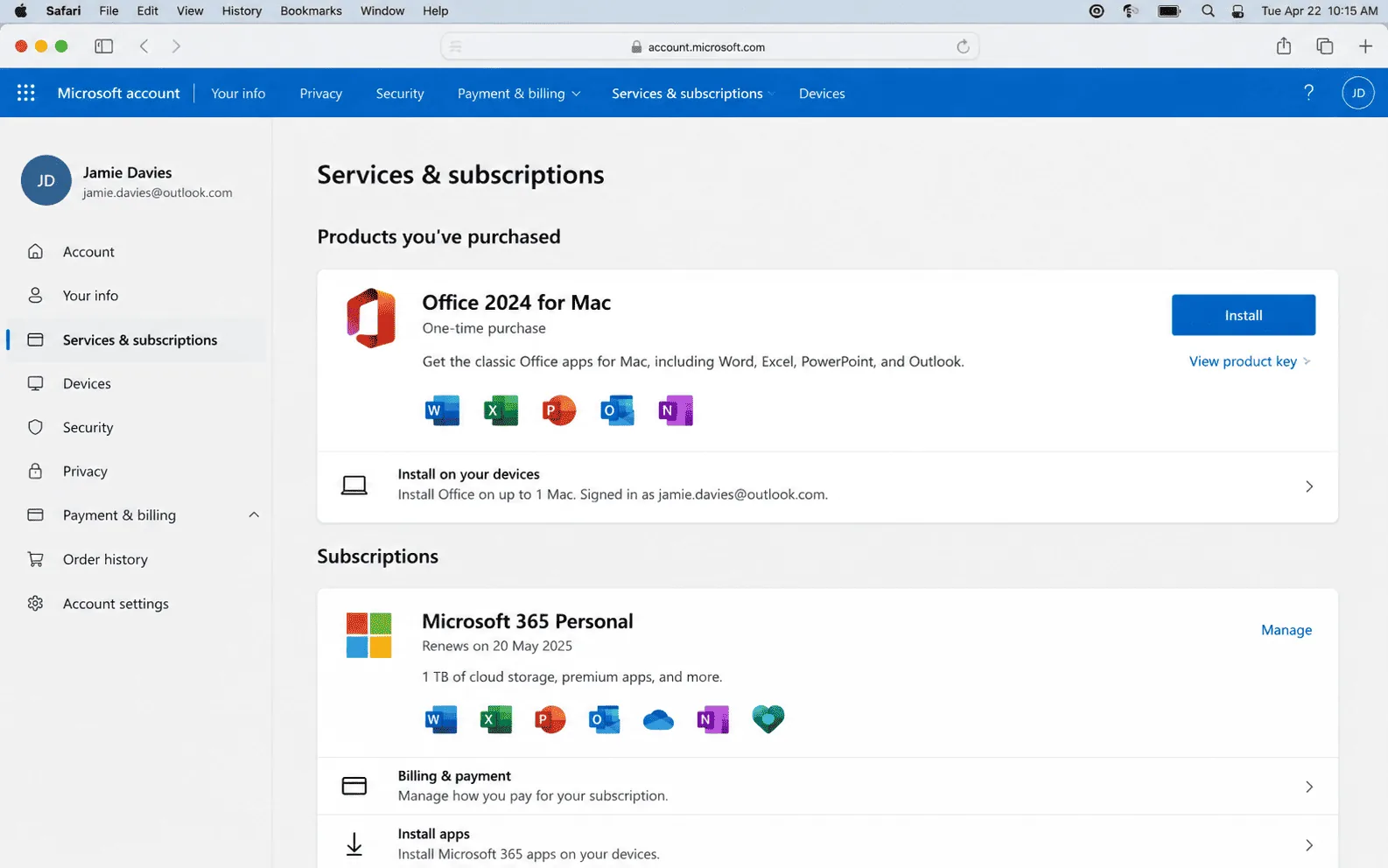
Tip: Office is also on the Mac App Store, but for a one-time purchase license we recommend the installer from your Microsoft account. It’s the route Microsoft documents for one-time purchases and makes activation simpler.
Step 3: Install Office
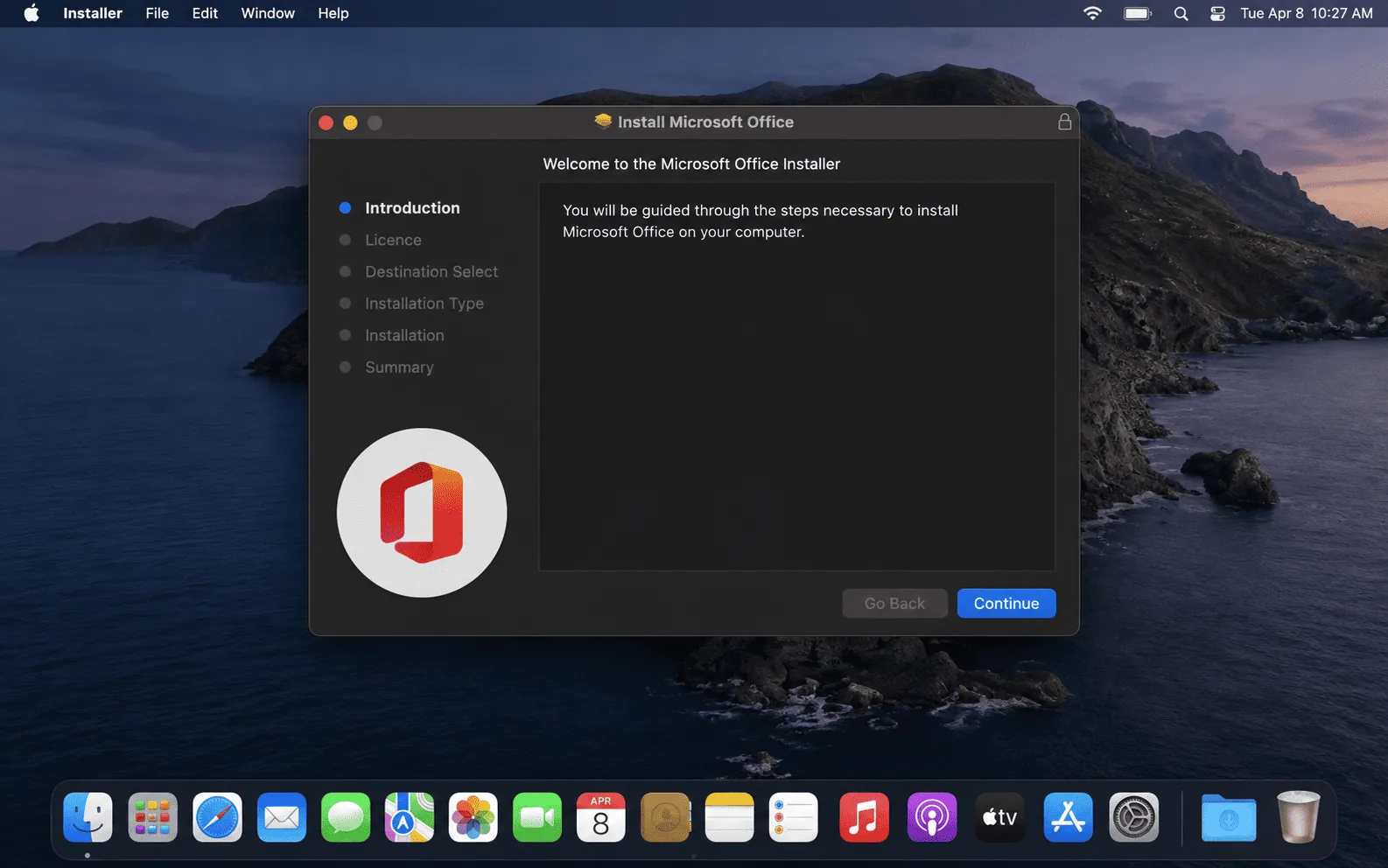
- Open Downloads and double-click the
.pkgfile. - Click Continue through the installer and accept the license agreement.
- Click Install and enter your Mac’s password when asked.
- Wait for it to finish (usually 5–10 minutes), then click Close.
Step 4: Activate Office
- Open Launchpad or Applications and open Microsoft Word.
- On the What’s New screen, click Get Started.
- Click Sign In and enter the same Microsoft account you used to redeem the key.
- If you have more than one license on the account, choose Office 2024 from the list.
- Click Start using Word.
Activation applies to all Office apps at once. You don’t need to sign in to Excel and PowerPoint separately.

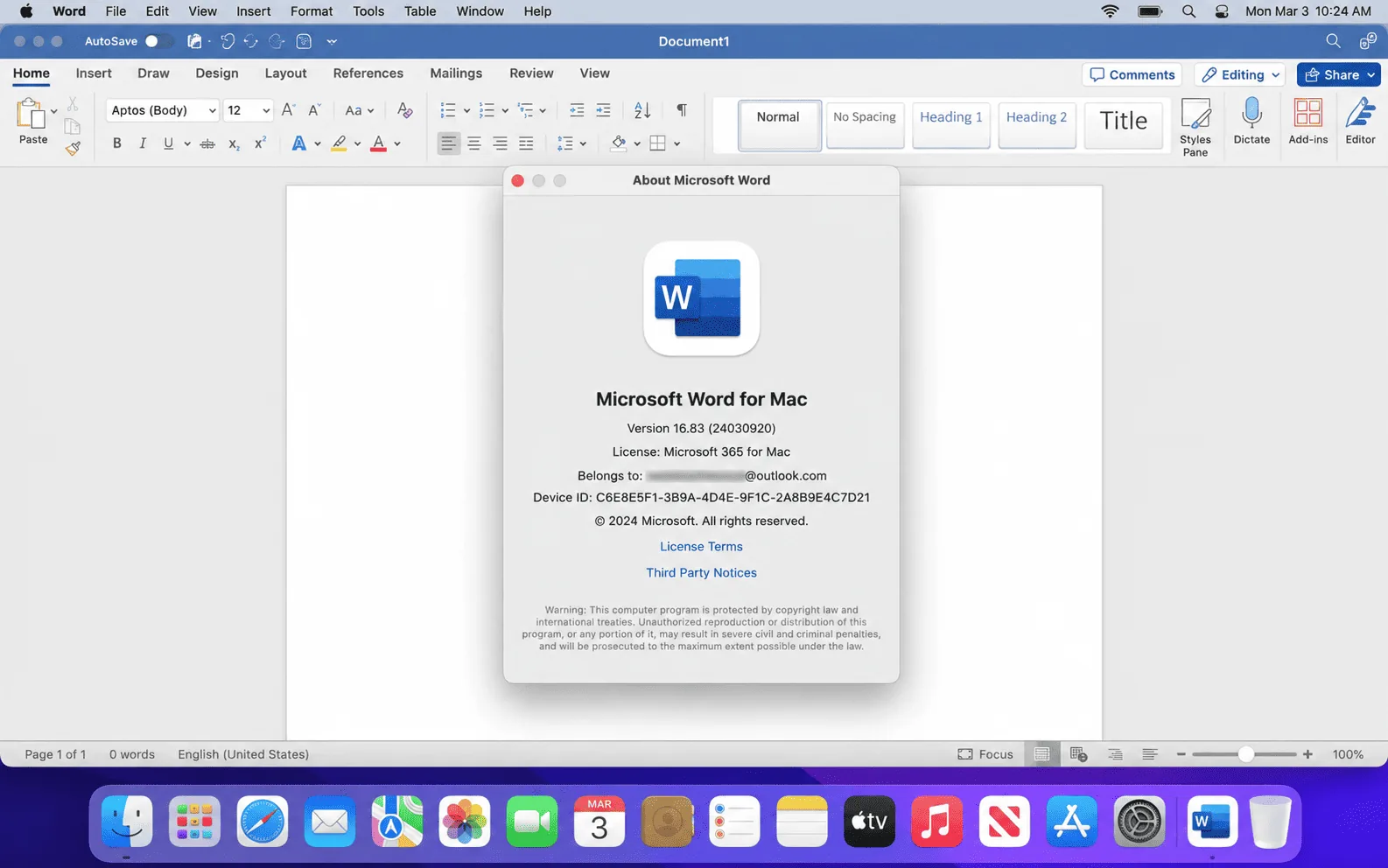
Step 5: Confirm activation worked
Open Word, click Word in the menu bar → About Microsoft Word. You should see:
- The license name (for example, Office Home & Business 2024)
- A version number of 16.83 or higher
If you see “Unlicensed Product,” a trial notice or a lower version, see the troubleshooting section below.
Option B: Microsoft 365 subscription
If you have Microsoft 365 Personal or Family, there’s no key to enter at install time. The subscription is the license.
- Go to microsoft365.com and sign in with the account that pays for the subscription.
- Click Install apps → Premium Microsoft 365 apps and run the
.pkginstaller (same as Step 3 above). - Open Word, click Sign In, and use the subscription account.
Install limits: Microsoft 365 lets you stay signed in on up to five devices at once per person. If you hit the limit, sign out of an old Mac or PC from your Microsoft account page.
Family plans: each family member should install with their own Microsoft account after accepting your invitation, not yours.
Option C: Work or school account
Many employers and universities include Office. If your organization manages your Mac, Office may already be installed.
- Open any Office app and click Sign In (or Activate).
- Enter your full work or school email.
- Choose Work or school account if asked, not “Personal account.”
- Complete your organization’s sign-in, including any two-factor step.
If you’re told your account doesn’t include desktop apps, your license may cover only Office on the web. Ask your IT team.

Option D: Volume license (LTSC for Mac)
Businesses with volume licensing (Office LTSC Standard for Mac) don’t sign in to activate. Instead:
- Your admin downloads the Volume License Serializer package from Microsoft’s volume licensing portal.
- Install Office normally, then run the Serializer
.pkgon each Mac. - Open Word. It activates without asking you to sign in.
If you’re an individual, you almost certainly don’t have this license type. For how retail, OEM and volume licenses differ, see our license types explained guide.
Troubleshooting Office activation on Mac
Find the exact message you’re seeing.
“Sign in to activate” keeps coming back
You’re almost always signed in with a different Microsoft account from the one the license belongs to.
- In Word, click Word → Sign Out.
- Quit all Office apps.
- Open Word again and sign in with the account you used at office.com/setup.
Not sure which account has the license? Sign in to account.microsoft.com/services with each email you use. The one that lists Office is the right one.
Office says “Unlicensed Product” or keeps asking to activate
Old license files from a previous install or trial can override your new license. Microsoft provides a free License Removal Tool for Mac that clears them without deleting your documents.
- Quit all Office apps.
- Download and run Microsoft’s License Removal Tool for Mac (search “Office for Mac License Removal Tool” on support.microsoft.com).
- Restart your Mac.
- Open Word and sign in again with the correct account.

Word opens documents but won’t let you edit or save
This is reduced functionality mode from the July 2026 certificate change.
- Office 2021 or Microsoft 365: open any Office app, click Help → Check for Updates, and install every update in Microsoft AutoUpdate. Once you’re on 16.83 or later, editing comes back.
- Office 2019 or 2016 for Mac: there’s no fix. These versions can’t reach the required build. You’ll need Office 2024 for Mac or Microsoft 365.
- Updates won’t install: your macOS is probably too old for current Office builds. Update macOS first (see Step 0 above).

“This product key has already been used”
A retail key can only be redeemed once. If you redeemed it before, you don’t need to enter it again. Just sign in with the account you redeemed it to. If you’ve never used the key and still see this error, contact the seller with your order number. Our guide to mistakes to avoid when buying product keys explains how to avoid used or resold keys.
“This key isn’t valid” or “can’t be used in your region”
Check the key type first. A Windows key, including any Professional Plus key, won’t redeem for Mac. If the key is a Mac edition, check for typos, and confirm the country you chose on office.com/setup matches where the key was sold.
Keychain password prompts every time Office opens
Office stores sign-in data in your macOS Keychain. If you keep getting asked, click Always Allow on the prompt, and enter your Mac login password. If prompts continue, sign out of Office, restart, and sign in again.
Some apps are missing after install
Office Home 2024 includes Word, Excel, PowerPoint and OneNote. Outlook comes only with Home & Business 2024 or Microsoft 365. If an app you paid for is missing, run the installer again from your Microsoft account.
Reinstalling Office or moving to a new Mac
Because your license lives in your Microsoft account, moving Office is simple:
- On the old Mac, open Word → Word → Sign Out, then drag the Office apps to the Trash.
- On the new Mac, sign in at account.microsoft.com/services, click Install, and follow Steps 3–4 above.
You don’t need your product key again. A one-time purchase license covers one Mac at a time, so remove it from the old Mac first.
Which Office should you get for your Mac in 2026?
| Office Home 2024 (Mac) | Office Home & Business 2024 (Mac) | Microsoft 365 Personal / Family | |
|---|---|---|---|
| Payment | One-time | One-time | Yearly or monthly |
| Apps | Word, Excel, PowerPoint, OneNote | + Outlook | All apps + Outlook |
| Devices | 1 Mac | 1 Mac | Signed in on up to 5 per person |
| Cloud storage | — | — | 1 TB OneDrive per person |
| Supported until | October 2029 | October 2029 | As long as you subscribe |
| Best for | Students and home use | Freelancers, small business | Multiple devices, families |
If you want to pay once and avoid a subscription, Office 2024 for Mac is the version to get. It runs natively on Apple silicon and Intel Macs. For buying advice, read where to buy an Office 2024 key for Mac (M1, M2, M3 compatible), or browse our Microsoft Office keys. Microsoft’s Office for Mac system requirements lists the exact supported macOS versions.
Setting up a Windows PC as well? See our Microsoft Office installation and activation guides for Windows.
Frequently asked questions
Do I need a Microsoft account to activate Office on a Mac?
Yes, for one-time purchases and Microsoft 365. On a Mac, the license is tied to your Microsoft account, and Office checks it when you sign in. Only volume licenses (LTSC) activate without one.
Can I enter a product key directly in Word for Mac?
No. Office for Mac has no product-key box. Redeem the key at office.com/setup first, then sign in to Word with that account.
Will an Office Professional Plus key work on a Mac?
No. Professional Plus is a Windows-only edition. Mac users need Office Home or Home & Business for Mac, or Microsoft 365.
Why can I open documents but not edit them?
Your Office version is in reduced functionality mode. It couldn’t verify its license after Microsoft’s certificate expired in July 2026. Update Office 2021 or Microsoft 365 to version 16.83 or later. Office 2019 and 2016 for Mac can’t be fixed and need upgrading.
Does Office 2021 for Mac still work after October 13, 2026?
Yes. Updated installs keep working, but they no longer get security updates or bug fixes. For a fresh install today, Office 2024 is the better choice.
Can I install one Office 2024 key on two Macs?
No. A one-time purchase license covers one Mac. Microsoft 365 lets you sign in on several devices.
Is Office for Mac different from Office for Windows?
The core apps are the same, and files are fully compatible. A few Windows-only features (such as Access and Publisher) aren’t available on Mac, and some Excel features differ slightly.
Do I lose my documents if I uninstall Office?
No. Uninstalling Office or running the License Removal Tool doesn’t touch your documents.
Quick check before you start working
Before you close this guide, run through these six points. If every one is true, Office is installed and activated properly.
- Your Mac runs one of the three latest macOS versions.
- Your license is a Mac edition (Home or Home & Business), not Professional Plus.
- You redeemed the key at office.com/setup and you know which Microsoft account it’s on.
- You installed Office from that Microsoft account.
- You signed in to Word with the same account.
- Word → About Microsoft Word shows your license name and version 16.83 or newer.
Still stuck on one of them? Go back to the troubleshooting section above, where most activation problems are covered.