If you bought a Windows PC, upgraded Windows, or recently entered a product key, you may want to know if your copy of Windows is genuine.
The good news is that you do not need third-party software to check. Windows has built-in activation tools that can show whether your copy is activated and whether it uses a digital license or product key.
However, there is an important difference between Windows being activated and proving the full licensing history of a copy. An activated Windows installation is a useful first check, but it does not tell you everything about where a key came from.
In this guide, we will show you how to check Windows activation status step by step in Windows 11 and Windows 10, how to check your license type, how to use Command Prompt, and what different activation messages mean.
Table of Contents
What Does “Genuine Windows” Mean?
When people say “genuine Windows,” they usually mean that Windows has a valid license and is properly activated.
Microsoft uses activation to verify that a Windows installation is associated with a valid digital license or product key. Microsoft explains that Windows can be activated with either a digital license or a 25-character product key.
This means you should not rely on a single test.
A better approach is to check:
- Windows activation status
- Your Windows edition
- Whether you have a digital license
- Whether your Microsoft account is linked to the license
- Product key information, if applicable
- Any activation errors
If everything matches your purchase and Windows reports that it is activated, that is a strong sign that your installation is properly activated.
How to Check If Windows 11 Is Activated
The easiest method is through Windows Settings.
Step 1: Open Settings
Press:
Windows + I
This opens the Windows Settings app.
You can also click Start > Settings.
Step 2: Open System
In Settings, click:
System
Then scroll down and select:
Activation
Step 3: Check Activation Status
Look at the Activation state section.
Microsoft’s current Windows 11 instructions use Settings > System > Activation to check activation status.
You may see a message such as:
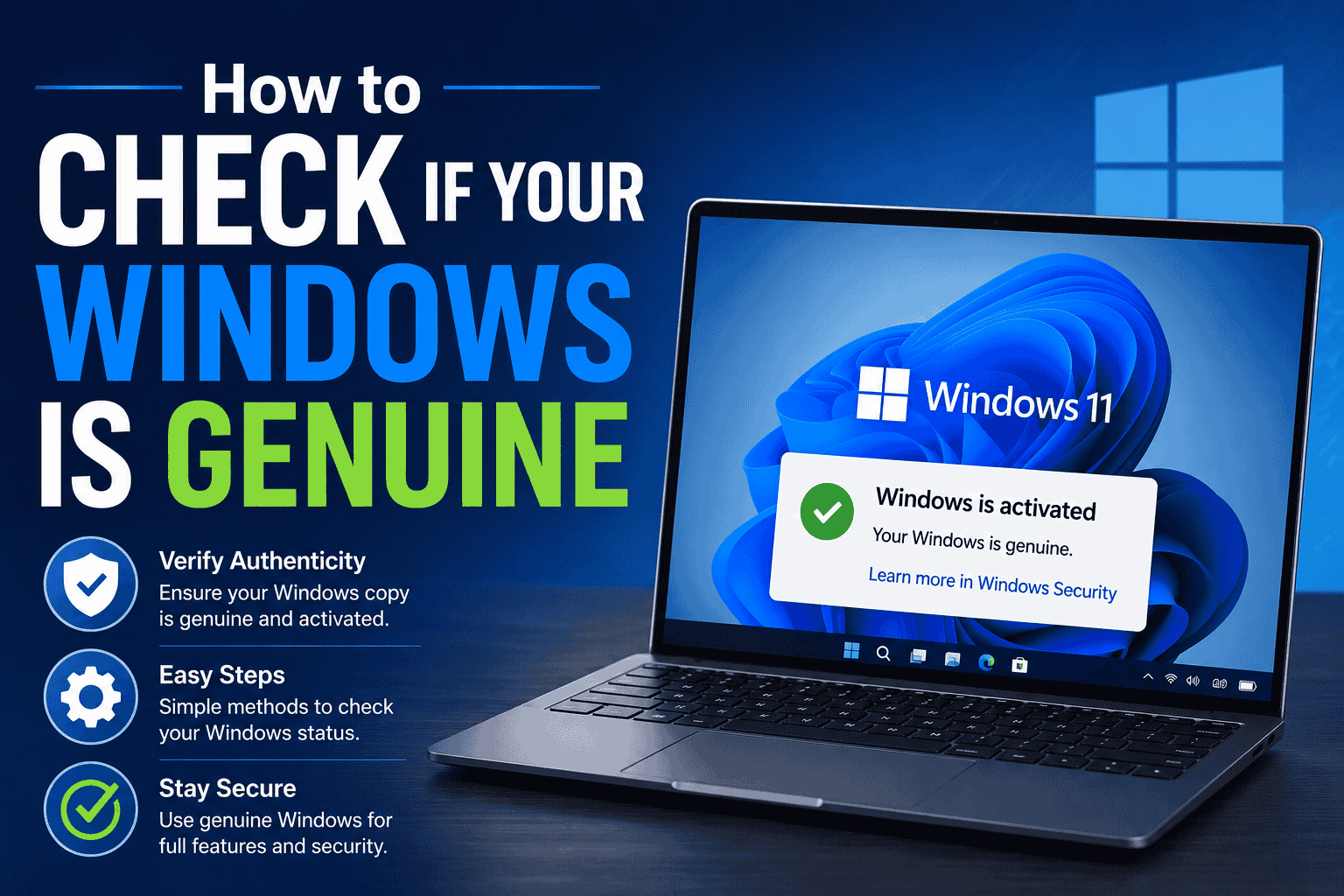
Windows is activated
or
Windows is activated with a digital license
or
Windows is activated with a digital license linked to your Microsoft account
These messages indicate that Windows has an activation entitlement.
If Windows is not activated, you may see:
Windows is not activated
In that case, Windows may display an activation error or provide an option to troubleshoot the problem.
What Does “Windows Is Activated With a Digital License” Mean?
A digital license is a way of activating Windows without requiring you to enter a product key every time.
Your Windows activation can be associated with the device’s hardware and, when linked, your Microsoft account.
For example, if you reinstall the same edition of Windows on the same hardware, Windows may activate automatically when the device connects to the internet.
Microsoft recommends linking a Windows 11 digital license to your Microsoft account. This can help with reactivation after significant hardware changes.
You can learn more about this in our detailed Windows Digital License guide.
That article explains the difference between a digital license and a traditional product key and how Windows activation works.
How to Check If Your Digital License Is Linked to Your Microsoft Account
If you see a message saying:
Windows is activated with a digital license linked to your Microsoft account
your Windows activation is connected to your Microsoft account.
This can be useful if you later make a major hardware change.
To check:
- Press Windows + I
- Select System
- Select Activation
- Review the activation message
Microsoft says that linking your Microsoft account with your digital license can help you reactivate Windows with the Activation troubleshooter after a significant hardware change.
How to Check Your Windows Edition
Checking your edition is important because the license must match the Windows edition you are trying to activate.
For example, Windows 11 Home and Windows 11 Pro are different editions.
To check your edition:
- Open Settings
- Go to System
- Select About
- Look under Windows specifications
- Find Edition
You might see:
- Windows 11 Home
- Windows 11 Pro
- Windows 11 Education
- Windows 11 Enterprise
- Windows 11 Pro for Workstations
You can also check the edition from the Activation page.
If you have Windows 11 Home installed but try to activate it with a Windows 11 Pro license, the key may not work for that installation.
Edition compatibility is one of the first things to check when activation fails.
How to Check Windows Activation Using Command Prompt
You can also use Command Prompt to check Windows licensing information.
This method is useful if you prefer a quick technical check.
Step 1: Open Command Prompt
Press the Windows key.
Search for:
Command Prompt
Right-click it and choose:
Run as administrator
Step 2: Run the Activation Command
Enter:
slmgr /xprThen press Enter.
Windows will display a message showing whether the system is permanently activated or whether activation has an expiration date.
For a normal permanently activated consumer Windows installation, you may see:
The machine is permanently activated.
If Windows is not permanently activated, the message will provide different information.
Why This Check Is Useful
The slmgr /xpr command provides a quick way to check the activation state without navigating through Settings.
However, it should not be treated as a complete license audit.
It tells you about activation status. It does not tell you the complete history of the product key or whether a seller had the right to resell a particular license.
How to Check Windows License Information With Command Prompt
Another useful command is:
slmgr /dliThis displays basic license information.
For more detailed information, you can use:
slmgr /dlvThe detailed command can show information such as:
- Windows edition
- License status
- Activation ID
- Partial product key
- License channel
- Licensing information
Do not share your full product key publicly if you retrieve one from your computer.
A product key is sensitive license information and should be stored safely.
Can You Check the Full Windows Product Key?
Sometimes.
Windows can store or expose product key information depending on how your device was licensed.
For example, an OEM Windows installation may have a product key embedded in the computer’s firmware.
However, not every activated Windows installation has a retrievable full key.
This is because modern Windows systems can use digital licenses instead of relying on a traditional product key.
Microsoft also explains that some purchases, including certain Microsoft Store upgrades, provide a digital license rather than a product key.
If you want to check whether your PC has an OEM key stored in its firmware, our guide How to Find Your Windows Product Key Using Command Prompt explains several built-in methods.
It also explains why a key returned by CMD is not always the same key you personally purchased.
What Does a Windows Activation Message Mean?
Here are some common messages and what they generally indicate.
“Windows is activated”
Windows has an active activation status.
“Windows is activated with a digital license”
Windows is activated using a digital license instead of requiring a traditional product key at the time of activation.
“Windows is activated with a digital license linked to your Microsoft account”
Your digital license is also associated with your Microsoft account.
“Windows is not activated”
Windows does not currently have a valid activation state.
You may need to enter a valid product key, sign in with the correct Microsoft account, or troubleshoot an activation problem.
“Windows activation will expire”
This can occur with certain volume licensing or evaluation scenarios.
If you are using a normal consumer copy of Windows and see an unexpected expiration message, investigate the license type.
How to Check Your Windows License Channel
If you want to go beyond the basic activation check, Command Prompt can provide additional licensing information.
Run:
slmgr /dlvLook for information related to the Description or license channel.
You may encounter terms such as:
- Retail
- OEM
- Volume
- KMS
- MAK
These terms describe different licensing methods.
Retail
Retail licenses are generally sold directly to consumers or through retail channels.
OEM
OEM licenses are commonly associated with computers supplied by manufacturers.
Volume
Volume licensing is designed for organizations that manage multiple Windows installations.
KMS
KMS stands for Key Management Service. It is used in organizational volume licensing environments.
A KMS activation on a personal home computer can therefore deserve further investigation.
It does not automatically prove that Windows is counterfeit, but it can indicate that the device is using an organizational activation method.
Does “Activated” Always Mean Windows Is Genuine?
Not necessarily.
This is an important point.
The Windows Activation screen can tell you whether Windows is activated, but activation alone does not provide a complete legal or licensing history.
For example, a key can be genuine Microsoft-issued software but still have licensing restrictions or an unexpected source.
This is why you should consider both:
Activation status + license source
If you purchased Windows from a seller, keep your invoice, order confirmation, product description, and license information.
These records provide additional evidence of your purchase.
How to Check a Windows Key Before Buying
If you are buying a Windows product key, do not wait until after purchase to start checking the seller.
Before paying, check:
- Exact Windows edition
- Windows 10 or Windows 11 compatibility
- License type
- Device limit
- Activation method
- Seller information
- Customer reviews
- Support policy
- Refund or replacement terms
- Secure payment options
A product page should clearly explain what you are buying.
Avoid choosing a seller based only on price.
Our guide on How to Fix Windows 11 Activation Error 0xc004f050 also explains why an activation error does not automatically mean a key is fake. Edition mismatch, incorrect key entry, hardware changes, and licensing issues can all cause activation problems.
What to Do If Windows Is Not Activated
If Windows says it is not activated, do not immediately assume that your key is fake.
Start with the basic checks.
1. Check Your Internet Connection
Windows activation normally requires an internet connection when activating online.
2. Check Your Windows Edition
Make sure your license matches the installed edition.
For example:
Windows 11 Pro key → Windows 11 Pro
A Pro key should not be expected to activate a Home installation.
3. Check Your Product Key
If you entered a key manually, make sure it was entered correctly.
4. Run the Activation Troubleshooter
Go to:
Settings > System > Activation
If Windows provides a Troubleshoot option, select it.
Microsoft provides an official activation troubleshooter for Windows activation problems.
5. Check Your Microsoft Account
If you use a digital license, sign in with the Microsoft account associated with the license.
6. Contact the Seller
If you recently purchased a Windows key and activation fails after you have confirmed the edition and entered the key correctly, contact the seller with the exact error message.
Do not send your complete product key in a public forum.
What If You Changed Your PC Hardware?
A major hardware change, such as replacing the motherboard, can affect Windows activation.
Microsoft recommends linking your Windows digital license to your Microsoft account because this can help with reactivation after a significant hardware change.
If you recently replaced major hardware and Windows is no longer activated:
- Open Settings
- Go to System
- Select Activation
- Select Troubleshoot
- Follow the instructions
- Sign in with the Microsoft account associated with the digital license
The Activation troubleshooter can help identify and resolve some hardware-related activation issues.
Windows 10 vs Windows 11 Activation
The basic idea is the same on both operating systems, but the Settings paths are different.
Windows 11
Go to:
Settings → System → Activation
Windows 10
Go to:
Settings → Update & Security → Activation
Microsoft documents both paths for checking activation status.
If you are using Windows 11 in 2026, the Settings > System > Activation method is the one you will normally use.
Frequently Asked Questions
How do I check if Windows 11 is genuine?
Open Settings > System > Activation and check the activation status. You can also use slmgr /xpr in an elevated Command Prompt for an additional activation check. Microsoft confirms that the Activation page is the standard place to check Windows 11 activation.
Does activated Windows mean it is genuine?
Activation confirms that Windows has an active activation status, but it does not provide the complete licensing history of the software. If you bought a product key, keep your purchase records and check the license information.
How do I check my Windows license type?
Open Command Prompt as administrator and run:
slmgr /dlvReview the displayed licensing information, including the license channel.
Can I check my Windows product key?
In some cases, yes. OEM keys may be stored in the computer’s firmware. However, a digital license may not expose a personal retail product key.
See our Windows product key recovery guide for more methods.
What does “Windows is activated with a digital license” mean?
It means Windows is activated using a digital license rather than relying on you to enter a product key during the current activation process.
What does “Windows is activated with a digital license linked to your Microsoft account” mean?
It means the digital license is also linked to your Microsoft account. This can help with reactivation after certain hardware changes.
Why does Windows say it is not activated after I changed my motherboard?
A major hardware change can cause Windows to lose its activation association. Microsoft provides an Activation troubleshooter that can help in supported situations.
Can I use Command Prompt to verify Windows?
Yes. Commands such as slmgr /xpr, slmgr /dli, and slmgr /dlv can provide Windows activation and licensing information.
Is a KMS activation normal on a home PC?
KMS is mainly associated with volume licensing environments. If you are using a personal computer and unexpectedly see KMS-related activation information, you should investigate where the Windows license came from.
Final Verdict
Checking whether Windows is genuine does not require expensive software or third-party activation tools.
Start with the built-in Windows Activation page:
Windows 11 → Settings → System → Activation
Then use slmgr /xpr or slmgr /dlv if you want more information.
Also check your Windows edition and understand whether you are using a digital license, OEM license, retail license, or another licensing method.
Most importantly, remember that activation is not the same as proving the complete licensing history.
If you bought Windows from a seller, keep your order confirmation and license details. If activation fails, check the Windows edition, product key, Microsoft account, and activation error before assuming the key is fake.
For more Windows activation help, you can also read our Windows Digital License Explained guide and Windows product key recovery guide.
And if you are looking for a Windows 11 license, review the exact edition and license terms before buying rather than choosing a key based only on price.