
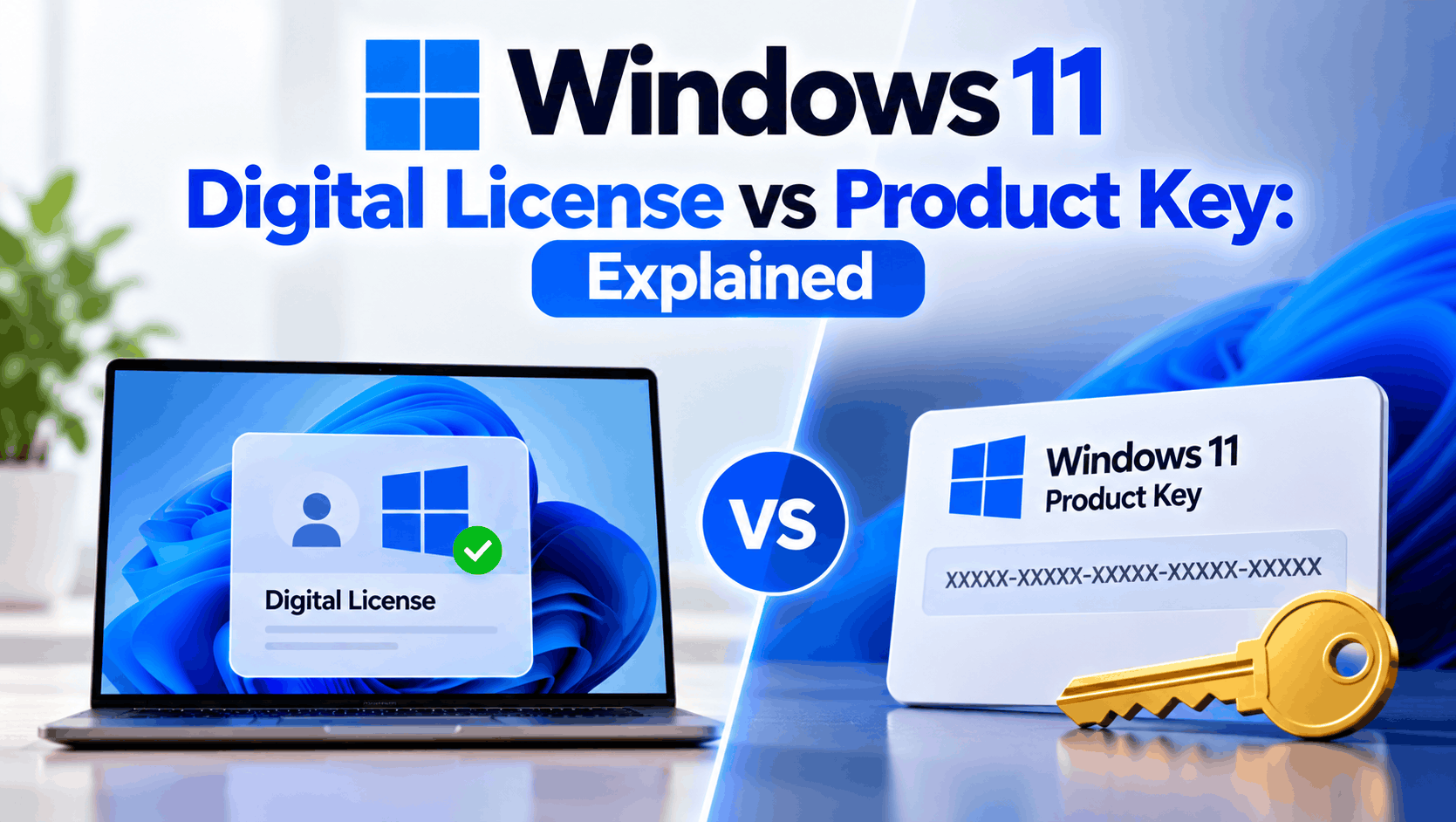
A product key is a 25-character code you type in to activate Windows 11. A digital licence is the record Microsoft keeps after activation, tied to your PC’s hardware, so Windows activates itself with no key at all. They aren’t rivals: entering a product key is how most people get a digital licence. The difference that matters is what happens next. A digital licence makes reinstalls effortless on the same PC, but if you replace the motherboard or move to a new computer, you’ll need either a Microsoft account linked to it or the original retail key.
Most confusion about Windows 11 activation comes from one assumption: that a digital licence and a product key are two different types of licence you have to choose between. They’re really two halves of the same system. Once you see how they connect, questions like “Why didn’t Windows ask for my key?” or “Will Windows activate after I replace my motherboard?” answer themselves.
What Is a Windows 11 Digital Licence?
A digital licence (Microsoft also calls it a digital entitlement) is a record on Microsoft’s activation servers saying “this particular PC is allowed to run this edition of Windows”. Microsoft identifies the PC by a hardware ID, a fingerprint built mainly from the motherboard. When Windows goes online, it checks in, the servers recognise the hardware, and Windows activates. Nothing is typed and nothing is stored on a sticker.
According to Microsoft, you have a digital licence if you:
- Upgraded for free from a genuine, activated Windows 10, 8.1 or 7 PC
- Bought Windows 11 or a Windows 11 Pro upgrade in the Microsoft Store app
- Upgraded through the Windows Insider Program on a PC that was already activated
There’s a second, less obvious way to get one: activating with a product key also creates a digital licence. Once a key activates a PC, Microsoft records that hardware too. That’s why you can wipe a PC you activated with a key and it reactivates on its own, even though you never typed the key in again.
What Is a Windows 11 Product Key?
A product key is a 25-character code in five blocks, like XXXXX-XXXXX-XXXXX-XXXXX-XXXXX. It’s your proof of purchase and the thing that creates the activation in the first place. Where you find it depends on how you bought Windows:
There are also generic keys, which install a particular edition but never activate it. They’re public and Microsoft publishes them; our generic product key list explains what each one is for.
Windows 11 Digital Licence vs Product Key: Side by Side
| Digital licence | Product key | |
|---|---|---|
| What it is | An activation record on Microsoft’s servers | A 25-character code |
| Where it lives | Tied to your PC’s hardware ID (and your Microsoft account, if linked) | Email, card, sticker, or the PC’s firmware (OEM) |
| Do you type it in? | No | Yes, once (OEM keys load automatically) |
| Reinstall on the same PC | Activates automatically | Activates automatically after the first activation |
| After replacing the motherboard | Only via a linked Microsoft account | Retail key: re-enter it. OEM key: no |
| Move to a new PC | Only if it came from a retail purchase | Retail: yes. OEM: no |
| Can you lose it? | Hard to lose; easy to strand after a hardware change | Yes, if you lose the email or card |
| Best for | Hassle-free reinstalls | Proof of purchase and moving between PCs |
The short version: the key is what you buy, and the digital licence is what Windows uses day to day. Keep your key even when Windows says it’s activated with a digital licence. It’s the only thing that proves a retail licence is yours if you change hardware.
How to Check Whether You Have a Digital Licence or a Product Key
1. Look at Settings › System › Activation
Open Settings › System › Activation and expand Activation state. The message tells you exactly what you have:
| Message you see | What it means |
|---|---|
| Windows is activated with a digital license linked to your Microsoft account | Digital licence, backed up to your account. You’re covered for hardware changes. |
| Windows is activated with a digital license | Digital licence, but not linked. Link your account now (see below). |
| Windows is activated | Activated with a product key, with no Microsoft account linked. |
| Windows is activated using your organization’s activation service | A work or school volume licence. Your employer manages it. |
| Windows is not activated | No valid licence found. The error code explains why. |
Seeing an error code instead? Paste it into our activation error code lookup for the cause and fix.
2. Check the licence channel with slmgr
For more detail, open Command Prompt and run slmgr /dli. A small Windows Script Host box shows your licence channel:
Description: Windows(R) Operating System, RETAIL channel
Partial Product Key: 3V66T
License Status: Licensed
Description: Windows(R) Operating System, OEM_DM channel
Partial Product Key: Q7H2K
License Status: Licensed
A RETAIL channel with any other five characters means a retail key you typed in. Our OEM vs Retail key checker walks you through reading these results, and our guide on checking if your key is OEM or retail covers every channel name.
3. Find an OEM key stored in your PC’s firmware
Most laptops and prebuilt PCs sold since 2012 have their key built into the firmware. Open Windows PowerShell as administrator and run:
(Get-CimInstance -ClassName SoftwareLicensingService).OA3xOriginalProductKeyHow to Link Your Windows 11 Licence to a Microsoft Account
This takes two minutes and is the single most useful thing you can do with a digital licence. Without it, replacing your motherboard can leave the licence stranded on hardware that no longer exists.
Reinstall, New Motherboard, New PC: What Happens to Your Licence
This is where the difference really shows. Here are the five situations our customers ask about most:
How to Reactivate Windows 11 After a Hardware Change
If Windows says it isn’t activated after you replace the motherboard, and your licence was linked, follow Microsoft’s process:
Microsoft doesn’t publish a limit on how many times you can do this, but repeated reactivations on a lot of different hardware can be refused. In that case, a retail key is the reliable fallback.
Can You Get a Product Key From a Digital Licence?
No. A digital licence from a free upgrade or a Store purchase has no personal product key behind it. Microsoft simply records your hardware as licensed. That’s why key-finder apps on those PCs show the generic key ending 3V66T (Pro) or 8HVX7 (Home). Those keys install Windows on anyone’s PC but never activate it.
If you did type in a retail key, your email or receipt is the place to find it again; Windows itself only keeps the last five characters. For OEM PCs, the PowerShell command above reads the key from the firmware.
Digital Licence or Product Key: Which Is Better to Buy?
You can’t really buy “a digital licence” on its own. Whether you buy from the Microsoft Store app or a key seller, you end up with the same thing: a licence that becomes a digital licence on your PC. What matters is retail vs OEM:
- Buy a retail key if you build PCs, upgrade hardware, or want the licence to move to your next computer.
- An OEM licence is fine if you’ll keep the PC as it is until you replace it. It usually comes with the PC anyway.
- Avoid “activators” and KMS tools. They fake a volume licence, can carry malware, and can stop working at any time.
Not sure your PC can run Windows 11? Run our compatibility checker first. And if you’re holding off because of Windows 12 rumours, read whether to buy Windows 11 now or wait.

Frequently Asked Questions
What is the difference between a digital license and a product key in Windows 11?
A product key is a 25-character code you enter to activate Windows. A digital license is the activation record Microsoft keeps for your PC’s hardware afterwards, so Windows can activate itself without a key. Entering a product key creates a digital license.
Do I need a product key if I have a digital license?
No. On the same PC you can reinstall the same edition of Windows 11, choose I don’t have a product key, and it activates automatically once online.
How do I know if Windows 11 has a digital license?
Go to Settings, System, Activation and expand Activation state. It will say Windows is activated with a digital license, or with a digital license linked to your Microsoft account.
Is a digital license linked to my Microsoft account?
Only if you link it. Sign in as an administrator with a Microsoft account, then select Add an account on the Activation page. The message changes to say it is linked to your Microsoft account.
Will my digital license work after replacing the motherboard?
Only if it was linked to your Microsoft account beforehand. Then run the Activation troubleshooter and choose I changed hardware on this device recently. If you have a retail key, you can also re-enter it.
Can I transfer a Windows 11 digital license to a new PC?
Only if it came from a retail purchase, by entering the retail key on the new PC. Digital licenses from a free upgrade and OEM licenses stay with the original PC.
Can I find my product key if I have a digital license?
If your license came from a free upgrade or the Microsoft Store app, there is no personal product key to find. Key finders show a generic key ending in 3V66T or 8HVX7, which doesn’t activate Windows.
Does a digital license expire?
No. A Windows 11 digital license is permanent for that PC and edition, and every free Windows 11 feature update keeps it.
Is a retail key better than a digital license?
They work together. A retail key becomes a digital license once activated, but keeping the key lets you reactivate after a motherboard change or move Windows to a new PC.