
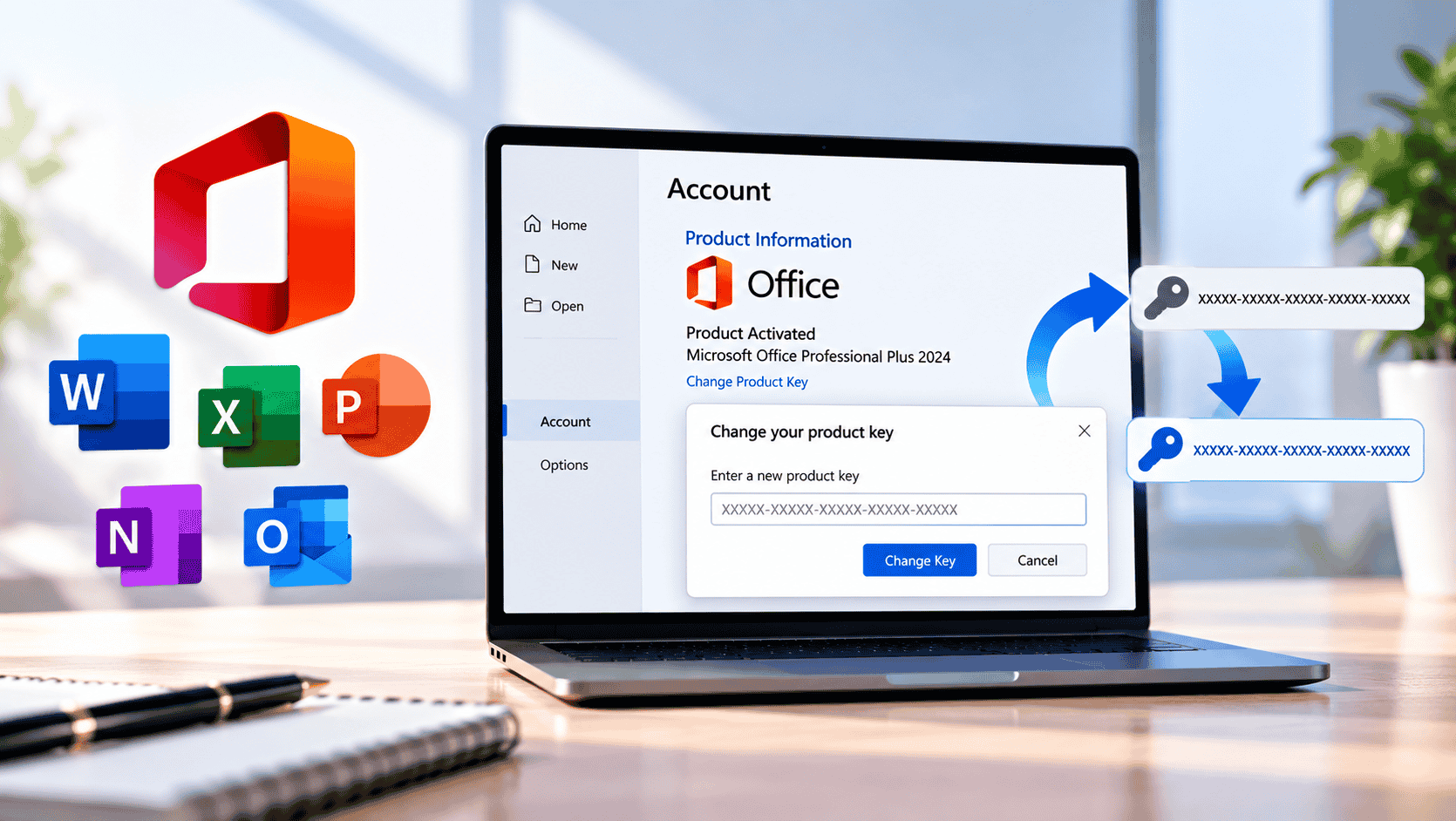
You don’t need to uninstall Office to change its product key. In any Office app, go to File › Account › Change License, choose Enter product key instead, type the new key and select Install this product instead. For volume licences, or when that button is missing, use Command Prompt: run cscript ospp.vbs /dstatus to see the current key, /unpkey: to remove it, /inpkey: to add the new one and /act to activate. Your documents, settings and apps stay exactly as they are.
There are plenty of reasons to change the product key in Microsoft Office. Maybe Office came pre-installed with a trial or a key that has stopped working. Perhaps you bought a new licence, upgraded from Home & Student to Professional Plus, or found one key installed on several PCs at once. It might simply be a business PC moving from one licence to another.
Most guides tell you to uninstall Office and start again. You rarely need to. This guide shows you how to change the Office product key without reinstalling, using the built-in Change License option, the ospp.vbs command-line tool, your Microsoft account, or Control Panel on older versions. It also covers volume licences, error codes, and how to clear an old licence completely.
Before You Start: Check Your Office Version and Licence Type
Two minutes of checking saves a lot of trial and error. The right method depends on three things: your Office version, whether it’s retail or volume licensed, and whether it’s activated with a key or an account.
Find your Office version
Open Word, Excel or any Office app and go to File › Account. The product name under Product Information tells you the version and edition, for example Office Home & Business 2021 or Microsoft Office LTSC Professional Plus 2024. If you see a Subscription Product heading, you’re on Microsoft 365.
Check whether your licence is retail or volume
This matters because retail and volume keys aren’t interchangeable. Open Command Prompt as administrator and run:
cscript "C:\Program Files\Microsoft Office\Office16\OSPP.VBS" /dstatusLook at the LICENSE DESCRIPTION line. RETAIL channel means a retail key, VOLUME_MAK means a Multiple Activation Key, and VOLUME_KMSCLIENT means the PC activates against a company KMS server. The same output shows the last five characters of the key that’s installed now; you’ll need them to remove it.
Method 1: Change the Office Product Key With Change License
This is Microsoft’s recommended method for retail Office that came with a 25-character product key, such as Office Home & Business or Office Professional. It’s all done inside Office, and Microsoft’s support article lists it as the first option.
If there’s no Change License button
The button only appears on up-to-date Click-to-Run installs. Go to File › Account › Update Options › Update Now, let Office update, restart the app and look again. Volume-licensed editions (Professional Plus and Standard from a company or LTSC) never show it, so use Method 2.
If Office says the key is for a different product
Office will happily switch you to a different edition, for example from Home & Student to Home & Business. When you select Install this product instead, it downloads the apps the new licence includes. That’s an update, not a full reinstall, and your files stay where they are.
Method 2: Change the Office Key With ospp.vbs (Command Line)
The Office Software Protection Platform script, ospp.vbs, ships with every desktop Office version from 2010 onwards. It works for retail and volume licences, needs no Microsoft account, and is the method IT admins use. Microsoft documents it for fixing the common problem of one key installed on several PCs.
Step 1: Open Command Prompt as administrator and go to the Office folder
Select Start, type cmd, right-click Command Prompt and choose Run as administrator. Then move to your Office folder. Office 2016, 2019, 2021 and 2024 all use Office16:
| Your Office | Folder containing ospp.vbs |
|---|---|
| Office 2016 to 2024, 64-bit | C:\Program Files\Microsoft Office\Office16 |
| Office 2016 to 2024, 32-bit on 64-bit Windows | C:\Program Files (x86)\Microsoft Office\Office16 |
| Office 2013 | Office15 (same locations) |
| Office 2010 | Office14 (same locations) |
cd "C:\Program Files\Microsoft Office\Office16"Step 2: See the key that’s installed now
cscript ospp.vbs /dstatusospp.vbs /dstatus output for a copy of Office that has stopped activating. If several products are listed, each has its own key.Step 3: Remove the old key
cscript ospp.vbs /unpkey:7H8Q9Replace 7H8Q9 with the five characters from your own output. You’ll see Product key uninstall successful. If /dstatus listed more than one key, for example Office plus Visio or Project, only remove the one you’re replacing.
Step 4: Install the new key
cscript ospp.vbs /inpkey:XXXXX-XXXXX-XXXXX-XXXXX-XXXXXType the full 25-character key, dashes included. A good key returns Product key installation successful.
Step 5: Activate Office
cscript ospp.vbs /actMethod 3: Office Linked to a Microsoft Account
Microsoft 365 subscriptions, and most retail copies of Office 2021 and 2024, don’t keep a product key on your PC at all. You redeem the key once online, it’s attached to your Microsoft account, and Office activates whenever you sign in. To change licence, you change the account or redeem the new key to it.
Redeem a new key and switch to it
According to Microsoft’s guide to switching your Office license, this works for Microsoft 365, Office 2024 and Office 2021 on Windows. It doesn’t work to or from a volume-licensed edition. If the Switch License button doesn’t appear, update Office first.
Moving from Microsoft 365 to Office 2024 (or back)
Switch License handles this too. Many people move from a subscription to a one-time purchase to stop paying every year; our Office 2024 vs Microsoft 365 vs LibreOffice comparison covers what you gain and lose. When you switch, Office removes subscription-only features such as Copilot and the extra OneDrive cloud storage, but your documents stay on the PC.
Find a key you’ve already redeemed
Sign in at account.microsoft.com, open Services & subscriptions and select View product key next to the product. Microsoft only shows keys for some purchases, but it’s the quickest place to look when you’ve lost the email.
Method 4: Change the Key in Control Panel (Office 2010 and 2013)
Older Office versions installed from a disc or an MSI package have a key option in their setup program. It isn’t available on modern Click-to-Run installs, which only offer Quick Repair and Online Repair.
appwiz.cpl and press Enter.If you only see Quick Repair and Online Repair, your Office is Click-to-Run: use Method 1 or Method 2 instead. Both Office 2010 and Office 2013 are past the end of support, so if you’re buying a new key anyway, a current version gets you security updates.
Changing a Volume Licence Key (MAK and KMS)
Volume-licensed Office, usually Professional Plus or Standard, uses either a MAK (Multiple Activation Key, activated once with Microsoft) or KMS (activated against a server on your company network). Use ospp.vbs for both.
/inpkey: your MAK key, then /act. Each activation uses one of the key’s allowed activations./dinstid to show the Installation ID, get a Confirmation ID from Microsoft, then /actcid: followed by the Confirmation ID and /act./inpkey:, set the host with /sethst:kms.yourdomain.local, then run /act./unpkey: on the KMS client key, install the MAK with /inpkey: and run /act. KMS activations expire after 180 days without contact.The offline MAK steps work the same way as offline Windows activation, now that Microsoft has replaced phone activation with its online Product Activation Portal. Our guide to activating Windows Server without internet walks through the portal step by step.
Retail Key on a Volume Install (or the Reverse)
This is the most common reason a key change fails. Office comes in two channels, and a key only works with the matching one:
- A retail key (Home & Student, Home & Business, Professional) needs a retail install.
- A volume key (Professional Plus or Standard MAK, KMS, or LTSC) needs a volume install.
Install the wrong type with /inpkey and you’ll get ERROR CODE: 0xC004F069, which means Office can’t find a licence for that key in the installed edition. Microsoft also says you can’t use Switch License to move to or from a volume edition.
To fix it without uninstalling first, IT admins use Microsoft’s free Office Deployment Tool to convert the installed product. You point a configuration file at the edition that matches your key and run setup. Office converts in place and your files and settings stay, though the apps themselves are downloaded again. For example, to switch to volume-licensed Office LTSC Professional Plus 2024:
<Configuration>
  <Add OfficeClientEdition="64" Channel="PerpetualVL2024">
    <Product ID="ProPlus2024Volume" PIDKEY="XXXXX-XXXXX-XXXXX-XXXXX-XXXXX">
      <Language ID="MatchInstalled" />
    </Product>
  </Add>
  <RemoveMSI />
  <Display Level="Full" AcceptEULA="TRUE" />
</Configuration>
Save it as config.xml next to setup.exe from the Office Deployment Tool and run setup.exe /configure config.xml from an administrator Command Prompt. For a retail key, use a retail product ID such as ProPlus2024Retail and the Current channel instead.
How to Remove the Old Office Licence Completely
Sometimes Office keeps showing the old licence, an old account, or an Unlicensed Product banner even after you’ve installed a new key. Clearing every stored licence gives you a clean start, still without reinstalling Office.
The quick way: Microsoft’s reset tools
Microsoft publishes a Microsoft 365 activation troubleshooter in the Get Help app, and a script, OLicenseCleanup.vbs, that removes previous licences and cached accounts in one go. Both are linked from Microsoft’s guide to resetting Office activation state. Run the script as administrator with Office closed.
The manual way
- Run
cscript ospp.vbs /dstatusand remove every key with/unpkey:until it reports No installed product keys detected. - Delete the contents of
%localappdata%\Microsoft\Office\Licenses, where account-based licences are stored. - In Registry Editor, delete
HKEY_CURRENT_USER\Software\Microsoft\Office\16.0\Common\Licensingand...\Common\Identity. Back up the registry first. - Open Control Panel › Credential Manager › Windows Credentials and remove every entry that mentions Office or MicrosoftOffice16.
- Open an Office app. It now asks you to sign in or enter a key, and you can add the new licence.
How to Confirm the New Product Key Is Active
Check in two places. In any Office app, File › Account should show the new product name and Product Activated. From the command line, cscript ospp.vbs /dstatus should show the new key’s last five characters and:
/dstatus output after a successful key change.Troubleshooting: Office Product Key Change Problems
.\.cscript .\ospp.vbs in PowerShell./dstatus, then convert with the Office Deployment Tool./act, or follow our 0x4004F00C guide.For the full activation history, run cscript ospp.vbs /dhistoryacterr; it lists recent errors with their codes. Still stuck after a fresh key? Our article on Office 2024 key not working covers more fixes.
Need a New Office Product Key?
Noxkeys delivers genuine Microsoft Office product keys instantly by email, with step-by-step activation instructions. Professional Plus keys work with the ospp.vbs method in this guide, so you can switch an existing install over without uninstalling.

Browse all Microsoft Office licences, read our FAQ, or contact support with a screenshot of your /dstatus output if a key change fails.
Frequently Asked Questions
Can I change my Office product key without reinstalling?
Yes. Use File > Account > Change License in any Office app and choose Enter product key instead, or run cscript ospp.vbs with /unpkey, /inpkey and /act from an administrator Command Prompt. Office stays installed and your files and settings are kept.
Will changing the Office key delete my documents?
No. The product key only controls the licence. Your documents, templates, Outlook data and settings are not touched.
How do I find my current Office product key?
Office only stores the last five characters on your PC. Run cscript ospp.vbs /dstatus to see them. For keys redeemed to a Microsoft account, sign in at account.microsoft.com, open Services & subscriptions and select View product key.
Why is there no Change License button in Office?
Your Office needs updating, or it’s a volume-licensed edition. Update via File > Account > Update Options > Update Now. For volume editions, use the ospp.vbs commands instead.
Where is ospp.vbs located?
For Office 2016, 2019, 2021 and 2024 it’s in C:\Program Files\Microsoft Office\Office16, or C:\Program Files (x86)\Microsoft Office\Office16 for 32-bit Office on 64-bit Windows. Office 2013 uses Office15 and Office 2010 uses Office14.
How do I change the product key for Office 2024 or 2021?
If you have a 25-character key, use File > Account > Change License, or ospp.vbs for Professional Plus volume keys. If your copy is linked to a Microsoft account, redeem the new key at microsoft365.com/setup and use Switch License.
Can I use a retail key on a volume version of Office?
No. Retail keys only activate retail installs and volume keys only activate volume installs. A mismatch causes error 0xC004F069. Convert the installation with the Office Deployment Tool to match your key.
How do I remove an Office product key?
Run cscript ospp.vbs /dstatus to find the last five characters of the key, then cscript ospp.vbs /unpkey: followed by those five characters. Repeat for each listed key.
How do I change from Microsoft 365 to Office 2024 without uninstalling?
Redeem the Office 2024 key to your Microsoft account, then go to File > Account and select Switch License. Office installs the 2024 apps and removes subscription-only features, but keeps your files.
Can I change the Office key on a Mac the same way?
No. Office for Mac doesn’t use ospp.vbs or Change License. You sign out and sign in with the account that holds the new licence, or use Microsoft’s License Removal Tool for Mac to clear the old one.