
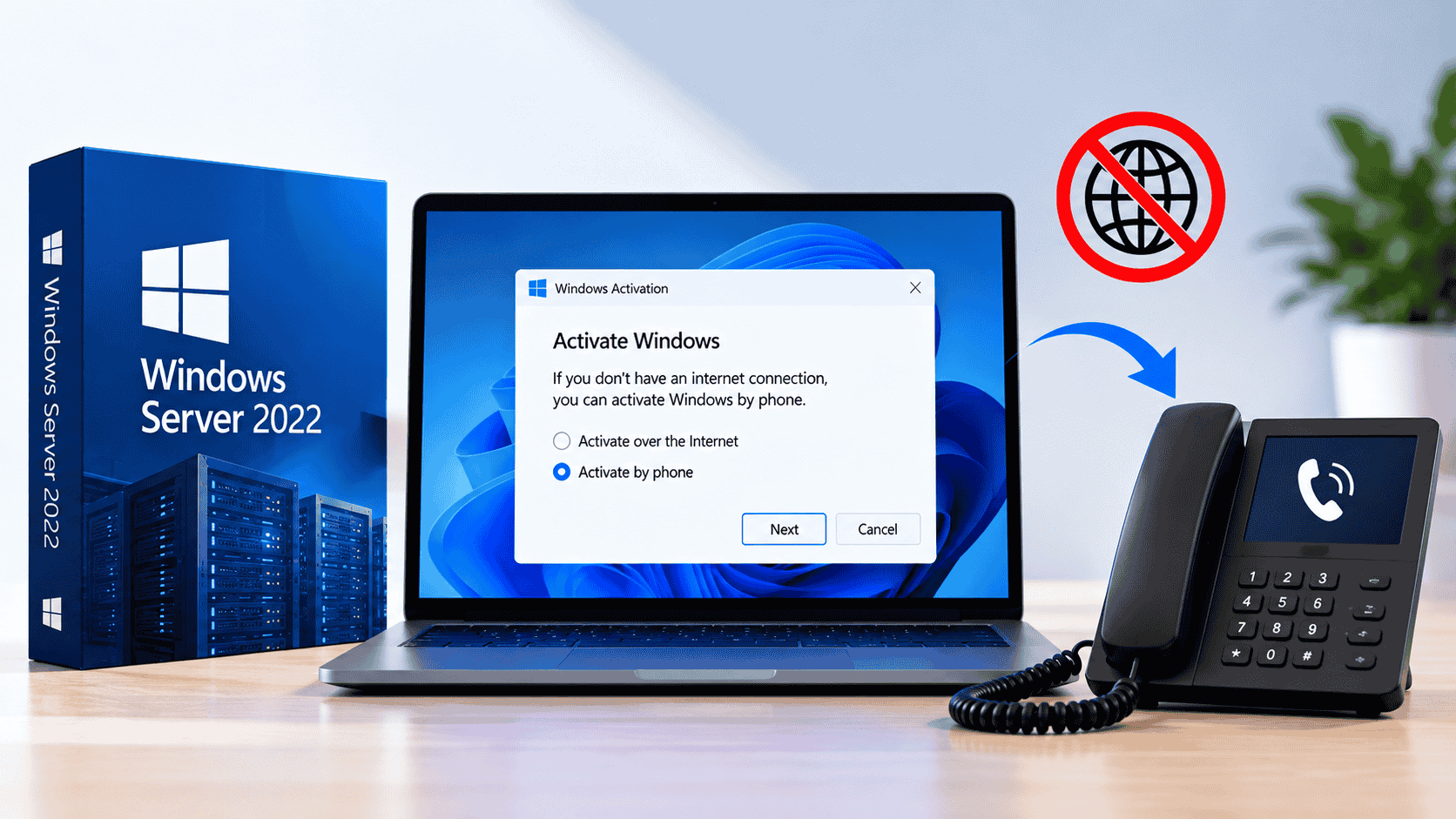
You can still activate Windows Server without internet, but Microsoft replaced the phone call with an online portal in December 2025. The server stays offline: run slmgr /dti on the server to get its Installation ID, enter that ID in Microsoft’s Product Activation Portal on your phone or another device with internet, then type the Confirmation ID it gives you into the server with slmgr /atp. Confirm with slmgr /xpr. It takes about ten minutes.
slmgr /dti (get the ID), slmgr /atp (enter the code) and slmgr /xpr (check).Plenty of servers never touch the internet: domain controllers in secured networks, industrial systems, lab machines and anything in an air-gapped environment. They still need activating. For years the answer was phone activation: read a long number to Microsoft’s automated line and type the code you heard back in.
That process has changed. This guide shows you how to activate Windows Server without internet in 2026, step by step, with what each screen looks like. It covers the Desktop Experience and Server Core, Windows Server 2025, 2022, 2019 and 2016, the most common errors, and better options when you have more than a handful of offline servers.
slmgr /ipk with your 25-character product key.slmgr /dti and note the long number it shows.slmgr /atp with the Confirmation ID, then check with slmgr /xpr.What Changed With Windows Server Phone Activation?
Until late 2025, offline activation meant calling a toll-free number, reading out your Installation ID to an automated system, and typing in the Confirmation ID it read back. On 3 December 2025, Microsoft quietly retired the voice service. Calling the number now plays a short recording explaining that product activation support has moved online.
The replacement is Microsoft’s Product Activation Portal. According to Microsoft’s support article, the new digital workflow is “more secure, reliable, and user-friendly” and helps prevent fraud. The portal supports Retail, OEM and Volume Licence products, which covers Windows Server.
| Old phone activation | New portal activation | |
|---|---|---|
| Where you get the code | Phone call to Microsoft | Website on any device |
| Does the server need internet? | No | No |
| What you need | A phone line | A phone, tablet or PC with internet |
| Sign-in | None | Microsoft, work or school account |
| Installation ID | Read out by voice | Typed or pasted into a form |
| Server commands | slmgr /dti and /atp | Unchanged: slmgr /dti and /atp |
What You Need Before You Start
DISM /online /Get-CurrentEdition.If DISM /online /Get-CurrentEdition shows ServerStandardEval or ServerDatacenterEval, convert it first, because evaluation editions reject full keys with error 0xC004F069. Our guide to fixing Windows Server activation error 0xC004F069 shows how.
Method 1: Activate Windows Server Offline From the Command Line
This method works on every Windows Server edition, including Server Core, and is the most reliable. Open Command Prompt as administrator on the server.
Step 1: Install your product key
slmgr /ipk XXXXX-XXXXX-XXXXX-XXXXX-XXXXXReplace the X’s with your key. After a few seconds, Windows Script Host confirms Installed product key XXXXX-XXXXX-XXXXX-XXXXX-XXXXX successfully. Skip this step if the key is already installed.
Step 2: Display the Installation ID
slmgr /dtislmgr /dti. This example uses placeholder digits; yours will be unique to your server and key.The number is long, so split it into groups of seven as you copy it. That’s how the portal and the activation window display it, and it makes mistakes easy to spot.
Step 3: Get your Confirmation ID from the portal
On your phone or another device with internet, follow the portal steps in Using the Product Activation Portal below. You’ll enter the Installation ID and receive a Confirmation ID: 48 digits, shown as eight groups of six.
Step 4: Enter the Confirmation ID on the server
slmgr /atp 123456234567345678456789567890678901789012890123Type the Confirmation ID as one continuous number, with no spaces or dashes. Windows Script Host confirms when it’s accepted:
slmgr /xpr confirms Windows Server is permanently activated.cscript slmgr.vbs prints them in the console as shown.Method 2: Use the Activation Window (Desktop Experience)
On Windows Server with Desktop Experience, you can use the graphical activation window instead of typing commands:
slui 4 and press Enter.On some Windows Server builds, slui 4 doesn’t open the phone activation screen, or closes immediately. If that happens, use Method 1; the command-line steps always work.
How to Use the Product Activation Portal
This is the step that replaced the phone call. Do it on any device with internet; a smartphone browser works fine. Microsoft’s official steps are in its guide to activating perpetual products using the Product Activation Portal.
slmgr /atp.Activating Windows Server Core Without Internet
Server Core has no graphical activation window, so slui 4 isn’t available. Use the command-line method from Method 1. Microsoft’s support team confirms the same sequence on Microsoft Q&A:
slmgr /ipk XXXXX-XXXXX-XXXXX-XXXXX-XXXXX
slmgr /dti
slmgr /atp CONFIRMATION-ID
slmgr /xpr- If pop-up windows don’t appear in your session, prefix each command with
cscript %windir%\system32\slmgr.vbsto print results in the console. - You can also open option 11 (Windows Activation) in the sconfig menu, which runs the same tools for you.
- To activate a remote Server Core machine from another server, add the computer name:
slmgr SERVERNAME /dti.
How to Confirm Windows Server Is Activated
slmgr /xprThe machine is permanently activated.
slmgr /xpr after successful offline activation.For more detail, slmgr /dlv shows the licence status, edition and channel (Retail, OEM or Volume). On Desktop Experience you can also check Settings › System › Activation.
Troubleshooting Offline Activation
slmgr /dti again, compare every group and request a new Confirmation ID.slui 4 doesn’t openslmgr /dti and slmgr /atp.slmgr /dti right before you request a code.If the portal rejects the key itself, it may already be in use on another server; our guide to “This product key has already been used” explains what to do. Activating Office on the same offline server? The same Installation ID process works through ospp.vbs; see our guide to Office error 0x4004F00C.
Activating Many Offline Servers: Better Options
Getting a Confirmation ID one server at a time is fine for a few machines. For larger offline or air-gapped environments, Microsoft offers activation methods that don’t need a code per server:
AVMA is especially useful offline: once the Datacenter host is activated, guest VMs never need to contact Microsoft. It only works on Datacenter hosts. If you’re deciding between editions for a virtualisation host, our guide to Windows Server 2025 Standard vs Datacenter explains the difference.
Need a Windows Server Licence?
Noxkeys delivers genuine Windows Server product keys instantly by email, with activation instructions that cover offline activation. Licensing a large multi-core host or several VMs? Contact us before ordering and we’ll help you work out the right quantity.

Also available: Windows Server 2022 Datacenter. Browse all Windows Server licences, read our FAQ, or contact support with your slmgr /dli output if activation fails.
Frequently Asked Questions
Can you still activate Windows Server by phone?
Not by voice. Microsoft retired live phone activation on 3 December 2025, and the number now plays a recording pointing to the online Product Activation Portal. The offline process on the server is unchanged; you just get the Confirmation ID from the portal instead of a call.
How do I activate Windows Server without internet?
Run slmgr /ipk with your key, then slmgr /dti to show the Installation ID. Enter that ID in Microsoft’s Product Activation Portal on a phone or another device with internet, then run slmgr /atp with the Confirmation ID you receive, and check with slmgr /xpr.
Does the server need internet for portal activation?
No. Only the device you use to open the portal needs internet. The server stays offline throughout.
What is the Windows Server Installation ID?
A long number, usually 63 digits, generated from your server and product key. Show it with slmgr /dti or in the slui 4 window. It changes if you change the key or hardware.
What is a Confirmation ID?
The 48-digit code Microsoft gives you in exchange for your Installation ID. Entering it with slmgr /atp activates Windows Server offline.
How do I activate Windows Server Core offline?
Use the command line: slmgr /ipk, slmgr /dti, then slmgr /atp with the Confirmation ID. Server Core has no slui window, but the sconfig menu’s Windows Activation option runs the same tools.
Do I need a Microsoft account to activate offline?
Yes, to sign in to the Product Activation Portal. Microsoft says signing in doesn’t link the account to your licence; it’s only used to access the portal.
Why does slmgr /atp say the Confirmation ID is invalid?
Usually a typing error, or a Confirmation ID that was generated for a different Installation ID. Run slmgr /dti again, check every digit and request a new code.
Can offline activation activate an evaluation edition?
No. Evaluation editions reject full product keys with error 0xC004F069. Convert the edition with DISM first, then activate.
How do I activate many offline servers?
Use Automatic VM Activation for VMs on a Datacenter host, a KMS host or Active Directory-based activation for volume-licensed servers, or VAMT proxy activation to collect and apply Confirmation IDs in bulk.