
Quick answer
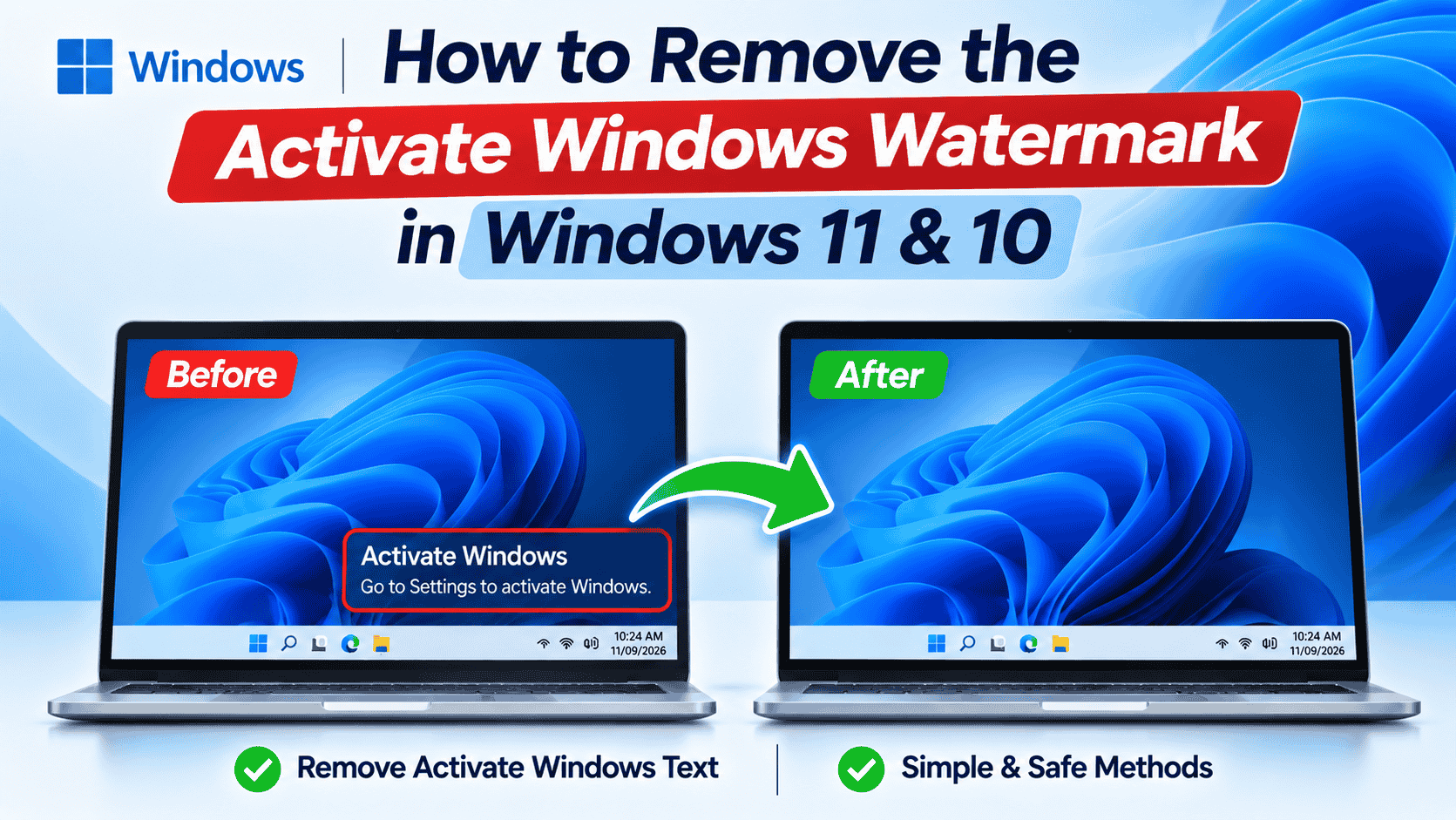
The “Activate Windows” watermark appears because Windows can’t find a valid licence for your PC, and the only way to remove it for good is to activate Windows. Open Settings › System › Activation, read the message under Activation state, and fix the cause: enter a key you already own, run the Troubleshoot option after a hardware change, or install the edition your licence is for. Registry edits, batch files and “watermark remover” tools only hide it until the next restart or update, and some of them carry real risks.
In this guide
You’re halfway through a presentation, sharing your screen, and there it is in the corner: Activate Windows. Go to Settings to activate Windows. Or you’ve just built a PC, installed Windows 11, and the faint grey text won’t go away no matter what you click.
Search for a fix and you’ll find pages full of registry hacks and batch files. Most of them hide the text for a few hours, then it comes back after a restart or an update. This guide does it differently. It explains what the watermark is, why it appeared on your PC specifically, which tricks are myths, and how to remove it permanently in each real situation. It applies to Windows 11 and Windows 10.
What the Activate Windows Watermark Actually Means
The watermark is Windows telling you it can’t match your PC to a valid licence. It isn’t a virus, a fault or a sign that something is broken. Windows still runs, opens your files and connects to the internet as normal.
Alongside the watermark, an unactivated PC has a few other limits:
- Personalisation is locked. You can’t change the wallpaper, colours, theme or lock screen. Windows shows “You need to activate Windows before you can personalize your PC.”
- Reminders appear. Settings shows an activation banner, and occasional pop-ups ask you to activate.
- It shows on everything. Screenshots, screen recordings and screen shares in Teams or Zoom all include the watermark.
Windows Update keeps installing security updates on an unactivated PC, so it isn’t a security risk in itself. It’s a licensing reminder, and it stays until Windows finds a licence. Using Windows long-term without one also breaks Microsoft’s licence terms. Microsoft’s own Activate Windows page explains how activation works for each type of licence.
If yours says System requirements not met instead, that’s a separate message for Windows 11 installed on unsupported hardware. It has nothing to do with activation, and activating won’t remove it. Our Windows 11 compatibility checker shows which requirement your PC misses.
Why the Watermark Suddenly Appeared on Your PC
If your PC was activated last week and the watermark appeared today, something changed. These are the usual causes, roughly in order of how often they happen:
- A new PC build or a clean install without a key. You skipped “I don’t have a product key” during setup, and the new hardware has no licence recorded yet.
- A hardware change. Replacing the motherboard makes Windows treat the PC as a new device, so its old digital licence no longer matches.
- The wrong edition. You installed Windows 11 Pro on a laptop that came with a Home licence, or the other way round.
- An old company laptop. Ex-office PCs often used the company’s activation server. Once the PC leaves the network, its activation expires within 180 days.
- A “free key” or activator stopped working. Keys copied from websites and KMS activator tools eventually fail, and the watermark returns.
- The key is active on another PC. A retail key moved to a new computer without being released from the old one.
Do the “Hide the Watermark” Tricks Work?
The top search results recommend the same handful of tricks. Here’s what each one really does, so you don’t waste an evening on them.
Registry: set PaintDesktopVersion to 0
That value controls the build and edition text some test builds show on the desktop. It doesn’t control the activation watermark, so on most PCs nothing changes.
Batch file that restarts Explorer
The watermark can vanish for a moment while Explorer reloads. It returns after the next restart, sign-in or update.
“Remove background images” in Accessibility
It removes your wallpaper, not the watermark. You lose the background and keep the text.
Third-party “watermark remover” apps
They patch Windows system files to hide the text. Updates often undo the patch or break the desktop, and downloads from unknown sites are a common malware route.
Running slmgr /renew or slmgr /rearm
There’s no /renew option. /rearm only resets the activation grace period on some editions, a limited number of times. Neither activates Windows.
KMS activator scripts and “free” keys
They fake activation against an unofficial server. They’re unlicensed, frequently bundle malware, and fail sooner or later, bringing the watermark back.
The pattern is the same every time. A trick can hide the text, but Windows still knows it isn’t activated, so the watermark, the personalisation lock and the reminders come back. The permanent fix is activation, and in many cases you already own the licence you need.
Find Your Cause in 30 Seconds
Open Settings › System › Activation (press Win + I, then System) and expand Activation state. The message and error code tell you which fix you need.
Windows reported that no product key was found on your device. Error code: 0xC004F2132
Troubleshoot3| What you see | Likely cause | Fix |
|---|---|---|
| 0xC004F213 | No licence for this hardware: new build, clean install or new motherboard | Fix 1, Fix 2 |
| 0x803F7001 | No valid digital licence or key found | Fix 1 |
| 0xC004F050 | The key doesn’t match the installed edition | Fix 3 |
| 0x8007007B 0xC004F074 | The PC is looking for a company activation server | Fix 4 |
| 0xC004C008 | The key is already active on another PC | Fix 5 |
| 0xC004C003 | The key has been blocked by Microsoft | Fix 5 |
Seeing a different code? Look it up in our free activation error code lookup, which covers more than 60 Windows and Office activation errors.
How to Remove the Activate Windows Watermark Permanently
Fix 1: New PC or clean install? Enter your product key
This is the most common case. A freshly built PC has never been activated, so there’s no digital licence for its hardware. If you have a Windows key, from the box, an email receipt or an old PC you no longer use, entering it removes the watermark straight away.
- 1Open Activation settingsPress Win + I, then go to System › Activation.
- 2Select ChangeNext to Change product key, select Change and approve the admin prompt.
- 3Enter the 25-character keyPaste it from your receipt rather than typing it, to avoid mixing up characters like B and 8.
- 4Select ActivateWindows checks the key online. The watermark usually disappears within a minute, or after one restart.
Example: you build a gaming PC, install Windows 11 Pro from a USB stick and choose “I don’t have a product key” to get through setup faster. Everything works, but the watermark sits over your games. Entering the Pro key you bought under Change product key activates Windows, and the text is gone before you’ve closed Settings.
If you don’t have a key, you’ll need a licence for the edition you installed. Check which one you have with Win + R and winver before you buy.
Fix 2: Replaced the motherboard? Run the activation troubleshooter
Windows ties its digital licence to your motherboard. Swap it and Windows sees a different PC, so the watermark returns even though nothing else changed. If your licence was linked to your Microsoft account before the change, you can move it yourself:
- Go to Settings › System › Activation and expand Activation state.
- Select Troubleshoot.
- Choose I changed hardware on this device recently and sign in with the Microsoft account linked to the licence.
- Tick This is the device I’m using right now and select Activate.
Microsoft notes that the edition must stay the same, and OEM licences that came pre-installed on a branded PC usually can’t move to a new motherboard. Full details are in Microsoft’s guide to reactivating Windows after a hardware change, and our step-by-step guide to reactivating Windows 11 after a hardware change covers phone activation if the troubleshooter refuses.
Fix 3: Installed the wrong edition? Match it to your licence
A Pro key can’t activate Home, and a Home licence can’t activate Pro. This happens a lot after a clean install: the laptop came with Home, but Pro was picked during setup. You have two choices:
- Keep Pro: enter a Windows 11 Pro key under Change product key. Our guide on upgrading Windows 11 Home to Pro explains how the edition switch works.
- Go back to Home: reinstall and pick Windows 11 Home. Most laptops reactivate automatically from the Home key stored in the firmware.
Fix 4: Old work laptop? Clear the company activation settings
Business PCs often activate against the company’s own KMS server, and that activation has to renew every 180 days. Once a refurbished or ex-office laptop leaves that network, the renewal fails and the watermark appears. You’ll often see error 0x8007007B or the message that Windows can’t connect to your organization’s activation server.
To confirm this is your situation before changing anything, open Terminal (Admin) and run slmgr /dli. If the description line says VOLUME_KMSCLIENT channel, the PC was activated by a KMS server, either the company’s or an unofficial activator tool. A retail licence shows RETAIL channel instead, and an OEM one shows OEM_DM channel.
Remove the old setup and activate with your own key. In the same Terminal window, run:
slmgr /upk
slmgr /cpky
slmgr /ckms
slmgr /ipk XXXXX-XXXXX-XXXXX-XXXXX-XXXXX
slmgr /ato
Replace the X’s with your key. If Settings shows Some settings are managed by your organization, remove the work account under Settings › Accounts › Access work or school first. Our guide to the “can’t connect to your organization” error covers devices that are still enrolled in company management.
Fix 5: Key already used or blocked? Release it or replace it
A retail key can be active on one PC at a time. If you moved it from an old computer without releasing it, Windows may refuse it with 0xC004C008. Run slmgr /upk on the old PC, then activate the new one, using phone activation (slui 4) if online activation still says no. Our guide to “This product key has already been used” walks through each case.
Error 0xC004C003 means Microsoft has blocked the key. That’s common with keys copied from websites or bought from unverified marketplace sellers, and no setting will fix it. Ask the seller for a replacement, or buy a genuine licence.
Removing the Watermark on Windows 10
Everything above works on Windows 10 too, with two differences worth knowing.
- Different Settings path. On Windows 10, activation lives under Settings › Update & Security › Activation. The Change product key and Troubleshoot options are in the same places once you’re there.
- Windows 10 has reached end of support. Microsoft stopped regular security updates for Windows 10 on 14 October 2025. Activating it removes the watermark, but it won’t bring those updates back.
If you’re activating a Windows 10 PC today, check whether it can run Windows 11 first. A genuine Windows 10 key also activates the matching Windows 11 edition, so a Windows 10 Pro key works for Windows 11 Pro. That means you can activate and move to a supported version with the same licence. Our guide to what to do now Windows 10 support has ended covers the upgrade options.
How to Confirm the Watermark Is Gone for Good
A hidden watermark and a removed one look the same until the next restart. To be sure Windows is genuinely activated, open Terminal (Admin) and run slmgr /xpr:
You should also see Windows is activated with a digital license or Windows is activated using your organization’s activation service under Activation state, and personalisation settings unlock immediately. If slmgr /xpr shows an expiry date on a home PC, Windows was activated by a KMS tool and the watermark will come back.
Watermark Still Showing After Activation?
Occasionally Windows activates but the desktop doesn’t refresh. Try these in order:
- Restart the PC. The watermark is drawn when you sign in, so a restart clears a stale one.
- Check activation really succeeded. Run
slmgr /xpras above. If it doesn’t say permanently activated, go back to the fixes. - Install pending updates. Go to Settings › Windows Update, install everything and restart.
- Check it’s the same watermark. “System requirements not met” is a different message that activation doesn’t remove.
For a broader walkthrough of activation problems, see our guide to fixing “Windows is not activated” permanently, and if a key you bought is being rejected, our Windows 11 Pro key not working guide covers eight more fixes.
Retail licence · transferable
Windows 11 Professional
Removes the watermark for good. Instant email delivery with activation steps.
View Windows 11 Pro
For PCs running Home
Windows 11 Home
Activates Windows 11 Home installations. Instant email delivery.
View Windows 11 HomeFrequently Asked Questions
Can I remove the Activate Windows watermark without a product key?
Not permanently. Tricks like restarting Explorer or editing the registry can hide it briefly, but it returns after a restart or update. If your PC was activated before, the troubleshooter or your Microsoft account may reactivate it without a new key.
Does the registry trick remove the watermark permanently?
No. The PaintDesktopVersion value controls the build and edition text on the desktop, not the activation watermark. On most PCs changing it has no effect on the Activate Windows message.
Why did the watermark appear when Windows was activated before?
Usually because something changed: a new motherboard, a clean install with a different edition, an expired company KMS activation, or a key that was blocked or moved to another PC. Check the message under Settings › System › Activation to find out which.
What happens if I never activate Windows 11?
Windows keeps working and still installs security updates, but the watermark stays, personalisation settings remain locked, and activation reminders keep appearing. Long-term use without a licence also breaks Microsoft’s licence terms.
Is it legal to hide the Activate Windows watermark?
Hiding the text doesn’t license Windows. Using Windows without a valid licence isn’t allowed under Microsoft’s terms, and KMS activators or cracked tools are unlicensed and often contain malware. The legal way to remove the watermark is to activate with a genuine licence.
Will activating Windows delete my files?
No. Activation only changes the licence status. Your files, apps and settings stay exactly as they are, and the watermark disappears once activation succeeds.
Does the watermark slow down my PC?
No. It’s an image drawn on the desktop and has no effect on performance. The only practical impact is that it appears in screenshots, recordings and screen shares.