
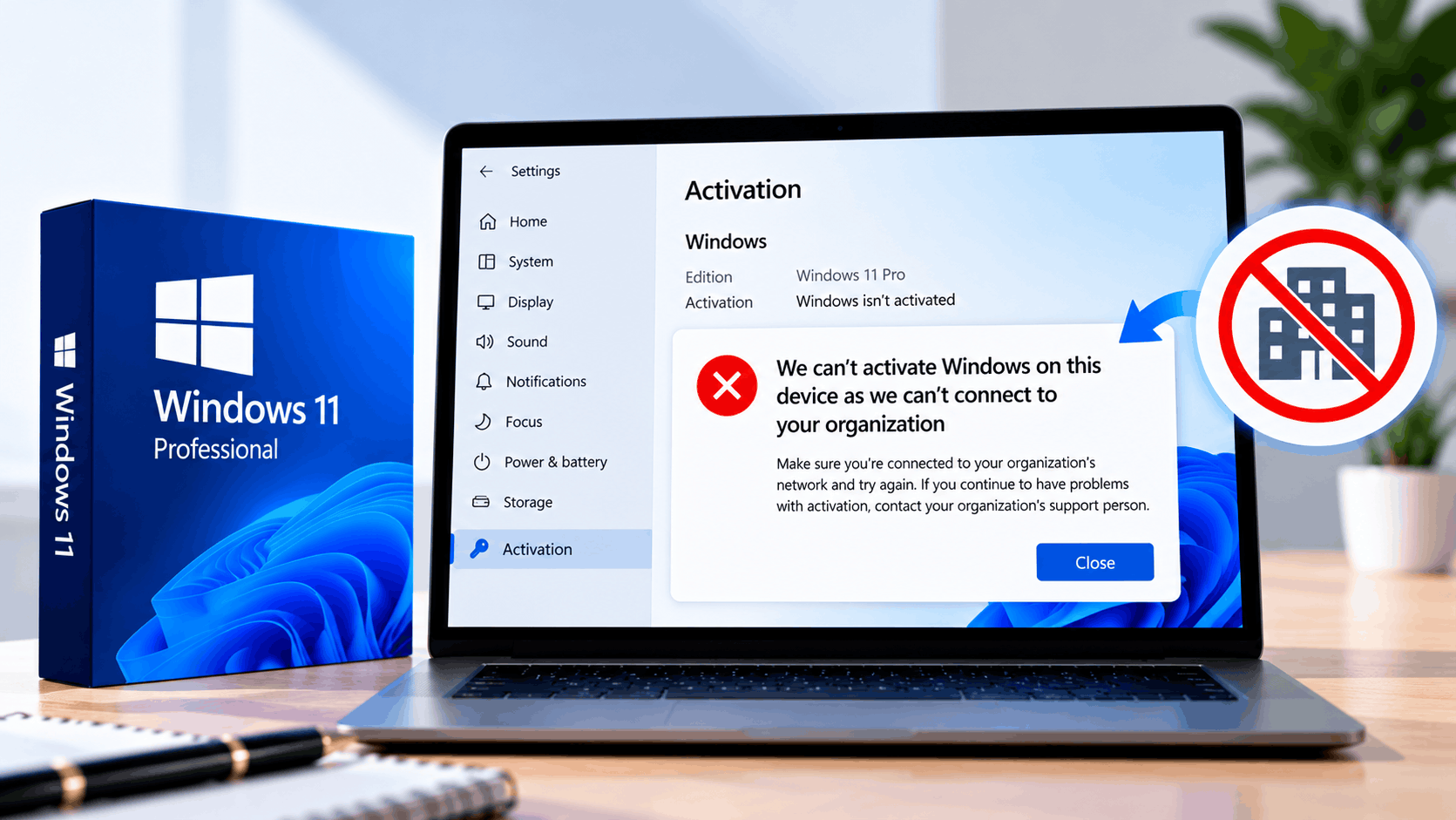
Open Settings › System › Activation and the message reads: “We can’t activate Windows on this device as we can’t connect to your organization’s activation server.” The odd part is that most people who see it don’t belong to any organization. It’s their own home PC or a laptop they bought second-hand.
This guide explains what the message really means, how to confirm the cause in under a minute, and how to fix “We can’t activate Windows on this device as we can’t connect to your organization” on Windows 11 and Windows 10. Most fixes take about five minutes and don’t touch your files.
The error means Windows is using a volume licence (KMS key). That kind of key is made for companies and schools, and it has to check in with the company’s own activation server. At home there is no such server, so activation fails with 0xC004F074, 0x8007007B or 0x8007232B.
The fix: if it’s a work PC, reconnect to the company network. If it’s your PC, replace the volume key with a genuine retail key in Settings › System › Activation › Change product key, or run slmgr /ipk and slmgr /ato. If Enterprise is installed, a Pro key switches it to Pro and keeps your files and apps.
What “Can’t Connect to Your Organization” Means
Windows can be licensed in a few ways. Home users get a retail key (bought on its own) or an OEM licence (built into a new PC). Companies, schools and governments buy volume licences instead, and most of them activate through a Key Management Service (KMS) server on their own network.
A PC with a KMS key doesn’t talk to Microsoft to activate. It looks for the company’s KMS server, and it has to reach that server regularly to stay activated. If it can’t find one, Windows shows the “organization’s activation server” message. Our guide to OEM, Retail, MAK and KMS licences explains the difference in more detail.
0xC004F074, 0x8007007B or 0x8007232B. All point to the same problem.Figure 1: Settings › System › Activation on a PC that is looking for a company activation server.
The error code under the message tells you which step failed. Microsoft documents them like this:
Whichever code you see, the cure on a personal PC is the same: replace the volume key with a licence that activates directly with Microsoft. The full list of activation error codes is on Microsoft Learn.
Why It Shows Up on a Home PC
If you’ve never worked for the company the message talks about, one of these is almost always the reason:
Refurbished Dell, HP and Lenovo business laptops often still carry the old employer’s volume licence. It works until the laptop can’t reach that company’s server, and then activation lapses.
Someone used an Enterprise ISO or a “pre-activated” download. These installs include a generic KMS key that can’t activate at home.
KMS activator tools fake a company server on the PC. When the tool is removed, blocked by antivirus, or a Windows update breaks it, the error appears.
Company laptops must reach the office KMS server at least every 180 days. Long remote work without the VPN can trigger this message.
In the first three cases, the PC has no valid licence for home use. Changing network settings won’t help, because there’s no company server to reach. You need a licence of your own.
Step 1: Check Which Licence Windows Is Using
This takes under a minute and tells you exactly which fix you need.
Press Win + X, then select Terminal (Admin). Choose Yes on the prompt.
Type slmgr /dli and press Enter. A small box opens after a few seconds.
Note the edition in the Name line and the channel in the Description line.
Windows PowerShell
Copyright (C) Microsoft Corporation. All rights reserved.

Install the latest PowerShell for new features and improvements! https://aka.ms/PSWindows

PS C:\WINDOWS\system32> slmgr /dli
PS C:\WINDOWS\system32>
Figure 2: slmgr /dli opens a Windows Script Host box that shows which licence Windows is using.
If the Description line says VOLUME_KMSCLIENT, you’ve confirmed the cause. If it says RETAIL or OEM_DM and you still get the organization message, a leftover KMS server setting is the likely culprit. Fix 3 clears it.
Which Fix Do You Need?
Match your situation to a fix below. You only need one of them, though Fix 5 must come first if an activator tool was ever used.
Figure 3: Pick your fix from what slmgr /dli told you.
Fix 1: Reconnect a Work or School PC to Its Network
If the PC belongs to your employer or school, the licence is valid. Windows just needs to reach the KMS server again.
- Connect to the office network or turn on the company VPN.
- Make sure the date and time are correct. KMS activation fails if the PC clock is more than 4 hours away from the server’s. Run
w32tm /resyncin an admin Terminal to sync it. - Run
slmgr /atoto try activation again. - Still failing? Contact your IT team. They can check the KMS server, DNS records and firewall port 1688, as Microsoft’s 0xC004F074 troubleshooting guide describes.
Fix 2: Replace the Volume Key in Settings
This is the easiest fix for a home PC running Windows 11 Home or Pro with a KMS key. You need a genuine retail key for the same edition that slmgr /dli showed. If you don’t have one, a Windows 11 Pro retail key or Windows 11 Home retail key works.
Press Win + I, then go to System › Activation.
Expand Upgrade your edition of Windows and select Change next to Change product key.
Type the 25-character key and select Next, then Activate.
Restart the PC and check that the Activation state reads Active.
Figure 4: Changing the product key from Settings. Windows swaps the volume key for your retail key.
Your files, apps and settings stay exactly where they are. Only the licence changes.
Fix 3: Replace the Key with slmgr Commands
Use this if the Settings button is greyed out, the key box rejects your key, or you want to fully clear the old KMS settings. It does the same job as Fix 2, plus it removes the stored KMS server name.
Open Terminal (Admin) with Win + X and run these commands one at a time:
Windows PowerShell
Copyright (C) Microsoft Corporation. All rights reserved.

Install the latest PowerShell for new features and improvements! https://aka.ms/PSWindows

PS C:\WINDOWS\system32> slmgr /upk1
PS C:\WINDOWS\system32> slmgr /cpky2
PS C:\WINDOWS\system32> slmgr /ckms3
PS C:\WINDOWS\system32> slmgr /ipk XXXXX-XXXXX-XXXXX-XXXXX-XXXXX4
PS C:\WINDOWS\system32> slmgr /ato5
PS C:\WINDOWS\system32>
slmgr /upk uninstalls the volume key. You’ll see “Uninstalled product key successfully.”slmgr /cpky removes the old key from the registry.slmgr /ckms clears any KMS server name that was set, so Windows stops looking for it.slmgr /ipk installs your retail key. Replace the X’s with your own key.slmgr /ato activates it online with Microsoft.Figure 5: The same fix in Terminal. Each command opens a Windows Script Host box. Select OK before you run the next one.
slmgr /ato returns 0xC004F074 again, the old key is still installed. Run slmgr /dli and check that the partial key now matches the last five characters of your new key.Fix 4: Enterprise Installed on a Home PC
If slmgr /dli shows Enterprise edition, you can’t activate it with a Home or Pro key as it is, and nobody sells Enterprise licences to individuals. The good news is that Microsoft lists Enterprise → Pro as a supported edition change. You enter a Pro key, Windows switches to Pro, and your apps and settings move across.
- Get a genuine Windows 11 Pro key.
- Go to Settings › System › Activation › Change product key and enter it, as in Fix 2.
- Windows prepares the edition change and restarts. Leave the PC plugged in.
- After the restart, check Settings › System › About. It should say Windows 11 Pro, and Activation should say Active.
Back up important files first, as you would before any system change. Moving from Enterprise to Home isn’t a supported key change, so for Home you need a clean install (Fix 7). Microsoft’s edition upgrade and downgrade table lists every supported path.
Fix 5: Remove an Unofficial Activator First
KMS activator tools set up a fake company server on the PC and add a scheduled task to keep renewing activation. They aren’t a licence, and many bundle malware. If one was ever used, clean it out before you enter a real key, or the leftovers can interfere.
- Uninstall the activator from Settings › Apps › Installed apps if it’s listed.
- Run a full scan in Windows Security › Virus & threat protection › Scan options › Full scan. Microsoft Defender flags most activators as a HackTool. Remove anything it finds.
- Run the commands in Fix 3.
slmgr /ckmsis the important one here, because it clears the fake server name. - Activate with a genuine key.
Fix 6: Use the Key Built Into Your PC
Most laptops and desktops sold with Windows since 2012 have a licence key stored in the firmware. If someone reinstalled Windows with a volume key, the original licence is still there. Read it with PowerShell. Microsoft has removed the old wmic command from current Windows 11 versions, so use this instead:
Windows PowerShell
Copyright (C) Microsoft Corporation. All rights reserved.

Install the latest PowerShell for new features and improvements! https://aka.ms/PSWindows

PS C:\WINDOWS\system32> (Get-CimInstance -ClassName SoftwareLicensingService).OA3xOriginalProductKey
XXXXX-XXXXX-XXXXX-XXXXX-XXXXX1

PS C:\WINDOWS\system32> (Get-CimInstance -ClassName SoftwareLicensingService).OA3xOriginalProductKeyDescription
[4.0] Core OEM:DM2

PS C:\WINDOWS\system32>
Figure 6: Reading the key stored in the PC’s firmware with PowerShell. Your real key appears where the X’s are.
- If a key appears and the edition matches what’s installed, enter it with Fix 2 or Fix 3.
- If the key is for Home but Pro or Enterprise is installed, you either need a Pro key, or a clean install of Home that activates on its own.
- If nothing appears, the PC never had a built-in licence. You’ll need a retail key.
The Activation troubleshooter can also find this licence. Select Troubleshoot on the Activation page. If it says it found a digital licence for a different edition, that’s your clue to install that edition.
Fix 7: Clean Install the Right Edition
Choose this if the PC has Enterprise and you want Home, if the install came from a modified “pre-activated” ISO, or if nothing above works. Download Windows 11 from Microsoft’s official page, back up your files, and install the edition your key is for. Our step-by-step guide to clean installing Windows 11 from USB covers every screen. Enter your key during setup, or choose I don’t have a product key if the PC has a built-in licence.
How to Confirm Windows Is Activated
Check two places once you’ve applied a fix.
Before
After
slmgr /xpr says permanently activated. A KMS key would show an expiry date here instead.Figure 7: How a fixed PC looks. The second check uses slmgr /xpr.
A KMS-activated work PC shows an expiry date in slmgr /xpr, usually up to 180 days ahead. A personal PC with a retail or OEM licence should say permanently activated. Sign in with a Microsoft account too, so the digital licence is linked to it. That makes reactivation much easier after a hardware change.
Troubleshooting: When the Fix Doesn’t Work
0xC004F050: “The product key you entered didn’t work.”
The key was typed wrong or is for a different Windows version. Check each character, and if you pasted it, make sure the dashes are plain hyphens.
0xC004F069 after slmgr /ipk
The key is for a different edition than the one installed, for example a Home key on Pro. Use a key that matches, or follow Fix 4 or Fix 7.
0xC004C008: “This product key has already been used.”
The key is activated on another PC. See our guide to fixing “product key already used” errors.
Still shows 0xC004F074 after entering a retail key
The KMS settings are still there. Run slmgr /upk, slmgr /cpky and slmgr /ckms, restart, then install and activate the key again.
Troubleshooter says it found a Home licence on a Pro install
The PC’s built-in licence is for Home. Either buy a Pro key, or clean install Home and it activates automatically.
Activation worked, then failed again weeks later
An activator task is probably still running. Repeat Fix 5, check Task Scheduler for tasks you don’t recognise, and run a full Defender scan.
Get a Genuine Windows 11 Key
A retail key activates directly with Microsoft’s servers, so it never needs a company network. Pick the edition that matches your install, or Pro if Enterprise is on the PC.
- Fixes this error on Pro and Enterprise installs
- BitLocker, Remote Desktop and Hyper-V
- Transferable to a new PC
- Fixes this error on Home installs
- Everything most home users need
- Transferable to a new PC
Not sure which licence type to choose? Read Retail vs OEM Windows 11 Pro keys or browse all Windows licences.
FAQs
What does “We can’t activate Windows on this device as we can’t connect to your organization” mean?
It means Windows is using a volume (KMS) licence, which is made for businesses and schools. That licence must check in with the organization’s own activation server. When the PC can’t reach one, activation fails.
Why do I get this error on my personal PC if I’m not part of any organization?
Usually because the PC was previously owned by a company, Windows was installed from Enterprise or modified media, or an unofficial KMS activator was used. In each case the PC has a volume key instead of a home licence.
Can I fix it without reinstalling Windows?
Yes, in most cases. Replace the volume key with a genuine retail key in Settings, System, Activation, Change product key, or with slmgr /ipk and slmgr /ato. Even Enterprise can switch to Pro with a Pro key. Only Enterprise to Home needs a clean install.
Will changing the product key delete my files or apps?
No. Changing the key only changes the licence. Moving from Enterprise to Pro also keeps your apps and settings, though it’s still wise to back up first.
Which error codes come with this message?
Most often 0xC004F074, 0x8007007B or 0x8007232B. All three mean Windows couldn’t find or reach a KMS activation server. On work networks you may also see 0xC004F038.
Is it safe to use a KMS activator to get rid of the message?
No. Activators don’t give you a licence, they break whenever Windows updates them out, and many contain malware. A genuine retail key is the only permanent fix.
I bought a used laptop that shows this error. What should I do?
Run slmgr /dli to see the edition, then check for a built-in key with PowerShell. If there’s no matching built-in key, buy a retail key for the installed edition, or a Pro key if Enterprise is installed.
How do I know the fix worked?
Settings, System, Activation should read Active, and slmgr /xpr should say the machine is permanently activated.
Summary
“We can’t activate Windows on this device as we can’t connect to your organization” isn’t a network fault on a home PC. It’s a licence problem. Check the licence with slmgr /dli. If it’s a company PC, reconnect it to the company network. If it’s yours, swap the volume key for a genuine retail key, and Windows activates directly with Microsoft. For more help, see Microsoft’s guide to error 0xC004F074 or our guide to KMS and generic keys.