
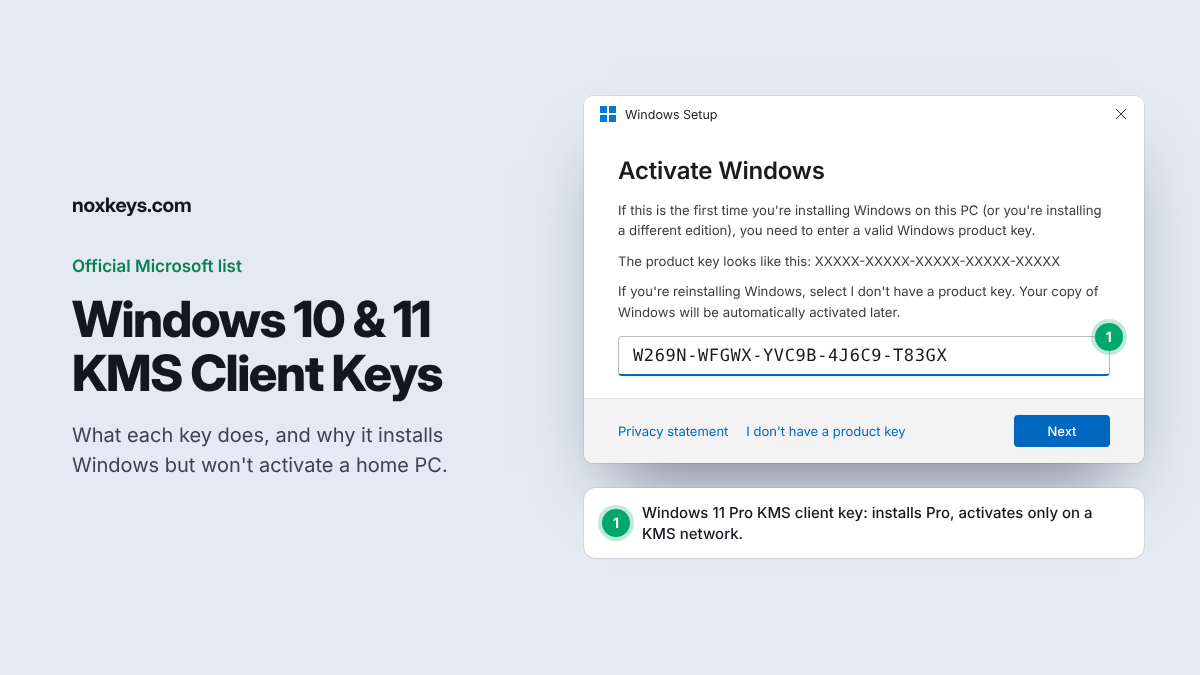
In short: Microsoft publishes a list of KMS client setup keys (also called GVLKs) for Windows 11 and Windows 10 Pro, Education and Enterprise. They let you install a specific edition, and they activate only against a company’s own KMS server. On a home or retail PC they will not activate Windows. To activate, you need a genuine licence: a digital licence already tied to your PC, or a retail product key.
Contents
- What KMS client keys are
- Official key list for Windows 11 and Windows 10
- What about Windows 11 Home and Windows 10 Home?
- Using a key during installation
- Pointing an installed PC at a KMS server
- What happens if Windows is not activated
- How to activate Windows properly
- FAQs
What KMS client keys are
Businesses with volume licences often run their own Key Management Service (KMS) server. Each PC on the network is installed with a KMS client setup key, finds the company’s KMS server, and activates against it. Microsoft publishes these setup keys openly because they are not licences. They only tell Windows which edition it is and that it should look for a KMS server.
Microsoft’s own documentation is clear on this: KMS client keys are for volume licensing, they cannot be used with retail editions, and they will not work as a retail licence. If there is no KMS server on your network, Windows installs with the key but stays unactivated.
Official key list for Windows 11 and Windows 10
Windows 11 and Windows 10 share the same KMS client setup keys. This table matches Microsoft’s KMS client activation and product keys page, which is the source to check if anything changes.
| Edition (Windows 11 and Windows 10) | KMS client setup key |
|---|---|
| Pro | W269N-WFGWX-YVC9B-4J6C9-T83GX |
| Pro N | MH37W-N47XK-V7XM9-C7227-GCQG9 |
| Pro for Workstations | NRG8B-VKK3Q-CXVCJ-9G2XF-6Q84J |
| Pro for Workstations N | 9FNHH-K3HBT-3W4TD-6383H-6XYWF |
| Pro Education | 6TP4R-GNPTD-KYYHQ-7B7DP-J447Y |
| Pro Education N | YVWGF-BXNMC-HTQYQ-CPQ99-66QFC |
| Education | NW6C2-QMPVW-D7KKK-3GKT6-VCFB2 |
| Education N | 2WH4N-8QGBV-H22JP-CT43Q-MDWWJ |
| Enterprise | NPPR9-FWDCX-D2C8J-H872K-2YT43 |
| Enterprise N | DPH2V-TTNVB-4X9Q3-TJR4H-KHJW4 |
| Enterprise G | YYVX9-NTFWV-6MDM3-9PT4T-4M68B |
| Enterprise G N | 44RPN-FTY23-9VTTB-MP9BX-T84FV |
“N” editions are the versions sold in Europe without some media apps preinstalled. LTSC editions have their own keys, listed on the same Microsoft page.
Need keys for Windows Server or Office as well? Our full list of generic product keys covers every key Microsoft publishes, and the Office GVLK guide explains the Office ones.
What about Windows 11 Home and Windows 10 Home?
Home editions are not part of volume licensing, so Microsoft’s KMS list has no Home keys. You do not need one to install Home. During setup, choose I don’t have a product key, pick Windows 11 Home, and finish the installation. If the PC already had an activated copy of Home, it usually reactivates by itself through its digital licence once it is online.
Using a key during installation
- Create a bootable USB with Microsoft’s installation media tool.
- Boot from the USB and start Windows Setup.

- Enter your own product key, a KMS client key if your organisation uses KMS, or choose I don’t have a product key.
- Select the edition that matches your licence and complete the installation.
Pointing an installed PC at a KMS server
This is only useful on a work network that runs a KMS host. Open Command Prompt as administrator and run these commands, replacing the key with the one for your edition and the server name with your organisation’s KMS host:
slmgr /ipk W269N-WFGWX-YVC9B-4J6C9-T83GX
slmgr /skms kms.yourcompany.local
slmgr /ato
On a home PC there is no KMS server, so slmgr /ato fails with an activation error. That is expected and is not something a different KMS key will fix.
What happens if Windows is not activated
| Area | Not activated | Activated |
|---|---|---|
| Security and quality updates | Still installed | Installed |
| Personalisation (wallpaper, colours, themes) | Locked | Available |
| “Activate Windows” watermark | Shown | Not shown |
| Settings reminders to activate | Shown | Not shown |
| Licence terms | Not licensed for ongoing use | Licensed |
How to activate Windows properly
- Reinstalling on the same PC? Check Settings > System > Activation after setup. A PC that was activated before usually reactivates on its own.
- Changed the motherboard? Use the Activation troubleshooter with your Microsoft account. Our guide on reactivating Windows 11 after a hardware change walks through it.
- New PC or no licence? You need a retail product key for the edition you installed, such as Windows 11 Pro or Windows 11 Home. Not sure which type of licence to buy? See OEM vs Retail vs MAK vs KMS licences.
FAQs
Are KMS client keys legal to use?
Yes. Microsoft publishes them openly. Using one to install Windows is fine, but it is not a licence. Activation through KMS is only valid on a network that runs a properly licensed KMS host.
Will a KMS client key activate Windows on my home PC?
No. KMS client keys activate only against an organisation’s KMS server. Without one, Windows installs but stays unactivated.
Is there a KMS key for Windows 11 Home?
No. Home is not a volume licensing edition, so Microsoft does not publish a KMS key for it. Choose I don’t have a product key during setup instead.
Can I keep using Windows without activating it?
Windows keeps running and installing security updates, but personalisation is locked, a watermark appears, and you are not licensed for ongoing use.
What is the difference between a KMS key and a retail key?
A KMS client key only selects the edition and needs a KMS server to activate. A retail key is a licence in its own right and activates directly with Microsoft.